
Sign In Start Free Trial
Account

Add to playlist

Create a Playlist

Modal Close icon
You need to login to use this feature.
  • Book Overview & Buying Lua Quick Start Guide
  • Table Of Contents Toc
Lua Quick Start Guide

Lua Quick Start Guide

By : Gabor Szauer
3.6 (8)
close
close
Lua Quick Start Guide

Lua Quick Start Guide

3.6 (8)
By: Gabor Szauer

Overview of this book

Lua is a small, powerful and extendable scripting/programming language that can be used for learning to program, and writing games and applications, or as an embedded scripting language. There are many popular commercial projects that allow you to modify or extend them through Lua scripting, and this book will get you ready for that. This book is the easiest way to learn Lua. It introduces you to the basics of Lua and helps you to understand the problems it solves. You will work with the basic language features, the libraries Lua provides, and powerful topics such as object-oriented programming. Every aspect of programming in Lua, variables, data types, functions, tables, arrays and objects, is covered in sufficient detail for you to get started. You will also find out about Lua's module system and how to interface with the operating system. After reading this book, you will be ready to use Lua as a programming language to write code that can interface with the operating system, automate tasks, make playable games, and much more. This book is a solid starting point for those who want to learn Lua in order to move onto other technologies such as Love2D or Roblox. A quick start guide is a focused, shorter title that provides a faster paced introduction to a technology. It is designed for people who don't need all the details at this point in their learning curve. This presentation has been streamlined to concentrate on the things you really need to know.
Table of Contents (10 chapters)
close
close

Hello World!

It is common practice when first learning a new programming language to create a Hello World program. This is a simple program that prints the words Hello World to the screen. The goal of this exercise is to write, compile (or interpret), and run a simple piece of code to prove that you can execute it.

The program will be written using Visual Studio Code, but how will it be executed? Visual Studio Code provides an Integrated Terminal. This is a Terminal that should work the same way regardless of what operating system you are using. It's important to note that whatever code gets executed through this Terminal can also be executed through the operating system Terminal/shell.

Being able to perform the same steps regardless of operating system can save time and reduce errors. For this reason, future chapters will assume code will be executed in VS Code instead of the native Terminal of each operating system.

The Lua interpreter was set up as a global command in the console of your operating system. You should be able to execute any Lua file with the command lua from a console/Terminal.

Follow these steps to create a Hello World program, save it, and execute it on any platform (macOS, Windows 10, or Linux):

  1. Open Visual Studio Code and make a new document with File > New.
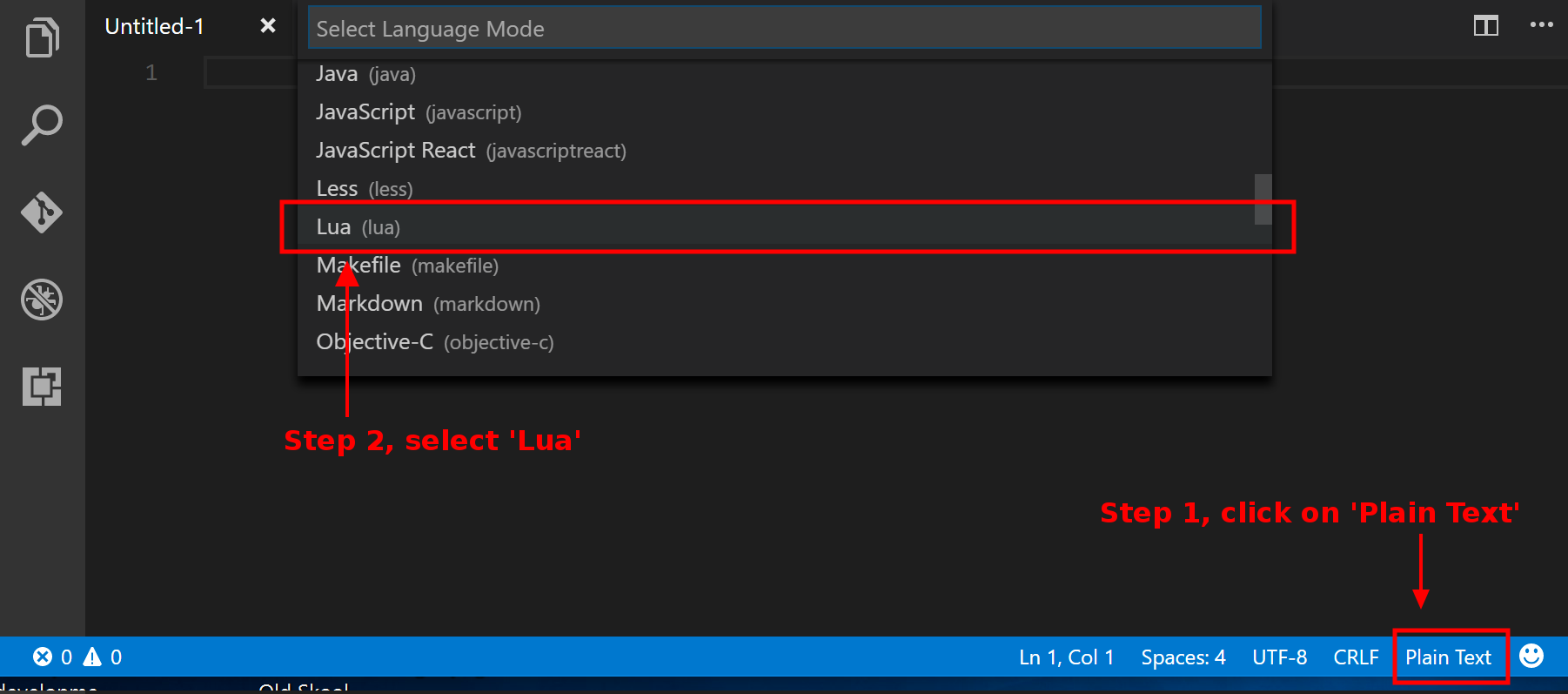
  2. Set the syntax highlighting of this file to the Lua syntax. Click on the Plain Text label in the bottom right of the code tab, then select Lua (lua) from the drop-down menu that appears:
  1. In this new file, type print ('hello, world'):
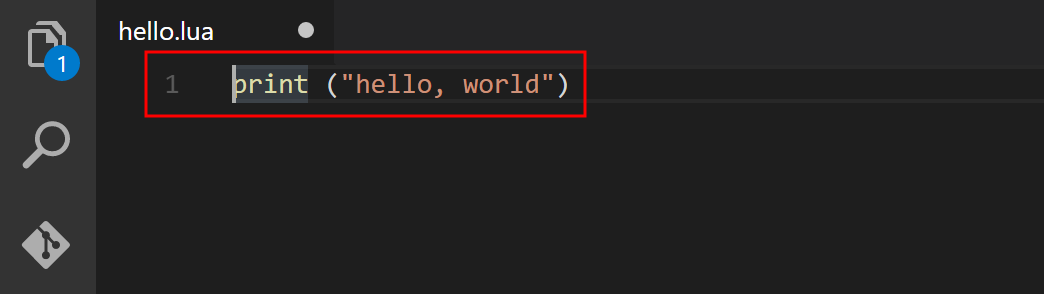
  1. Save the file to your desktop and name it hello.lua.
  2. From the top menu of Visual Studio Code, select View > Integrated Terminal.
  3. On all platforms, if you did not have a folder open, the editor starts out in your home directory. If you did have a folder open, the editor starts out in the folder. Navigate to your desktop with the following command: cd ~/Desktop; the ~/ part of the path is shorthand for home directory:
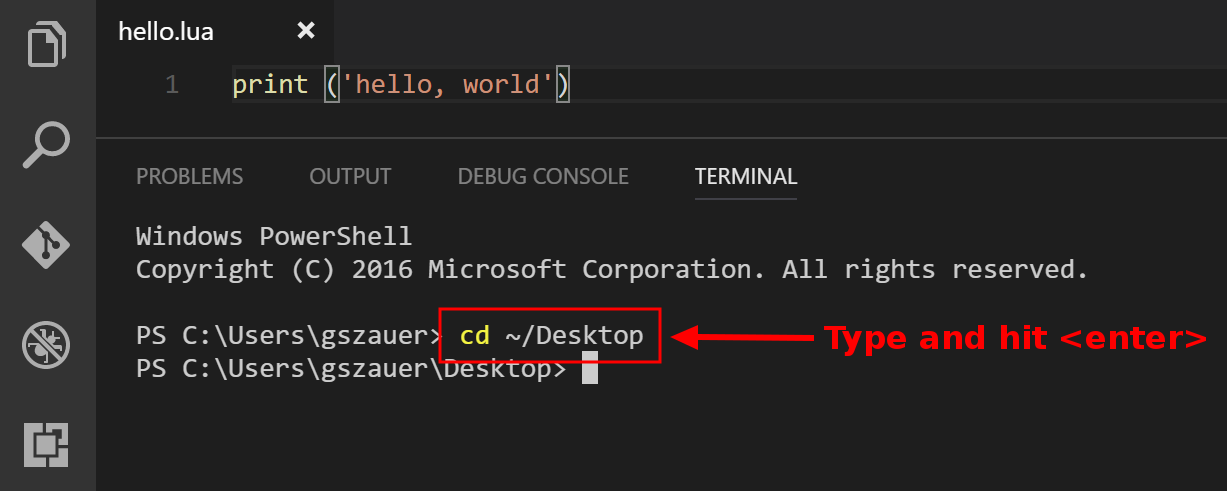
  1. Now that the Terminal has the desktop directory open (which is where hello.lua should be saved), you can execute the Lua file with the following command: lua hello.lua. You should see hello, world printed to the Terminal.

The last step invoked the Lua binary from the Terminal of Visual Studio with the hello.lua file as an argument. This, in turn, launched the Lua runtime, which executed the file that was provided as an argument. If the Lua runtime did not launch, you may want to review how to set the runtime up in the Tools for Lua section.

CONTINUE READING
83
Tech Concepts
36
Programming languages
73
Tech Tools
Icon Unlimited access to the largest independent learning library in tech of over 8,000 expert-authored tech books and videos.
Icon Innovative learning tools, including AI book assistants, code context explainers, and text-to-speech.
Icon 50+ new titles added per month and exclusive early access to books as they are being written.
Lua Quick Start Guide
notes
bookmark Notes and Bookmarks search Search in title playlist Add to playlist download Download options font-size Font size

Change the font size

margin-width Margin width

Change margin width

day-mode Day/Sepia/Night Modes

Change background colour

Close icon Search
Country selected

Close icon Your notes and bookmarks

Confirmation

Modal Close icon
claim successful

Buy this book with your credits?

Modal Close icon
Are you sure you want to buy this book with one of your credits?
Close
YES, BUY

Submit Your Feedback

Modal Close icon
Modal Close icon
Modal Close icon