-
Book Overview & Buying

-
Table Of Contents

Quantum Computing in Practice with Qiskit® and IBM Quantum Experience®
By :


Quantum Computing in Practice with Qiskit® and IBM Quantum Experience®
By:
Overview of this book
IBM Quantum Experience® is a leading platform for programming quantum computers and implementing quantum solutions directly on the cloud. This book will help you get up to speed with programming quantum computers and provide solutions to the most common problems and challenges.
You’ll start with a high-level overview of IBM Quantum Experience® and Qiskit®, where you will perform the installation while writing some basic quantum programs. This introduction puts less emphasis on the theoretical framework and more emphasis on recent developments such as Shor’s algorithm and Grover’s algorithm. Next, you’ll delve into Qiskit®, a quantum information science toolkit, and its constituent packages such as Terra, Aer, Ignis, and Aqua. You’ll cover these packages in detail, exploring their benefits and use cases. Later, you’ll discover various quantum gates that Qiskit® offers and even deconstruct a quantum program with their help, before going on to compare Noisy Intermediate-Scale Quantum (NISQ) and Universal Fault-Tolerant quantum computing using simulators and actual hardware. Finally, you’ll explore quantum algorithms and understand how they differ from classical algorithms, along with learning how to use pre-packaged algorithms in Qiskit® Aqua.
By the end of this quantum computing book, you’ll be able to build and execute your own quantum programs using IBM Quantum Experience® and Qiskit® with Python.
Table of Contents (12 chapters)
Preface


Chapter 1: Preparing Your Environment
 Free Chapter
Chapter 2: Quantum Computing and Qubits with Python

Chapter 3: IBM Quantum Experience® – Quantum Drag and Drop
Chapter 4: Starting at the Ground Level with Terra
Chapter 5: Touring the IBM Quantum® Hardware with Qiskit®
Chapter 6: Understanding the Qiskit® Gate Library
Chapter 7: Simulating Quantum Computers with Aer
Chapter 8: Cleaning Up Your Quantum Act with Ignis
Chapter 9: Grover's Search Algorithm
Chapter 10: Getting to Know Algorithms with Aqua
Other Books You May Enjoy
 ) and phi (
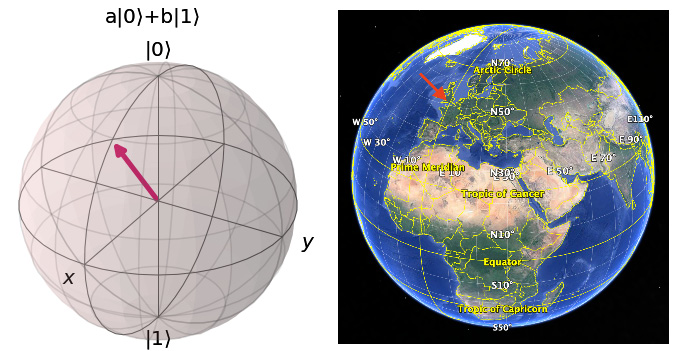
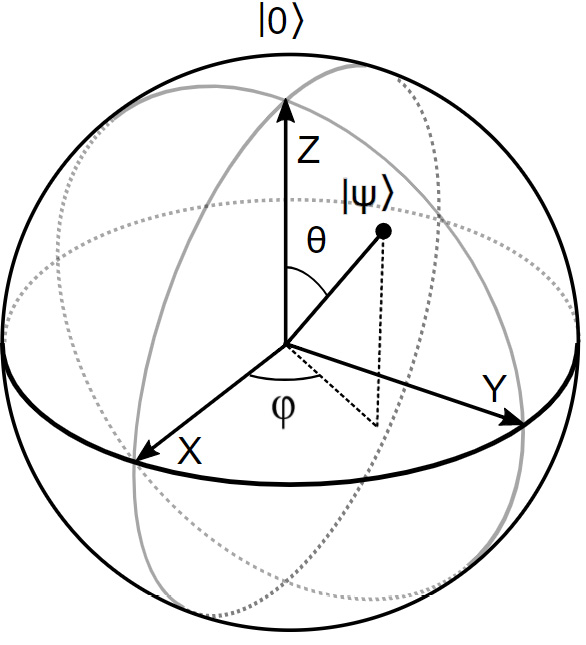
 )—and visualize the qubit on a Bloch sphere. You can think of the
  and
and  angles much as the latitude and longitude of the earth. On the Bloch sphere, we can project any possible value that the qubit can take.

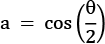
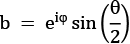
 is
is  , or up, and
  is
is  , or down, which is intuitively not what you expect. You would think that 1, or a more exciting qubit, would be a vector pointing upward, but this is not the case; it points down. So, I will do the same with the poor classical bits as well: 0 means up and 1 means down.
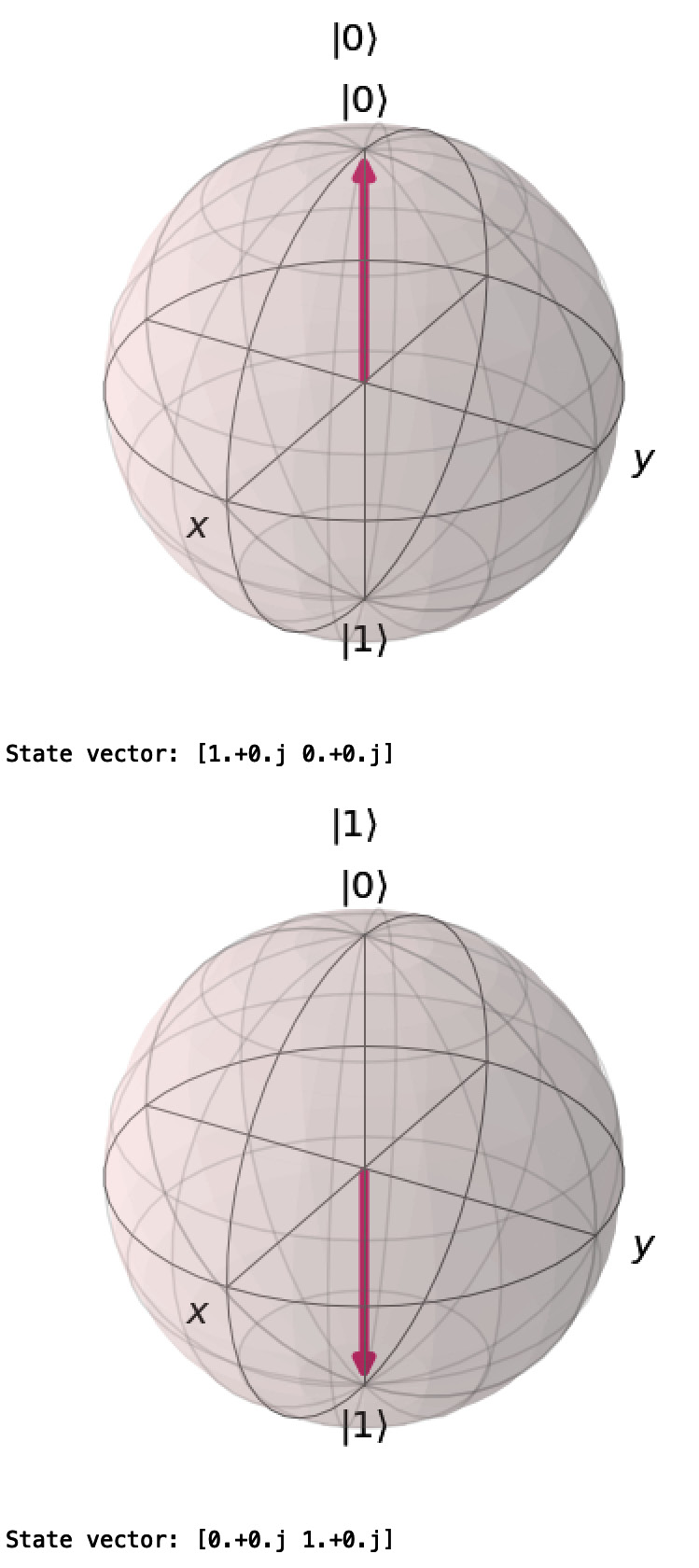
 pointing straight up for
  (a=1, b=0),
  pointing straight down for
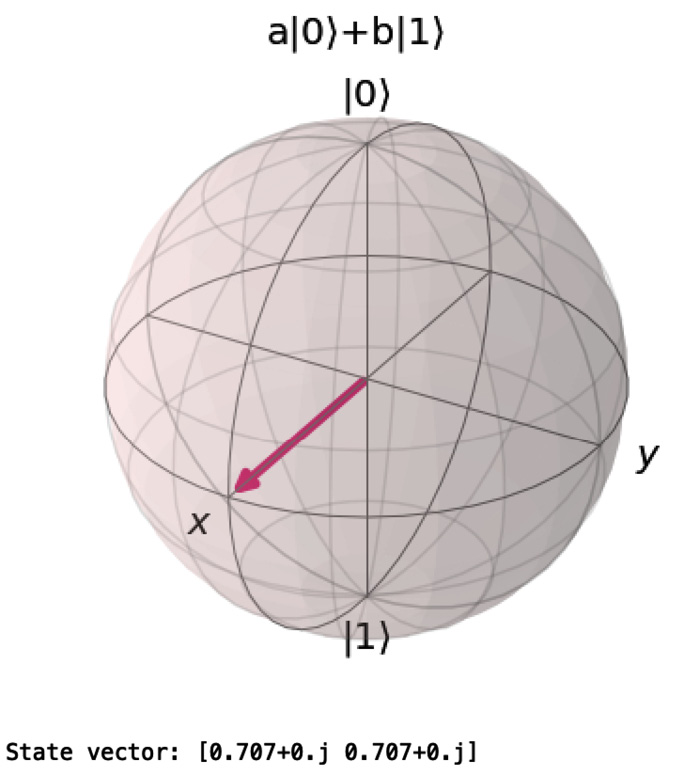
  points to the equator for the basic superposition where
  .
. and
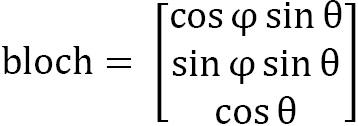
and  angles as latitude and longitude coordinates on the Bloch sphere. We will code the 0, 1,
  ,
,  states with the corresponding angles. As we can set these angles to any latitude and longitude value we want, we can put the qubit state vector wherever we want on the Bloch sphere:
 meaning straight down for our basic bits and qubits: 0, 1,
  , and
, and  . Theta
  takes us halfway, to the equator, and we use that for the superposition qubit,
  .
.
.jpg)

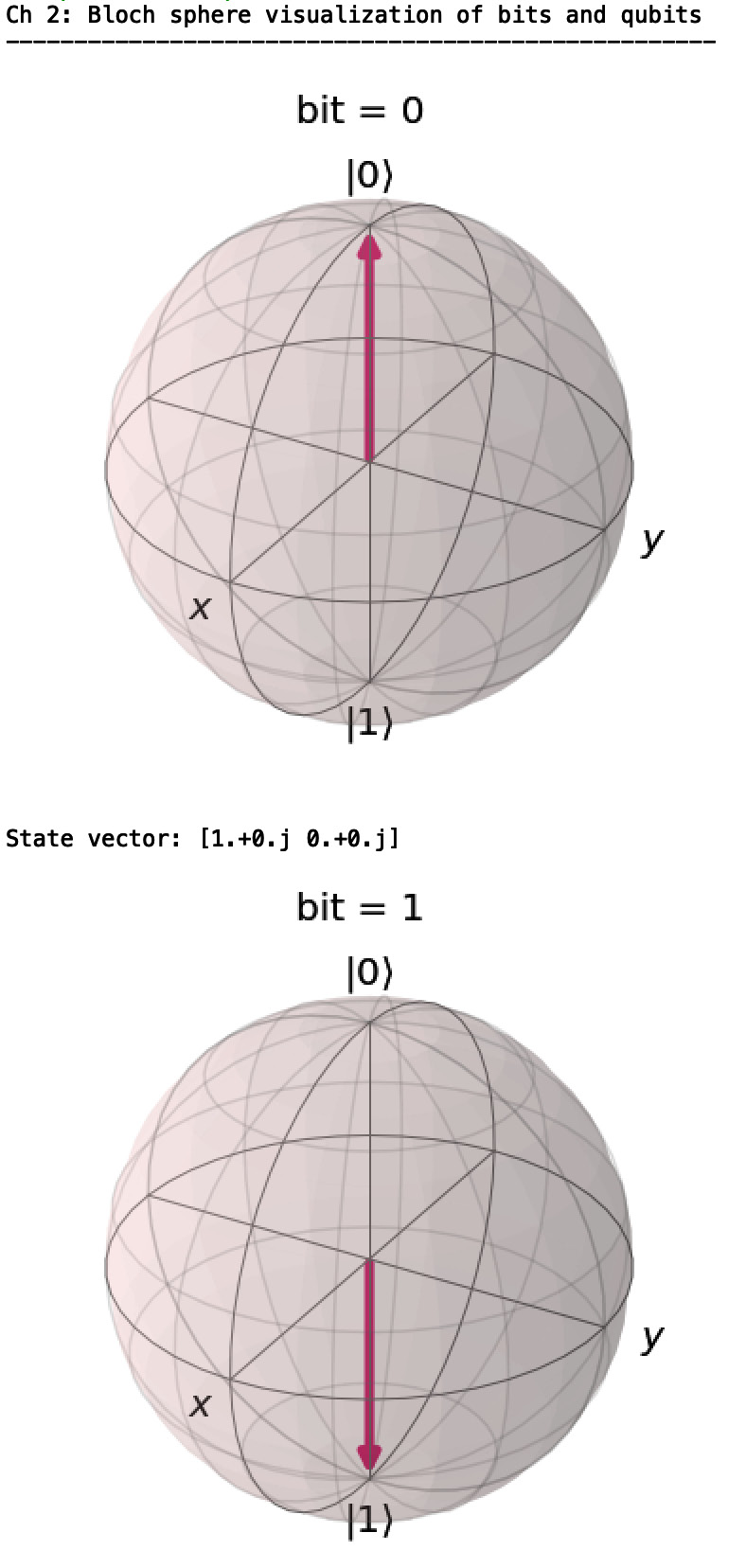
 and
and  :
:
 and
and  :
:
 , and
, and  displays. They simply point up and down to the north and south pole of the Bloch sphere as appropriate. If we check what the value of the bit or qubit is by measuring it, we will get 0 or 1 with 100% certainty.
 , on the other hand, points to the equator. From the equator, it is an equally long distance to either pole, thus a 50/50 chance of getting a 0 or a 1.
  and
and  for the
  qubit:
 and
and  .
.  and
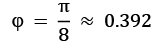
and  values. Let's test what we can do by running the script again and plugging in some angles.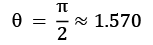
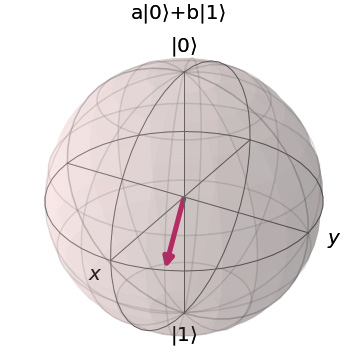

 but now at
  angle to the x axis. You can also take a look at the state vector: [0.707+0.j 0.653+0.271j].
 and
and  angles to get other a and b entries and see where you end up. No need to include 10+ decimals for these rough estimates, two or three decimals will do just fine. Try plotting your hometown on the Bloch sphere. Remember that the script wants the input in radians and that theta starts at the North Pole, not at the equator. For example, the coordinates for Greenwich Observatory in England are 51.4779° N, 0.0015° W, which translates into:
  ,
,  .
.