Sign In Start Free Trial
Account

Add to playlist

Create a Playlist

Modal Close icon
You need to login to use this feature.
  • Book Overview & Buying Deploying Microsoft 365 Teamwork: Exam MS-300 Guide
  • Table Of Contents Toc
Deploying Microsoft 365 Teamwork: Exam MS-300 Guide

Deploying Microsoft 365 Teamwork: Exam MS-300 Guide

By : Aaron Guilmette
4.3 (4)
close
close
Deploying Microsoft 365 Teamwork: Exam MS-300 Guide

Deploying Microsoft 365 Teamwork: Exam MS-300 Guide

4.3 (4)
By: Aaron Guilmette

Overview of this book

The Microsoft MS-300 exam is designed to test the knowledge and skills of administrators in deploying, configuring, and managing SharePoint Online, SharePoint Server, SharePoint Hybrid, OneDrive for Business, and Teams. This book offers up-to-date coverage of the important topics based on the MS-300 exam and features question answers and insider tips to help you prepare for certification. Written in a clear, succinct way, the book starts by helping you configure and manage SharePoint Online. You’ll then delve into OneDrive for Business, right from managing users and groups, through to monitoring sharing and security. Further chapters will guide you through working with Teams, with an emphasis on managing identity authentication, resolving issues with the service, and even observing usage patterns. Later, you’ll get up to speed with workload integrations, covering the Yammer business communications platform, before moving on to understand how to integrate Microsoft Stream with SharePoint, Teams, and Yammer. Finally, you’ll learn to develop data governance and user adoption strategies. By the end of this book, you'll be well-versed with SharePoint Online and have learned the essential techniques and concepts you need to know in order to pass the MS-300 certification exam.
Table of Contents (24 chapters)
close
close
22
Assessment Answers

Introduction to site collections

Site collections and site hierarchies have been part of the SharePoint experience for quite some time, and those structural components continue to be available in SharePoint Online. However, SharePoint Online features one new structural paradigm that doesn't really exist fully on-premises: the hub site. As such, we can divide SharePoint architecture generally into two categories: classic and modern.

Classic SharePoint

The classic architecture is what we're familiar with; it has a curated look and feel and is typically static. Classic sites and site collections are built using a wide range of specialized templates, grouped into three families (Collaboration, Enterprise, and Publishing). The classic architecture is available in both SharePoint Server and SharePoint Online.

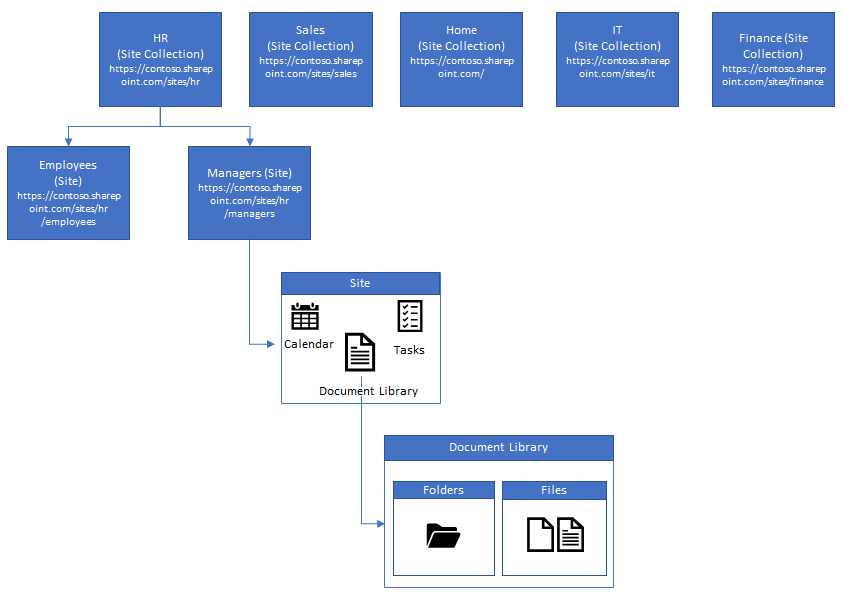
An example of classic architecture in SharePoint Online can be expressed with the following diagram:

Content and applications are organized into sites, and then sites are further grouped into site collections, usually by business function, department, or agency. In classic SharePoint architectures, these can be arranged into logical hierarchies, as pictured in the preceding diagram. Classic SharePoint sites have a rigid structure—a document's location is dependent on its placement inside the site and site collection hierarchy. Using the preceding diagram, you may place a file called Performance Review Template in the document library on the Managers (Site), which is located inside the HR site collection. To navigate to it, you would navigate first to the HR site collection, locate the Managers site, expand the document library, and then expand the appropriate folder containing the document.

If a site needs to move from one site collection or hierarchy to another (for example, moving the Employees site from the HR site collection to the Home site collection), then a site migration must be performed. When this happens, all of the paths and URLs to documents and data stored in that site will change, causing bookmarks and file-sharing links to become invalidated.

Modern SharePoint

The modern architecture uses Office 365 Group-connected sites. In contrast to classic architecture, modern sites have no defined hierarchy. From a security boundary perspective, a modern site is essentially the same as a classic site collection. With the introduction of Office 365 Groups (and their integration into SharePoint), Microsoft also introduced a new SharePoint organizational concept: the hub site. Whereas classic SharePoint sites and site collections are organized hierarchically, modern SharePoint sites are organized by association with a hub site.

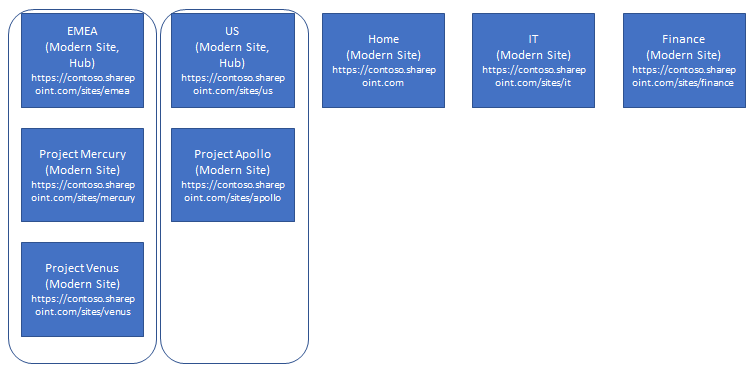
In the following diagram, notice how the site URLs are all at a peer level—there is no path hierarchy beyond the /sites/ URL:

The two sites, EMEA and US, are designated as hubs in modern SharePoint. This means that other related sites can be grouped with them. Suppose the organization whose SharePoint architecture is pictured in the preceding diagram wants to move the responsibility or association of Project Venus from EMEA to US. In classic SharePoint architecture, this would require creating a new site under the US site collection, copying the content into it (and breaking all of the links to that content), and then destroying the source site.

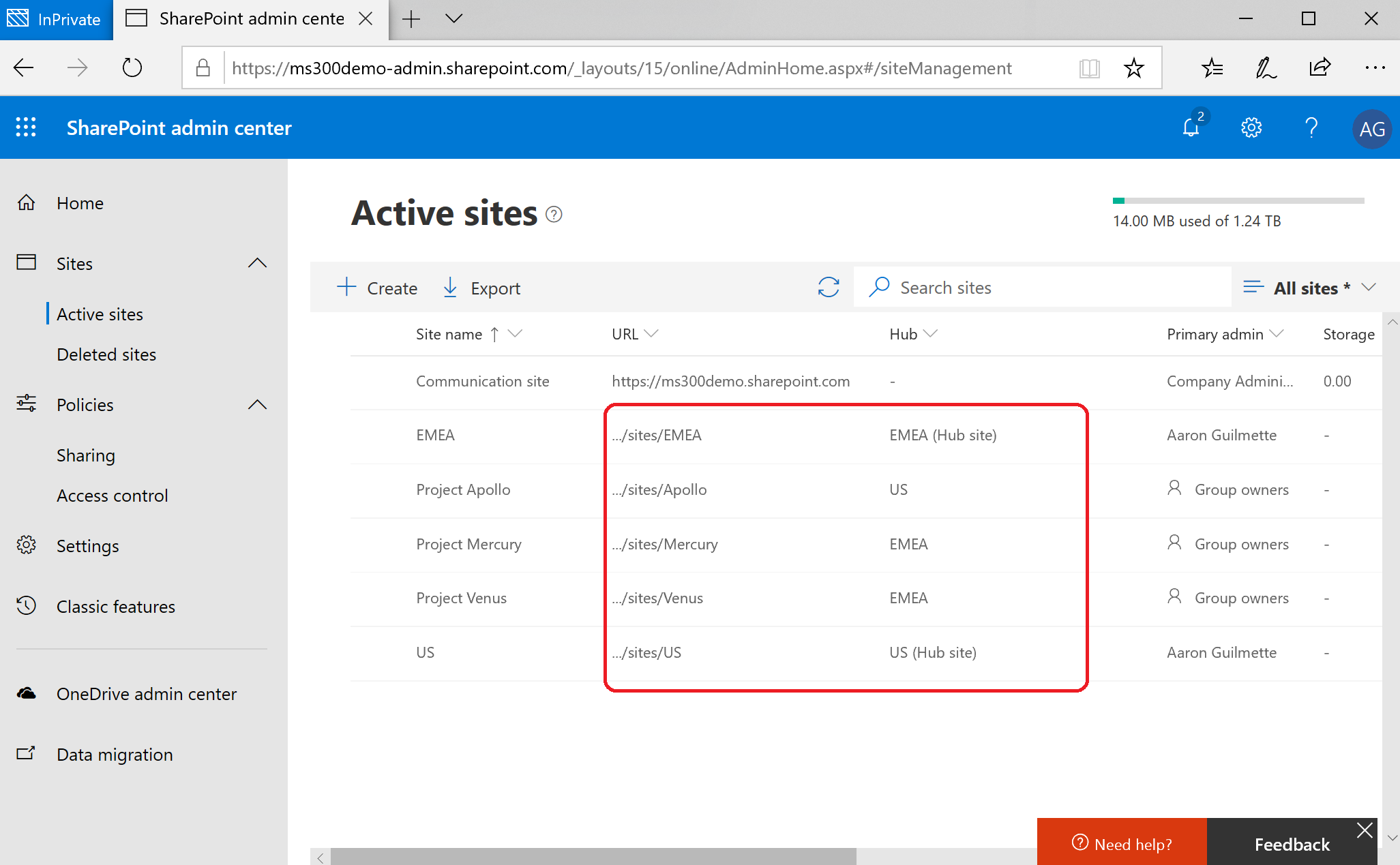
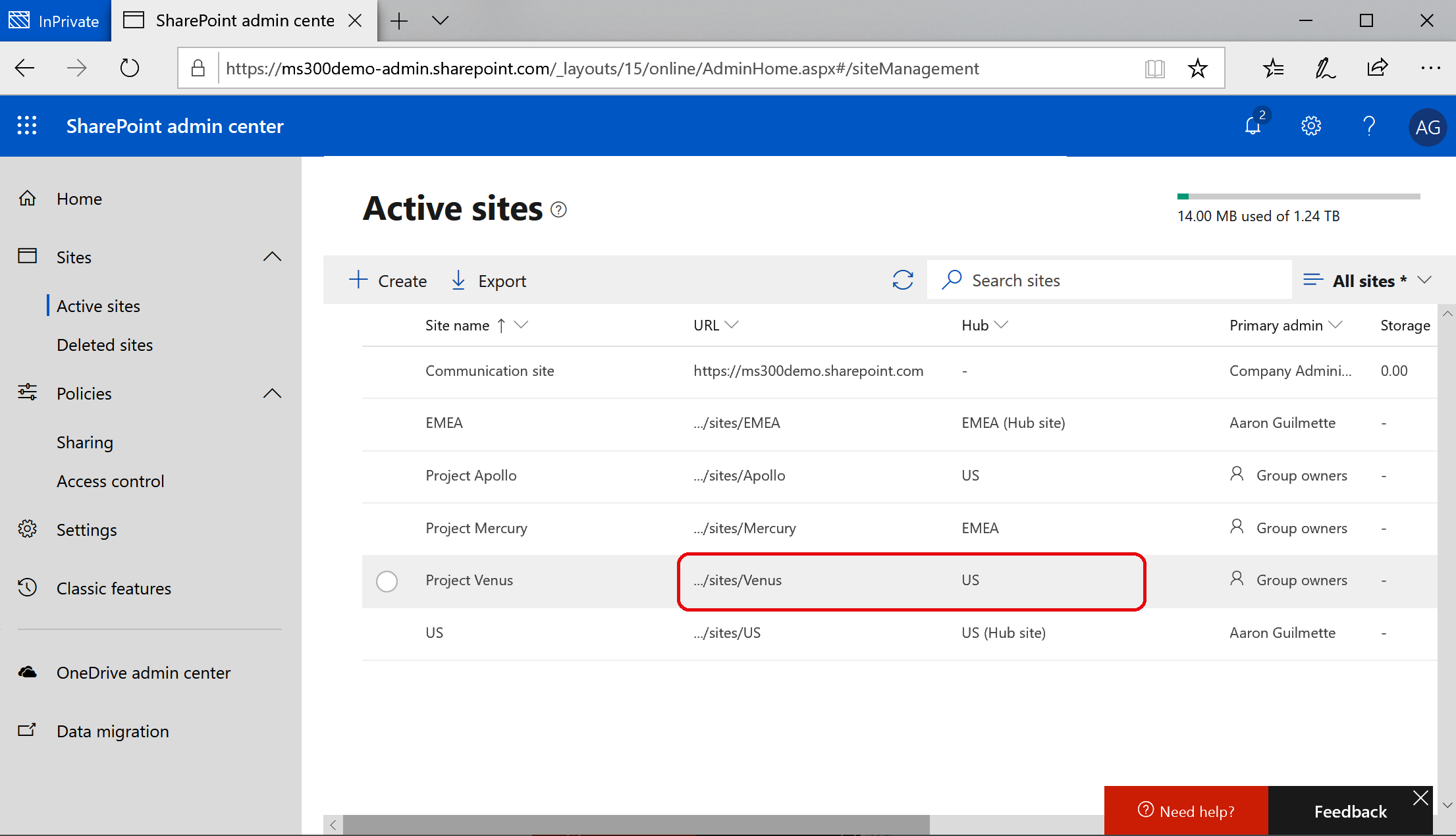
With modern SharePoint, it's as simple as going into the SharePoint admin center and choosing to associate the site with a new hub. From the SharePoint admin center, note the current site associations and relative paths of the URLs:

As you can see, all of the sites are located directly underneath the /sites/ root. Hub sites are designed to be relational—that is, grouped together. There's no hierarchy in hub sites aside from the site you designate as a hub. You can't nest hub sites.

In our example, the business has decided that Project Venus now needs to be associated with the US hub site. You can see in the following screenshot that we have updated the site's logical association and grouping while maintaining its security and full path. Everyone who had access to it before has access to it now, and all of the sharing links that were bookmarked and used before can continue to be used:

This new level of flexibility is designed to help today's rapidly changing organizations to adapt as quickly as they need to, minimizing the amount of rework necessary to adapt and align their infrastructure to their strategy.

Each Office 365 tenant can host up to 100 hub sites, and each hub site can have any number of sites associated with it. Modern sites, when they are created, have defined security group membership and do not inherit any permissions from other sites associated with the hub or the hub site itself.

SharePoint hub sites allow you to have shared navigation and branding appear on each site associated with the hub as well as rolling up search results from associated sites.

CONTINUE READING
83
Tech Concepts
36
Programming languages
73
Tech Tools
Icon Unlimited access to the largest independent learning library in tech of over 8,000 expert-authored tech books and videos.
Icon Innovative learning tools, including AI book assistants, code context explainers, and text-to-speech.
Icon 50+ new titles added per month and exclusive early access to books as they are being written.
Deploying Microsoft 365 Teamwork: Exam MS-300 Guide
notes
bookmark Notes and Bookmarks search Search in title playlist Add to playlist download Download options font-size Font size

Change the font size

margin-width Margin width

Change margin width

day-mode Day/Sepia/Night Modes

Change background colour

Close icon Search
Country selected

Close icon Your notes and bookmarks

Confirmation

Modal Close icon
claim successful

Buy this book with your credits?

Modal Close icon
Are you sure you want to buy this book with one of your credits?
Close
YES, BUY

Submit Your Feedback

Modal Close icon
Modal Close icon
Modal Close icon