-
Book Overview & Buying
-
Table Of Contents

Data Smart
By :


Data Smart
By:
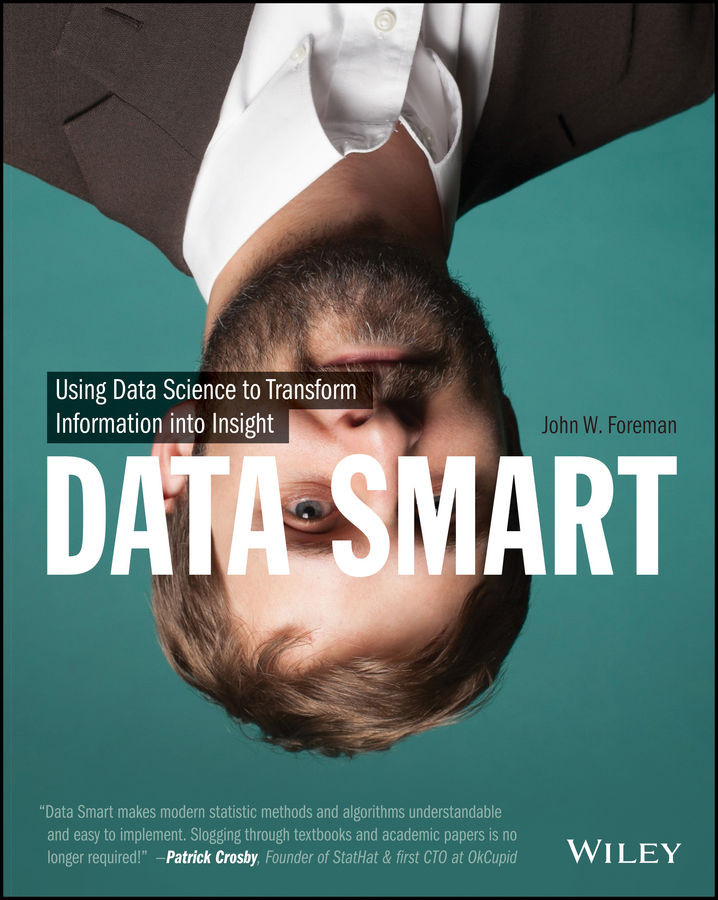
Overview of this book
Data Science gets thrown around in the press like it's magic. Major retailers are predicting everything from when their customers are pregnant to when they want a new pair of Chuck Taylors. It's a brave new world where seemingly meaningless data can be transformed into valuable insight to drive smart business decisions.
But how does one exactly do data science? Do you have to hire one of these priests of the dark arts, the "data scientist," to extract this gold from your data? Nope.
Data science is little more than using straight-forward steps to process raw data into actionable insight. And in Data Smart, author and data scientist John Foreman will show you how that's done within the familiar environment of a spreadsheet.
Why a spreadsheet? It's comfortable! You get to look at the data every step of the way, building confidence as you learn the tricks of the trade. Plus, spreadsheets are a vendor-neutral place to learn data science without the hype.
But don't let the Excel sheets fool you. This is a book for those serious about learning the analytic techniques, math and the magic, behind big data.
Table of Contents (18 chapters)


Credits

About the Author
About the Technical Editors
Acknowledgments
Introduction
Chapter 1: Everything You Ever Needed to Know about Spreadsheets but Were Too Afraid to Ask

Chapter 2: Cluster Analysis Part I: Using K-Means to Segment Your Customer Base
Chapter 3: Naïve Bayes and the Incredible Lightness of Being an Idiot
Chapter 4: Optimization Modeling: Because That “Fresh Squeezed” Orange Juice Ain't Gonna Blend Itself
Chapter 5: Cluster Analysis Part II: Network Graphs and Community Detection
Chapter 6: The Granddaddy of Supervised Artificial Intelligence—Regression
Chapter 7: Ensemble Models: A Whole Lot of Bad Pizza
Chapter 8: Forecasting: Breathe Easy, You Can't Win
Chapter 9: Outlier Detection: Just Because They're Odd Doesn't Mean They're Unimportant
Chapter 10: Moving From Spreadsheets into R
End User License Agreement