Sign In Start Free Trial
Account

Add to playlist

Create a Playlist

Modal Close icon
You need to login to use this feature.
  • Book Overview & Buying Okta Administration: Up and Running
  • Table Of Contents Toc
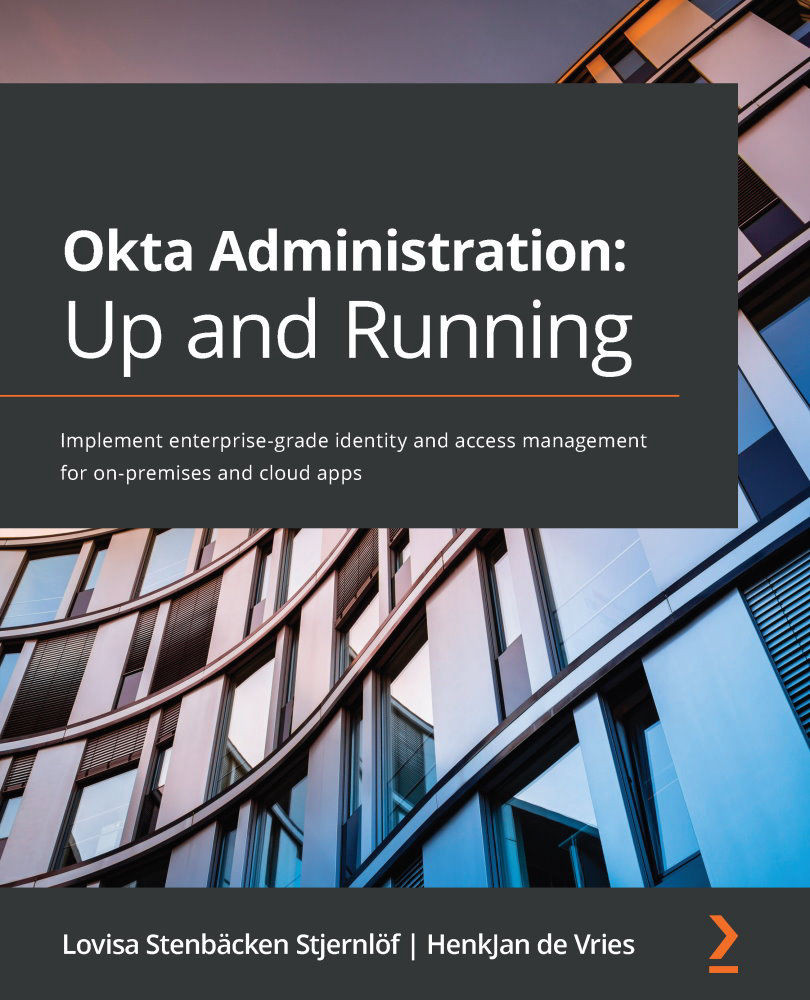
Okta Administration: Up and Running

Okta Administration: Up and Running

By : Lovisa Stenbäcken Stjernlöf, HenkJan de Vries
4.6 (8)
close
close
Okta Administration: Up and Running

Okta Administration: Up and Running

4.6 (8)
By: Lovisa Stenbäcken Stjernlöf, HenkJan de Vries

Overview of this book

IAM, short for identity and access management, is a set of policies and technologies for ensuring the security of an organization through careful role and access assignment for users and devices. With this book, you’ll get up and running with Okta, an identity and access management (IAM) service that you can use for both employees and customers. Once you’ve understood how Okta can be used as an IAM platform, you’ll learn about the Universal Directory, which covers how to integrate other directories and applications and set up groups and policies. As you make progress, the book explores Okta’s single sign-on (SSO) feature and multifactor authentication (MFA) solutions. Finally, you will delve into API access management and discover how you can leverage Advanced Server Access for your cloud servers and Okta Access Gateway for your on-premises applications. By the end of this Okta book, you’ll have learned how to implement Okta to enhance your organization's security and be able to use this book as a reference guide for the Okta certification exam.
Table of Contents (13 chapters)
close
close
1
Section 1: Getting Started with Okta
8
Section 2: Extending Okta

Setting up self-service options

Users have their personal dashboards to see and manage their applications. For applications integrated with SAML or OIDC, they would be automatically signed in when clicking on any of them. For SWA applications, where admins have set that end users will enter their own credentials, they will be prompted to do so the first time they click on an icon. Once they are logged in, Okta will ask whether the login was successful. If the answer is yes, the credentials will be stored. If not, the end user will be able to try again.

The end users can re-arrange their applications by simply clicking and dragging. To find applications quickly, you can arrange applications in different sections or simply use the search bar at the top of the page.

With the Add Applications feature in the dashboard for end users, they can add private applications or corporate-owned applications if this is enabled. Navigate to Applications | Self Service in the admin console. In...

CONTINUE READING
83
Tech Concepts
36
Programming languages
73
Tech Tools
Icon Unlimited access to the largest independent learning library in tech of over 8,000 expert-authored tech books and videos.
Icon Innovative learning tools, including AI book assistants, code context explainers, and text-to-speech.
Icon 50+ new titles added per month and exclusive early access to books as they are being written.
Okta Administration: Up and Running
notes
bookmark Notes and Bookmarks search Search in title playlist Add to playlist font-size Font size

Change the font size

margin-width Margin width

Change margin width

day-mode Day/Sepia/Night Modes

Change background colour

Close icon Search
Country selected

Close icon Your notes and bookmarks

Confirmation

Modal Close icon
claim successful

Buy this book with your credits?

Modal Close icon
Are you sure you want to buy this book with one of your credits?
Close
YES, BUY

Submit Your Feedback

Modal Close icon
Modal Close icon
Modal Close icon