SQL (pronounced sequel) is a programming language commonly used to communicate with relational databases. It can be used for a variety of tasks, such as inserting, updating, or deleting records. However, in Tableau, it is largely limited to retrieving records of interest for analysis and reporting purposes.
Though some SQL queries may be long and complex, the keywords used by SQL use natural language, and clauses (pieces of logic) are often structured in a logical manner. Take the following query, which is pulling through the latest 1,000 records from a PostgreSQL database table:
SELECT * ← Select all records ('*' is a wildcard character)
FROM "Database"."Schema"."QA_CHECKS" ← From the database, schema, table specified
ORDER BY LAST_MODIFIED DESC ← Sort records descending by date field given
LIMIT 1000; ← Return the first 1,000 records only
In the preceding example, PostgreSQL is specified as a specific database management system. This is because SQL is a generic term; there are multiple different flavors of the language, the same way human languages often have different dialects depending on which region the speaker is from. Each system has its own grammatical structure (known as syntax), which needs to be exact to run correctly. For example, another system may use single quotes (') rather than double quotes (") to identify the Database, schema, and table objects.
Custom SQL is useful in the following cases:
- The user is only interested in specific subsets of data that cannot be achieved using the interface (no-code) tools.
- Custom SQL can be helpful if the user wishes to select records or combine data from different tables, using more complex logic that the interface does not permit.
- The dataset is extremely large either in width (number of columns) or length (number of records).
- It is best practice to only bring strictly necessary data into Tableau to avoid wasting valuable computing resources (and therefore time). However, Custom SQL can be slow (as we will discuss soon). Therefore, it can be a case of trial and error to discover whether custom SQL can improve performance. Where possible, simpler joins and unions are best set up using the user interface – see Chapter 2, Transforming Data, for further details.
- The analysis is one-off or exploratory – we will discuss performance concerns shortly.
- The database itself does not permit certain functionalities using the user interface.
- There are times when certain operations, such unions or pivots, are not supported by the physical layer.
A major downside to using custom SQL is that it is slow. Queries are almost always slower to run than those automatically generated by Tableau with basic connections that do not use custom SQL. This is aggravated when many complex clauses are used or when you attempt to select large amounts of data – for example, with the SELECT * (select all records) statement. If a custom SQL query is proving valuable, it is almost always worth formalizing as a database table or view that can be connected to directly by the user, especially if Tableau workbooks are intended to be reliable, performant, and for mass consumption (production workbooks).
Custom SQL queries are powerful, but this can cause errors if the data has not been prepped properly for analysis. Custom SQL queries should only be used when the following apply:
- The user has a clear idea of the data required to write efficient queries that answer the business questions at hand
- The user understands the structure of the database and is comfortable writing SQL queries, to avoid pulling incorrect, excess, or duplicate records
Live versus Extract Connections
Almost all connections can be configured to be either live or extract. These types of connections can determine performance and how the data is accessed, so making sure to choose the appropriate type is important for any data analyst. This section will look into the two types and their benefits and limitations.
Live Connections
Live data connections are the simplest to conceptualize. Here, the source data is pinged directly with every query, producing an almost real-time accuracy of data. Little needs to be done to maintain live data connections by their direct nature as they should be self-sufficient. There is no need to set up a schedule for refresh.
Note that a live connection does technically use caching technology. Caching is the temporary gathering and storing of information in Tableau for use in future queries.
This means that the fetching of data from a database only triggers if the charts are interacted with in some way; a visualization left open for a long time may need refreshing or clicking on to show the most up-to-date information. Minute delays are also inevitable as the machine sends and receives queries from the external source; it takes time, though often only milliseconds, to complete this process.
Pros of Live Data
Take a look at some advantages of live data connections:
- Updates are virtually in real time. It can be reassuring for stakeholders to know that the data being visualized is up to date whenever it is accessed, and live connections can be more convenient to use if an organization does not have access to refresh schedules.
- The data is updated automatically without the user needing to access the source.
Cons of Live Data
It is less performant. This kind of connection can take longer to retrieve data as it would be expected to run every time there is an action performed on the data. This can be detrimental for large companies with huge quantities of data, especially if there are complex joins and unions involved.
Now that live connections have been described, it is time to look into data extracts and how they perform as well as their pros and cons.
Data Extracts
An extract is a duplicate of the source data in a format optimized for Tableau use. The data can be limited to a smaller set, or represent the source data fully and be considered a kind of snapshot in time.
For some of the best practices, it is useful to filter the data to only the data you need, such as a Datasource filter. This creates a smaller sample for the data that will improve efficiency and eliminate unnecessary queries or the querying of irrelevant data.
For example, the user could be asked to generate visualizations to analyze trends in transactional data from a particular store. If the visualization in development is purely concerned with this store independently, and not looking to compare it to others, taking an extract will allow the conditional filtering in the Store field at the data-source level. Now, whenever the visualization queries the data – when initially loading charts, for example – queries will not be wasted on miscellaneous stores.
Users of Tableau Desktop can update any extract they own or have permission to edit. This can be done manually or by setting a schedule.
The initial refresh occurs when publishing an extract for the first time (either directly, by publishing the data source itself, or by publishing a workbook with the data source embedded). The user will then be prompted to save the extract in the directory that can be accessed locally. This option appears once the user has selected the Extract option in the top-right corner of the Datasource page.
Figure 1.20: Selection of the Extract type
Any other manual refreshes will require the original datasource to have changed and then for the developer to refresh the data in the workbook. This can be done by selecting Data > Refresh Data Source or by clicking on the circular Refresh button.
Figure 1.21: Refresh symbol
There are two types of refresh that can be set when using a data extract:
- Full: The entire dataset is recalled and the extract is completely regenerated – no records from the previous extract are retained.
- Incremental: New records only are returned and appended (added to) the existing dataset. The user can specify the field used to identify new records, but note that this must be of the numeric or date type; Tableau will look for records that are greater than the maximum value in that given field.
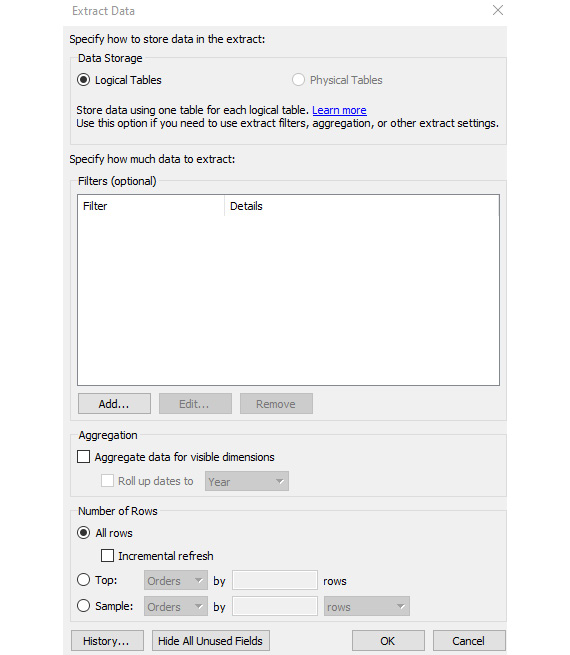
These refreshes can be set in the configuration window for Extract Data. This box opens when the user selects Edit next to the radio options in the top-right corner of the Datasource page.
Figure 1.22: Window to add extract filters or incremental refresh
The manual refreshing of data in these ways is possible even when the data is running on a schedule. As mentioned previously, data is often analyzed for historical periods and rarely needs to be live to each second. Generally, there is an Extract Refresh schedule suitable for most needs: data can currently be set to refresh each hour, day, week, or month.
As refresh schedules can only be set through Tableau Server or Cloud, data sources must be hosted there to be eligible, either as standalone data sources or contained within specific workbooks.
The scheduling options available to Tableau users are set by Tableau Server administrators, a senior role intended for the management of the server, and may vary from instance to instance. As these processes are more strictly in the realm of Tableau Server/Cloud, they are explored further in Chapter 8, Publishing and Managing Content.
A full extract refresh reflects the source data most accurately at the time of running. However, it can be slow to complete. It can also use a lot of computational resources in doing so. The impact of these depends on multiple factors. For example, large sets of data, with wide (large number of columns) and long (number of rows) tables, can take longer for the data to fetch. It could also depend on whether the database is optimally structured for Tableau queries; the details of this are out of this exam’s scope.
An advantage of incremental refresh is that the field used to identify unique records can be specified by the user. However, the logic for identifying new records is limited to a single field only. Tableau cannot consider the values of multiple fields in combination. It is also restricted to a field of either the numeric, date, or datetime type or a simple greater-than logic.
Tableau does not permit custom logic for returning records; it automatically returns records with values greater than the maximum value in the current extract. For example, if a date field is chosen and the latest date is 2023-12-01, any record found at the source with dates beyond this value (such as 2024-01-01) is appended. Numeric types work the same way. This may be an issue if, for example, a record identifier field is not stored as a numeric field (and therefore cannot be selected), or if new records are not given consecutive numbers.
The filtering mentioned here is just one type of filtering possible in Tableau (at the highest level: limiting the data itself). For further filtering options, see Chapter 4, Grouping and Filtering.
Other Factors Affecting Performance
Here are some general factors that may impact performance. These factors are important to keep in mind for any developer so that the performance of any future workbooks that are being built can be improved:
- A developer will need to be aware of the location of the files – whether they are on a local computer or a network location. A network location could slow the connection and also be at risk as many people may have access to the source and could even accidentally delete it.
- If there are multiple tables and complex joins, this could impact the performance of the workbook.
- Tableau works best with tables that are long, which means fewer columns and more rows. If a table is wide, this can impact performance.






 Free Chapter