Sign In Start Free Trial
Account

Add to playlist

Create a Playlist

Modal Close icon
You need to login to use this feature.
  • Book Overview & Buying SAP BusinessObjects Dashboards 4.1 Cookbook
  • Table Of Contents Toc
SAP BusinessObjects Dashboards 4.1 Cookbook

SAP BusinessObjects Dashboards 4.1 Cookbook

By : David Lai
4.9 (8)
close
close
SAP BusinessObjects Dashboards 4.1 Cookbook

SAP BusinessObjects Dashboards 4.1 Cookbook

4.9 (8)
By: David Lai

Overview of this book

If you are a developer with a good command and knowledge of creating dashboards, but are not yet an advanced user of SAP BusinessObjects Dashboards, then this is the perfect book for you. Prerequisites include a good working knowledge of Microsoft Excel as well as knowledge of basic dashboard practices.
Table of Contents (17 chapters)
close
close
16
Index

Using named ranges

With named ranges, it is possible to define a worksheet cell or a range of cells with a logical name.

Getting ready

You can use one of the dashboards from the previous recipes, or just create a new blank dashboard.

How to do it...

  1. Select a range of cells (for example, B1:B12).
  2. Insert a description (for example, Total_Sales) for this range in the Name Box in the upper left-hand side of the worksheet.
    How to do it...
  3. Now, this named range can be used in formulas in other worksheet cells. Type the formula =SUM(Total_Sales) in cell B13.
    How to do it...

How it works...

Using named ranges makes your formulas more readable, especially when you are working with multiple worksheets and using formulas that refer to cells in other worksheets.

Note

There is a restriction to using named ranges in SAP BusinessObjects Dashboards: the defined named range must refer to a single cell or must use formulas that return a single value from a range of cells. For example, let's say we have two named ranges: Sales (A1:A12) and Cost (B1:B12). A supported formula would be =SUM(Sales)-SUM(Cost). An unsupported formula would be =Sales-Cost.

There's more...

In this section, we will discuss two ways to select and manage your named ranges.

Defined named ranges

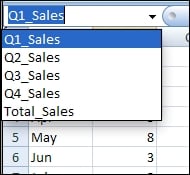
Clicking on the little triangle in the Name Box will show a list of all your defined named ranges in all your worksheets.

Defined named ranges

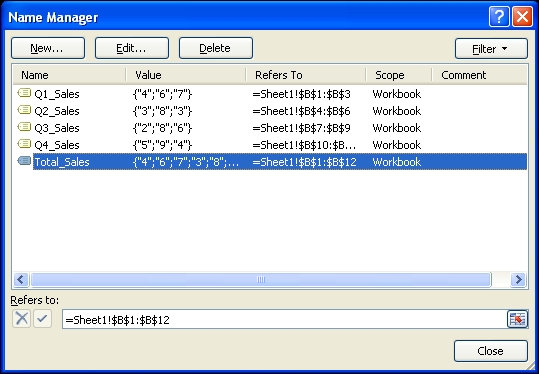
The Name Manager

If you use a lot of named ranges, the Name Manager can be a helpful tool to manage your named ranges. Here, you can also edit and delete the existing named ranges. You can find the Name Manager under the Defined Names section of the Formulas tab or by using the shortcut Ctrl + F3.

The Name Manager
Visually different images
CONTINUE READING
83
Tech Concepts
36
Programming languages
73
Tech Tools
Icon Unlimited access to the largest independent learning library in tech of over 8,000 expert-authored tech books and videos.
Icon Innovative learning tools, including AI book assistants, code context explainers, and text-to-speech.
Icon 50+ new titles added per month and exclusive early access to books as they are being written.
SAP BusinessObjects Dashboards 4.1 Cookbook
notes
bookmark Notes and Bookmarks search Search in title playlist Add to playlist font-size Font size

Change the font size

margin-width Margin width

Change margin width

day-mode Day/Sepia/Night Modes

Change background colour

Close icon Search
Country selected

Close icon Your notes and bookmarks

Confirmation

Modal Close icon
claim successful

Buy this book with your credits?

Modal Close icon
Are you sure you want to buy this book with one of your credits?
Close
YES, BUY

Submit Your Feedback

Modal Close icon
Modal Close icon
Modal Close icon