Sign In Start Free Trial
Account

Add to playlist

Create a Playlist

Modal Close icon
You need to login to use this feature.
  • Book Overview & Buying Advanced Python Programming
  • Table Of Contents Toc
Advanced Python Programming

Advanced Python Programming - Second Edition

By : Quan Nguyen
4.6 (14)
close
close
Advanced Python Programming

Advanced Python Programming

4.6 (14)
By: Quan Nguyen

Overview of this book

Python's powerful capabilities for implementing robust and efficient programs make it one of the most sought-after programming languages. In this book, you'll explore the tools that allow you to improve performance and take your Python programs to the next level. This book starts by examining the built-in as well as external libraries that streamline tasks in the development cycle, such as benchmarking, profiling, and optimizing. You'll then get to grips with using specialized tools such as dedicated libraries and compilers to increase your performance at number-crunching tasks, including training machine learning models. The book covers concurrency, a major solution to making programs more efficient and scalable, and various concurrent programming techniques such as multithreading, multiprocessing, and asynchronous programming. You'll also understand the common problems that cause undesirable behavior in concurrent programs. Finally, you'll work with a wide range of design patterns, including creational, structural, and behavioral patterns that enable you to tackle complex design and architecture challenges, making your programs more robust and maintainable. By the end of the book, you'll be exposed to a wide range of advanced functionalities in Python and be equipped with the practical knowledge needed to apply them to your use cases.
Table of Contents (32 chapters)
close
close
1
Section 1: Python-Native and Specialized Optimization
8
Section 2: Concurrency and Parallelism
18
Section 3: Design Patterns in Python

Designing your application

In the early development stages, the design of a program can change quickly and may require large rewrites and reorganizations of the code base. By testing different prototypes without the burden of optimization, you are free to devote your time and energy to ensure that the program produces correct results and that the design is flexible. After all, who needs an application that runs fast but gives the wrong answer?

The mantras that you should remember when optimizing your code are outlined here:

  • Make it run: We have to get the software in a working state and ensure that it produces the correct results. This exploratory phase serves to better understand the application and to spot major design issues in the early stages.
  • Make it right: We want to ensure that the design of the program is solid. Refactoring should be done before attempting any performance optimization. This really helps separate the application into independent and cohesive units that are easy to maintain.
  • Make it fast: Once our program is working and well structured, we can focus on performance optimization. We may also want to optimize memory usage if that constitutes an issue.

In this section, we will write and profile a particle simulator test application. A simulator is a program that considers some particles and simulates their movement over time according to a set of laws that we impose. These particles can be abstract entities or correspond to physical objects—for example, billiard balls moving on a table, molecules in a gas, stars moving through space, smoke particles, fluids in a chamber, and so on.

Building a particle simulator

Computer simulations are useful in fields such as physics, chemistry, astronomy, and many other disciplines. The applications used to simulate systems are particularly performance-intensive, and scientists and engineers spend an inordinate amount of time optimizing their code. In order to study realistic systems, it is often necessary to simulate a very high number of bodies, and every small increase in performance counts.

In our first example, we will simulate a system containing particles that constantly rotate around a central point at various speeds, just like the hands of a clock.

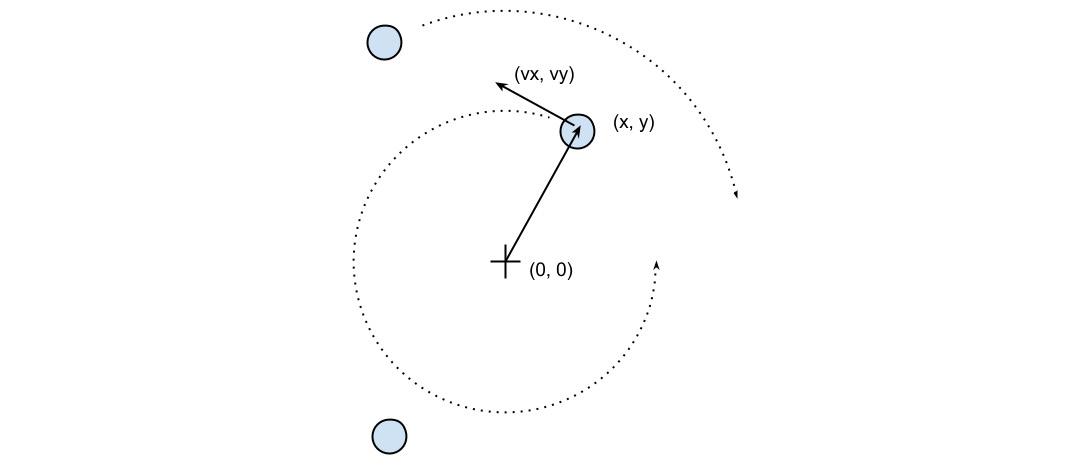
The necessary information to run our simulation will be the starting positions of the particles, the speed, and the rotation direction. From these elements, we have to calculate the position of the particle in the next instant of time. An example system is shown in the following diagram. The origin of the system is the (0, 0) point, the position is indicated by the x, y vector, and the velocity is indicated by the vx, vy vector:

Figure 1.1 – An example of a particle system

Figure 1.1 – An example of a particle system

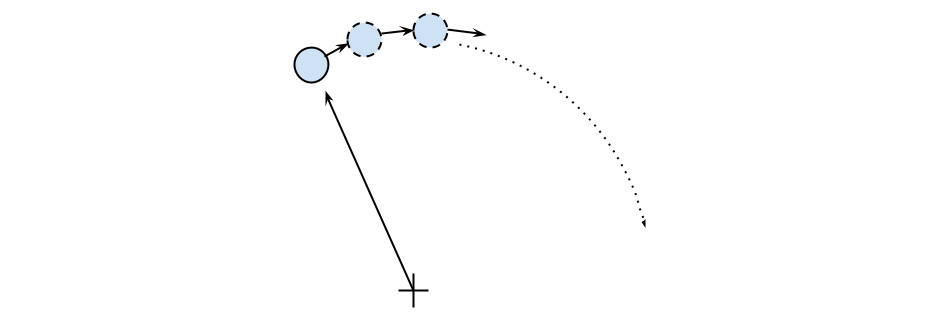
The basic feature of a circular motion is that the particles always move perpendicular to the direction connecting the particle and the center. To move the particle, we simply change the position by taking a series of very small steps (which correspond to advancing the system for a small interval of time) in the direction of motion, as shown in the following diagram:

Figure 1.2 – Movement of a particle

Figure 1.2 – Movement of a particle

We will start by designing the application in an object-oriented (OO) way. According to our requirements, it is natural to have a generic Particle class that stores the particle positions, x and y, and their angular velocity, ang_vel, as illustrated in the following code snippet:

    class Particle: 
        def __init__(self, x, y, ang_vel): 
            self.x = x 
            self.y = y 
            self.ang_vel = ang_vel

Note that we accept positive and negative numbers for all the parameters (the sign of ang_vel will simply determine the direction of rotation).

Another class, called ParticleSimulator, will encapsulate the laws of motion and will be responsible for changing the positions of the particles over time. The __init__ method will store a list of Particle instances, and the evolve method will change the particle positions according to our laws. The code is illustrated in the following snippet:

class ParticleSimulator:
    def __init__(self, particles):
        self.particles = particles

We want the particles to rotate around the position corresponding to the x=0 and y=0 coordinates, at a constant speed. The direction of the particles will always be perpendicular to the direction from the center (refer to Figure 1.1 in this chapter). To find the direction of the movement along the x and y axes (corresponding to the Python v_x and v_y variables), it is sufficient to use these formulae:

    v_x = -y / (x**2 + y**2)**0.5
    v_y = x / (x**2 + y**2)**0.5

If we let one of our particles move, after a certain time t, it will reach another position following a circular path. We can approximate a circular trajectory by dividing the time interval, t, into tiny time steps, dt, where the particle moves in a straight line tangentially to the circle. (Note that higher-order curves could be used rather than straight lines for better accuracy, but we will stick with lines as the simplest approximation.) The final result is just an approximation of a circular motion.

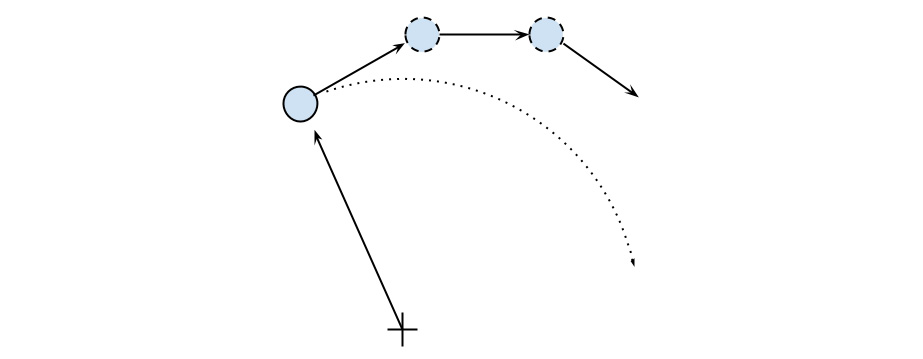
In order to avoid a strong divergence, such as the one illustrated in the following diagram, it is necessary to take very small time steps:

Figure 1.3 – Undesired divergence in particle motion due to large time steps

Figure 1.3 – Undesired divergence in particle motion due to large time steps

In a more schematic way, we have to carry out the following steps to calculate the particle position at time t:

  1. Calculate the direction of motion (v_x and v_y).
  2. Calculate the displacement (d_x and d_y), which is the product of the time step, angular velocity, and direction of motion.
  3. Repeat Steps 1 and 2 enough times to cover the total time t.

The following code snippet shows the full ParticleSimulator implementation:

    class ParticleSimulator: 
        def __init__(self, particles): 
            self.particles = particles 
        def evolve(self, dt): 
            timestep = 0.00001 
            nsteps = int(dt/timestep) 
     
            for i in range(nsteps):
                for p in self.particles:
                    # 1. calculate the direction 
                    norm = (p.x**2 + p.y**2)**0.5 
                    v_x = -p.y/norm 
                    v_y = p.x/norm 
                    # 2. calculate the displacement 
                    d_x = timestep * p.ang_vel * v_x 
                    d_y = timestep * p.ang_vel * v_y 
                    p.x += d_x 
                    p.y += d_y 
                    # 3. repeat for all the time steps

And with that, we have finished building the foundation of our particle simulator. Next, we will see it in action by visualizing the simulated particles.

Visualizing the simulation

We can use the matplotlib library here to visualize our particles. This library is not included in the Python standard library, but it can be easily installed using the pip install matplotlib command.

Alternatively, you can use the Anaconda Python distribution (https://store.continuum.io/cshop/anaconda/), which includes matplotlib and most of the other third-party packages used in this book. Anaconda is free and is available for Linux, Windows, and Mac.

To make an interactive visualization, we will use the matplotlib.pyplot.plot function to display the particles as points and the matplotlib.animation.FuncAnimation class to animate the evolution of the particles over time.

The visualize function takes a ParticleSimulator particle instance as an argument and displays the trajectory in an animated plot. The steps necessary to display the particle trajectory using the matplotlib tools are outlined here:

  1. Set up the axes and use the plot function to display the particles. The plot function takes a list of x and y coordinates.
  2. Write an initialization function, init, and a function, animate, that updates the x and y coordinates using the line.set_data method. Note that in init, we need to return the line data in the form of line, due to syntactic reasons.
  3. Create a FuncAnimation instance by passing the init and animate functions and the interval parameters, which specify the update interval, and blit, which improves the update rate of the image.
  4. Run the animation with plt.show(), as illustrated in the following code snippet:
        from matplotlib import pyplot as plt 
        from matplotlib import animation 
        def visualize(simulator): 
            X = [p.x for p in simulator.particles] 
            Y = [p.y for p in simulator.particles] 
            fig = plt.figure() 
            ax = plt.subplot(111, aspect='equal') 
            line, = ax.plot(X, Y, 'ro') 
         
            # Axis limits 
            plt.xlim(-1, 1) 
            plt.ylim(-1, 1) 
            # It will be run when the animation starts 
            def init(): 
                line.set_data([], []) 
                return line, # The comma is important!
            def animate(i): 
                # We let the particle evolve for 0.01 time 
                  units 
                simulator.evolve(0.01) 
                X = [p.x for p in simulator.particles] 
                Y = [p.y for p in simulator.particles] 
                line.set_data(X, Y) 
                return line, 
            # Call the animate function each 10 ms 
            anim = animation.FuncAnimation(fig,
              animate,init_func=init,blit=True,
                interval=10) 
            plt.show()

To test this code, we define a small function, test_visualize, that animates a system of three particles rotating in different directions. Note in the following code snippet that the third particle completes a round three times faster than the others:

    def test_visualize(): 
        particles = [
                     Particle(0.3, 0.5, 1), 
                     Particle(0.0, -0.5, -1), 
                     Particle(-0.1, -0.4, 3)
        ] 
        simulator = ParticleSimulator(particles) 
        visualize(simulator) 
    if __name__ == '__main__': 
        test_visualize()

The test_visualize function is helpful to graphically understand the system time evolution. Simply close the animation window when you'd like to terminate the program. With this program in hand, in the following section, we will write more test functions to properly verify program correctness and measure performance.

Visually different images
CONTINUE READING
83
Tech Concepts
36
Programming languages
73
Tech Tools
Icon Unlimited access to the largest independent learning library in tech of over 8,000 expert-authored tech books and videos.
Icon Innovative learning tools, including AI book assistants, code context explainers, and text-to-speech.
Icon 50+ new titles added per month and exclusive early access to books as they are being written.
Advanced Python Programming
notes
bookmark Notes and Bookmarks search Search in title playlist Add to playlist download Download options font-size Font size

Change the font size

margin-width Margin width

Change margin width

day-mode Day/Sepia/Night Modes

Change background colour

Close icon Search
Country selected

Close icon Your notes and bookmarks

Confirmation

Modal Close icon
claim successful

Buy this book with your credits?

Modal Close icon
Are you sure you want to buy this book with one of your credits?
Close
YES, BUY

Submit Your Feedback

Modal Close icon
Modal Close icon
Modal Close icon