-
Book Overview & Buying
-
Table Of Contents
Flutter Cookbook, Second Edition - Second Edition
By :
There are several advantages of using unit tests in Flutter, including improving the overall quality of your code, ease of debugging, and better design. When writing good tests, you may also reduce the time required to maintain your code in the long run. Writing unit tests requires some practice, but it’s well worth your time and effort.
In this recipe, you’ll see how to write a simple unit test.
You should have created the default Flutter app as shown in the previous recipe before writing a unit test.
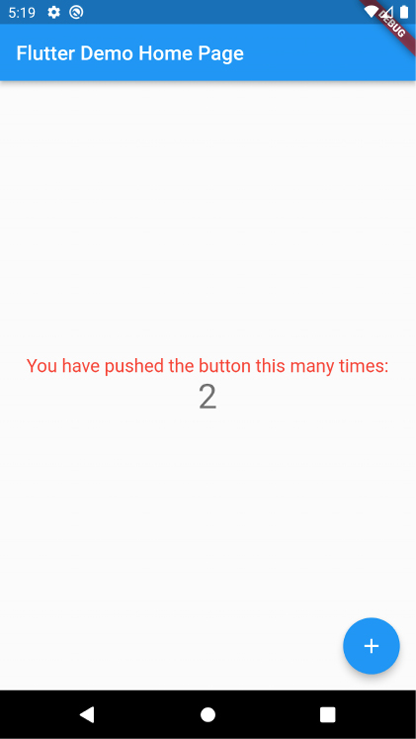
You will now update the default Flutter app: you will change the color of You have pushed the button this many times:. The text will be red for even numbers, and green for odd numbers, as shown in Figure 2.9:

Figure 2.9: Red text for even numbers
main.dart file in the lib folder, at the bottom of the file, and out of any class, create a method that returns true when the number passed is even, and false when the number is odd:
bool isEven(int number) {
if (number % 2 == 0) {
return true;
} else {
return false;
}
}
_MyHomePageState class, under the int _counter = 0; declaration, declare Color, and set it to red:
Color color = Colors.red;
incrementCounter method, edit the setState call, so that it changes the color value:
void _incrementCounter() {
setState(() {
_counter++;
if (isEven(_counter)) {
color = Colors.red;
} else {
color = Colors.green;
}
});
}
build method, edit the text containing You have pushed the button this many times:, so that you change its color and size, and remove its const keyword, as shown below:
Text(
'You have pushed the button this many times:',
style: TextStyle(
color: color,
fontSize: 18,
)
),
Now that the app is ready, let’s test whether the isEven function works as expected.
unit_test.dart.flutter_test.dart library and your project’s main.dart file (note that you may have to change hello_flutter to your package name if you named your app differently):
import 'package:flutter_test/flutter_test.dart';
import 'package:hello_flutter/main.dart';
main method under the import statements:
void main() {}
main method, call the test method, passing Is Even as its name and calling the isEven method twice, and checking its results, as shown here:
void main() {
test('Is Even', () {
bool result = isEven(12);
expect(result, true);
result = isEven(123);
expect(result, false);
});
}
flutter test in your Terminal. You should see the All tests passed! message.test method, let’s create two separate tests:
void main() {
test('Is Even', () {
bool result = isEven(12);
expect(result, true);
});
test('Is Odd', () {
bool result = isEven(123);
expect(result, false);
});
}
flutter test command in your Terminal, and note the success message that appears again in the Terminal: All tests passed.void main() {
test('Is Even', () {
bool result = isEven(12);
expect(result, true);
});
test('Is Odd', () {
bool result = isEven(123);
expect(result, true);
});
}
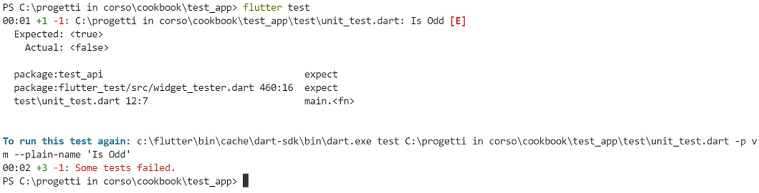
flutter test command in your Terminal. You should see an error, as shown in Figure 2.10:
Figure 2.10: Terminal showing failing test
group method:
void main() {
group('Iseven group', () {
test('Is Even', () {
bool result = isEven(12);
expect(result, true);
});
test('Is Odd', () {
bool result = isEven(123);
expect(result, true);
});
});
}

Figure 2.11: Terminal showing failing test with group name
Is Odd test as shown below, then run the test again, and note that the error has been fixed.
test('Is Odd', () {
bool result = isEven(123);
expect(result, false);
});
You can use unit tests in Flutter to test specific parts of your code, like functions, methods, and classes.
In this recipe, you wrote a simple function, called isEven, that returns true when the number passed as an argument is even, and false when it’s odd:
bool isEven(int number) {
if (number % 2 == 0) {
return true;
} else {
return false;
}
}
Probably there isn’t much need to test a function as simple as this one, but as your business logic evolves and gets more complex, testing your units of code becomes important.
When you create a new project, you’ll find a test directory in your project’s root folder. This is where you should place your test files, including unit tests.
In this recipe, you created a new file, called unit_test.dart. When you choose the name for a file containing tests, you might want to add test as a prefix or suffix to follow the naming convention for tests. For example, if you are testing functions that deal with parsing JSON, you might call your file test_json.dart.
In your test files, you need to import the flutter_test.dart package, which contains the methods and classes that you use to run your tests:
import 'package:flutter_test/flutter_test.dart';
You also need to import the files where the methods and classes you want to test are written. In this recipe’s example, the isEven method is contained in the main.dart file, so this is what you imported:
import 'package:hello_flutter/main.dart';
Like in any Flutter app, the main method is the entry point of your tests. When you execute the flutter test command in a Terminal, Flutter will look for this method to start executing your tests.
You write a unit test using the test function, which takes two arguments: a string to describe the test, and a callback function that contains the test itself:
void main() {
test('Is Even', () {
bool result = isEven(12);
expect(result, true);
});
}
In this case, we are running a test in the isEven() function. When you pass an even number to isEven(), like 12, you expect true to be the return value. This is where you use the expect() method. The expect() method takes two arguments: the actual value and the expected value. It compares the two values, and if they don’t match it throws an exception and the test fails.
In our example, the instruction:
expect(result, true);
succeeds when result is true, and fails when result is false.
To run the tests, you can type the flutter test command in your terminal. This will run all tests in your project. You can also run your tests from your editor, like any other Flutter app. If your tests succeed, you get a success message, otherwise, you will see which specific test failed.
When you have several tests, you can group related tests together, using the group method:
group('Iseven group', () {
test('Is Even', () {
bool result = isEven(12);
expect(result, true);
});
test('Is Odd', () {
bool result = isEven(123);
expect(result, true);
});
});
Like the test method, the group method takes two arguments. The first is a String containing the group description, and the second is a callback function, which in turn contains one or more test() functions. You use the group() function to better organize your test code, making it easier to read, maintain, and debug.
In general, the goal of unit testing is to test single units of code, like individual functions, to ensure that they are working as expected.
In addition to unit tests, there are other types of tests that you can create for your Flutter application. In particular, widget tests are used to test the functionality of widgets, and integration tests test the integration of different parts of your application. See the official documentation at https://docs.flutter.dev/testing for more information about writing tests in Flutter.