Pricing in SAP CRM is carried out in business transactions such as quotations, sales orders, contracts, or service processes. Based on the company's requirements, a pricing procedure is created that comprises different condition types, for example, List Price, Discounts, Freight Charges, Rebate condition (if applicable), and Surcharge. While creating a business transaction, the system uses the condition techniques to determine the correct price for the product. Pricing information in SAP CRM can be downloaded from the ECC system or can be created in CRM directly:
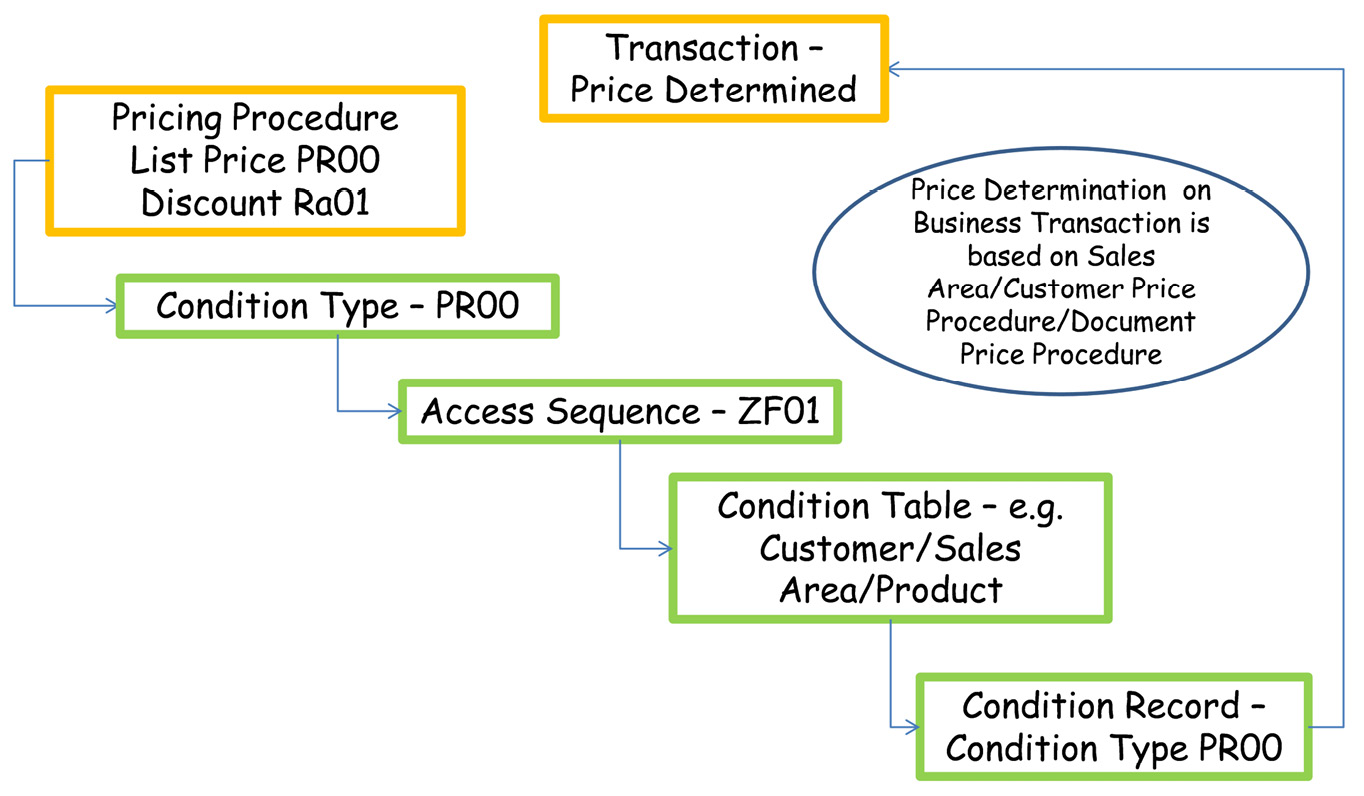
Figure 2.23 – Price determination in CRM sales transactions
This diagram shows the flow logic of price determination in the SAP CRM system. The pricing procedure is assigned with condition types; condition types are assigned with an access sequence; an access sequence has condition tables, and you create the condition record for the condition table defined in the Customizing. Price determination in business transactions is based on the sales area, the document pricing procedure assigned to the transaction type, and the customer pricing procedure assigned to the customer master. Let's review the configuration steps to understand how to determine the pricing procedure in business transactions.
Pricing procedure determination
Pricing procedure is determined based on sales area (sales org, distribution channel, and div), customer pricing procedure, and document pricing procedure. The pricing procedure comprises a list of condition types and subtotals based on the business requirements. Routines can be assigned to each of the condition types based on business logic.
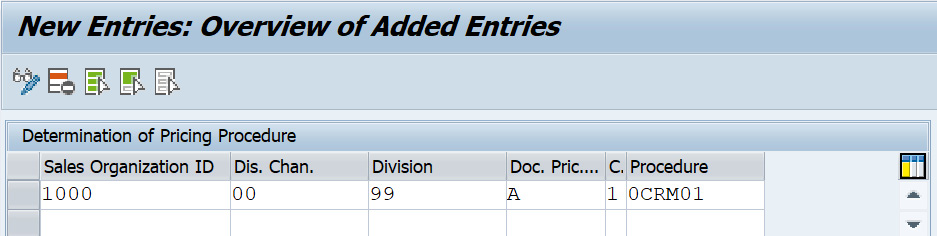
The next screenshot shows a pricing procedure determination configuration and the path to configure is SPRO | CRM | Basic Functions | Pricing | Pricing in the Business Transaction | Determine Pricing Procedures:
Figure 2.24 – Pricing procedure determination
Before creating or determining our pricing procedure, condition types, access sequences, and condition tables should be configured or loaded from ECC based on your business requirements. Let's review this setup:
- Condition types: Condition types are the actual price, discounts, surcharges, and so on in the business document. Condition types can be determined automatically, or they can be entered manually. For automatic determination of the condition type, an access sequence should be assigned to it. A condition type can be a group condition, header condition, or item condition.
- Access sequences: The access sequence determines the sequence of the condition tables that determines the condition record for a specific condition type.
- Condition tables: A condition table consists of a list of fields that determines the correct condition type based on the access sequence. An SAP-delivered condition table ranges from 0 to 500 and a customer-specific table ranges from 501 to 999.
- Condition records: These are entries or records based on the condition table and fields. The actual price, discounts, and surcharge are entered in the condition records for a specific period. These are either loaded from ECC or can be maintained directly in CRM.
There are specific steps required to load customer-specific condition records and the maintenance of the condition records in CRM.
Downloading the pricing procedure and condition types
The steps to download the pricing procedure and condition records are as follows.
Defining ECC fields in CRM
To download the condition records, the fields within condition tables in CRM should be in sync with ECC condition tables, meaning if there are certain fields that are not available in CRM, those should be added to load the condition records successfully.
If the ECC fields are not present in the CND_MAPT_ACS_REM structure, they should be added into the CND_MAPT_ACS_REM_CUST structure.
Defining customer-specific fields in the CRM field catalog
A customer-specific field should be added to the field catalog within CRM. These are the list of fields that are going to be accessed to determine the price and once added to the field catalog, they are available in the communication structure of CRM_COND_COM_BADI.
The menu path is Customer Relationship Management | Basic Functions | Pricing | Define Pricing Related Settings | Define Field Catalog.
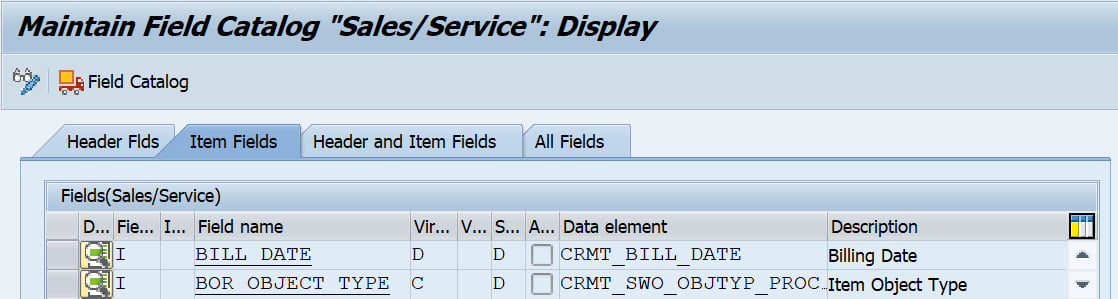
The following screenshot shows the field catalog wherein you can define additional fields you want to add to determine the prices on the sales transaction. The fields that you create for the condition table should be available in this field catalog:
Figure 2.25 – CRM field catalog
Defining a mapping of fields between CRM and ECC
To map standard fields, SAP has provided the CND_MAPC_CNV_FLM table, wherein you will find the field mapping between CRM and ECC for standard fields with the conversion function module assigned if needed. To maintain the field mapping for custom fields, the CND_MAPM_CNV_FLM table should have the entry of the field mapping as previously and this can be added via the V_CND_MAP_CNVFLD view.
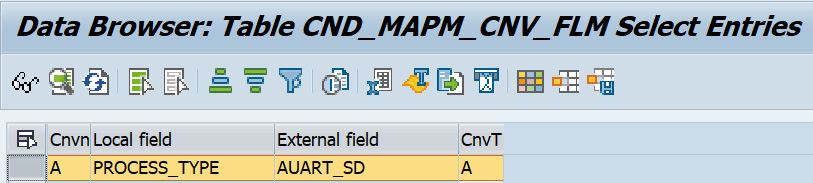
The following screenshot shows an example for the Process_Type field, which is maintained in the CND_MAPM_CNV_FLM table:
Figure 2.26 – The CND_MAPM_CNV_FLM table maintained with Process_Type
Download the customizing object to sync the condition tables and pricing procedure between ECC and CRM.
Once the condition tables with custom fields are created in CRM, you can load the condition tables from ECC to CRM before loading the actual condition records. A pre-requisite step is to open the CRM client so that the custom field and condition tables are replicated correctly. This is done by following these steps:
- From the SAP CRM menu, go to transaction
R3AS and fill in the Load Object field with the DNL_CUST_CNDALL entry.
- In the Source Site field, enter
OLTP, and in the Destination Site field, enter CRM:Figure 2.27 – Downloading pricing customizing objects
- To run the replication, choose Execute (F8).
- Confirm the next screen message by clicking Continue.
Access transaction code R3AM1 to confirm that the customizing load ran successfully. Verify that all the pricing procedures, access sequences, condition types, and condition tables are generated corrected after the download.
Creating condition tables
After the pricing customizing object is downloaded successfully, the next step is to create the condition adaptor objects for the condition tables and then load the condition records by running these condition adaptor objects one by one.
The steps to create the condition adaptor objects for the condition tables are as follows:
- Go to transaction
R3AC5.
- Create adapter objects for the following condition tables (if the adapter object for the condition table doesn't exist as standard) as a copy of a standard object, say,
DNL_COND_A621:
Figure 2.28 – Condition adaptor object
Downloading condition records
The steps to execute the condition record download are as follows:
- Go to transaction
R3AS.
- In the Load Object field, enter
ZDNL_COND_A621.
- In the Source Site field, enter
OLTP, and in the Destination Site, enter CRM.
- To run the replication, choose Execute (F8).
- Confirm the next screen message by choosing Continue.
Repeat these steps for all the condition adaptor objects to load all the condition records. Once the condition records are loaded and the pricing configuration is completed, the price determination will happen on the CRM business transactions.
The concept of pricing routines in SAP CRM using IPC
The SAP Internet Pricing and Configurator (IPC) is used in CRM to calculate the price of any business transactions, for example, quotations, orders, or contracts. IPC is used in any CRM application, whether it is a Web Channel or Interaction Center application. The routines created in CRM are developed in Java and are assigned to the condition type within a pricing procedure. Downloading the pricing customization takes care of assigning a routine to a condition type if pricing is loaded from ECC.
Once you have carried out all the previous activities, if there are certain custom routines that you have implemented in ECC and you want to create the same routine in CRM, then you need to follow the next steps.
To create a new custom routine, you must have a Java project created in the Eclipse environment. You can refer to the steps on how to download, create your own custom routine, and upload the pricing routine to the SAP CRM environment. This is mentioned in OSS Note 809820 – User exit concept for pricing. You can access the SAP OSS note via the service marketplace (service.sap.com). Based on your environment setup, you can also use NWDI.
Pre-requisites
Pricing a user exit should be compiled with J2SE 1.4.x and it is important that the compiled class files are compatible with JDK version 1.4. The VMC Java environment of SAP BASIS 7.00 does support 1.4 class files and libraries.
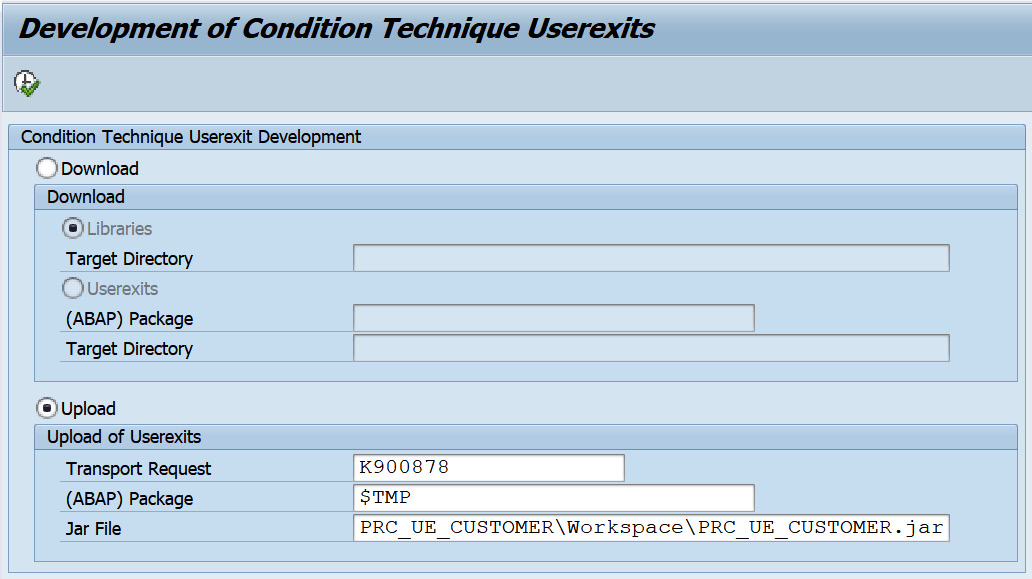
You download the routine and upload the JAR file via the /SAPCND/UE_DEV transaction.
Creating PRC_UE_CUSTOMER.jar to upload the user exit
After implementing the specific pricing logic based on the business requirement, you upload the pricing routine to the SAP environment. JAR files are generated through Eclipse, which you upload in the /SAPCND/UE_DEV transaction code. This is shown in the next screenshot:
Figure 2.29 – Uploading a user exit JAR file
Once the user exits are loaded to the SAP system, it is a time to register the routine and the attributes if required in the configuration as mentioned in the following sections.
Overview of different user exit types
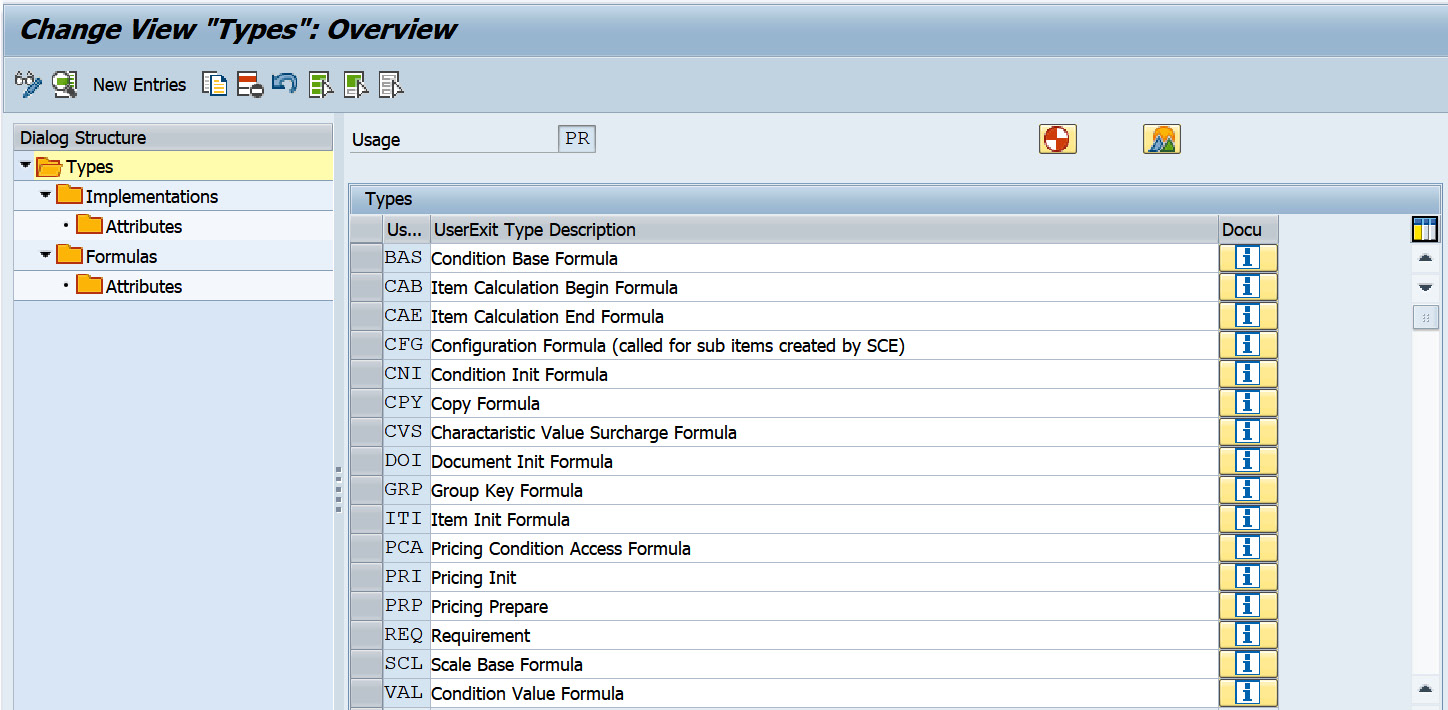
The next screenshot shows the different user exit types for usage PR (pricing). These need to be configured based on your requirement and the routines added to the pricing procedure. The transaction code to configure the user exit types is /SAPCND/UEASS.
Any rules based on the user exit type should be added as an implementation and formula. This is shown in the following screenshot, where you can see there are different user exit types:
Figure 2.30 – User exit types
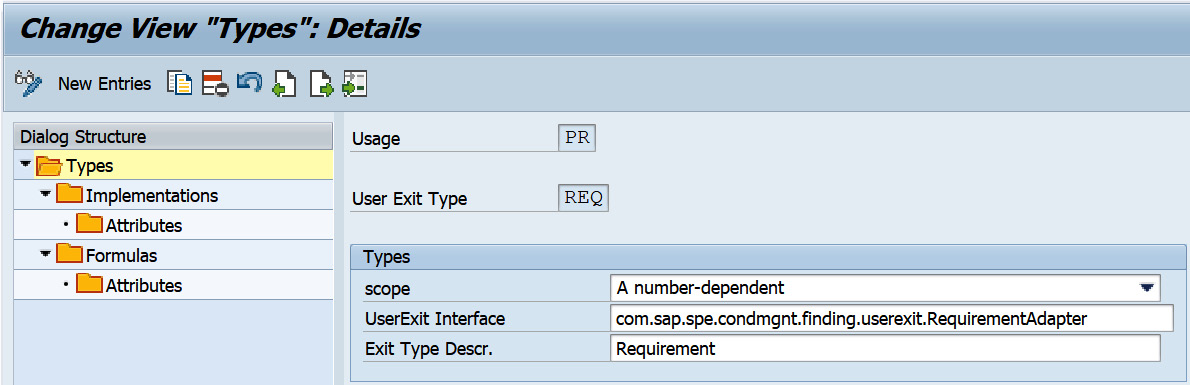
These user exit types are Condition Base Formula, Requirement, Condition Value Formula, and so on. Each of these user exit types can be assigned with implementations and formulas and associated attributes:
Figure 2.31 – User exit type details
On the detail screen of each user exit type, the Scope field and User Exit Interface exist. Options within the Scope field are A number-dependent, B One unique-implementation, or C Multiple-Implementations.
Registering an implementation
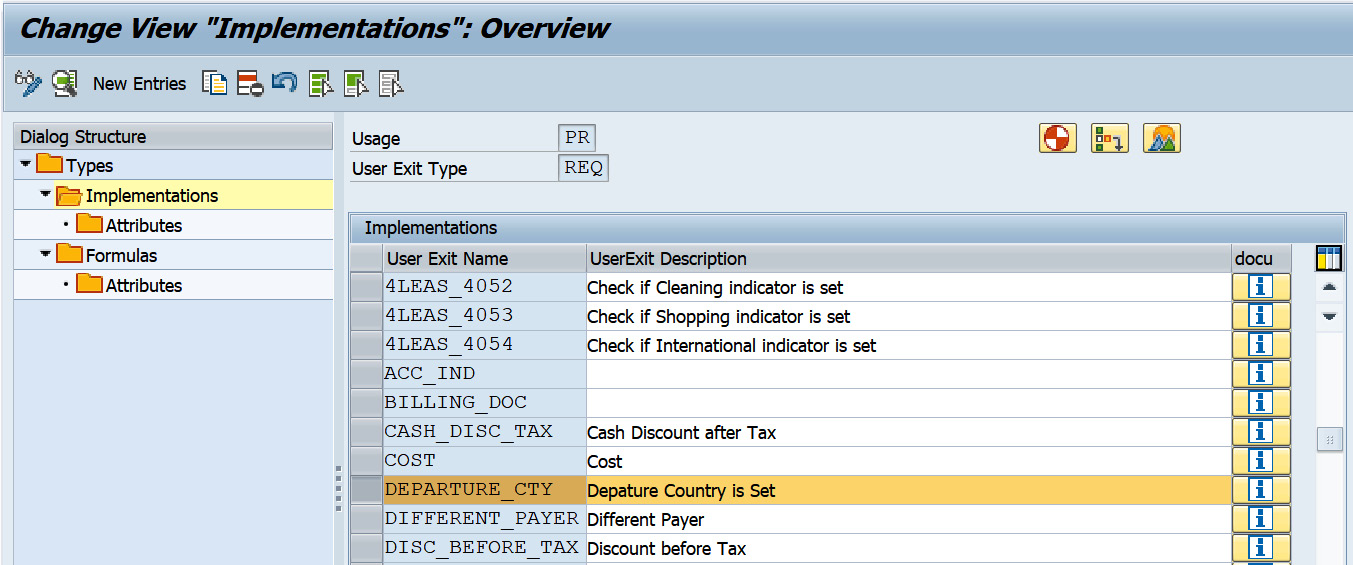
Once you have identified which routine belongs to which user exit type, you will need to register an implementation within this step. Here is an example of the REQ user exit type and the attributes assigned to the implementation that is required in the user exit.
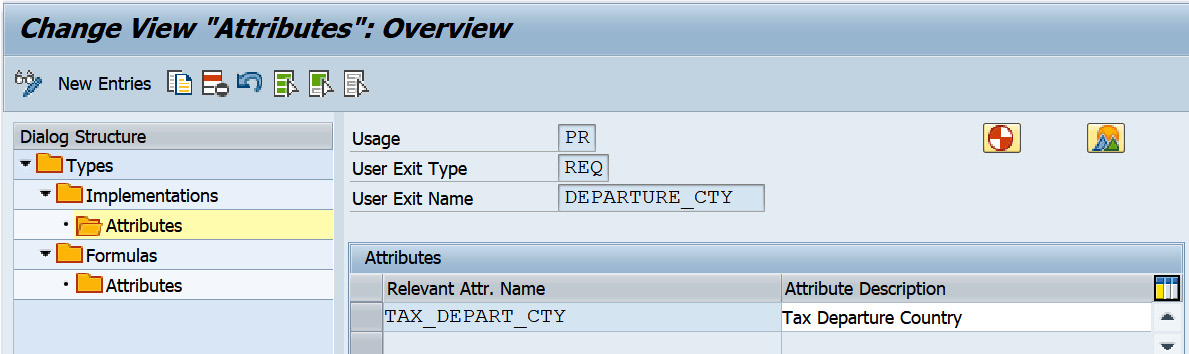
The following screenshot shows one of the examples of the DEPARTURE_CTY user exit type being registered for the Requirement user exit type:
Figure 2.32 – REQ user exit type implementations
The next screenshot shows the attribute assigned to the user exit type named DEPARTURE_CTY. This attribute is passed via a pricing communication structure to VMC to calculate the prices on the sales transaction line item:
Figure 2.33 – User exit attributes
Assigning implementations to a formula
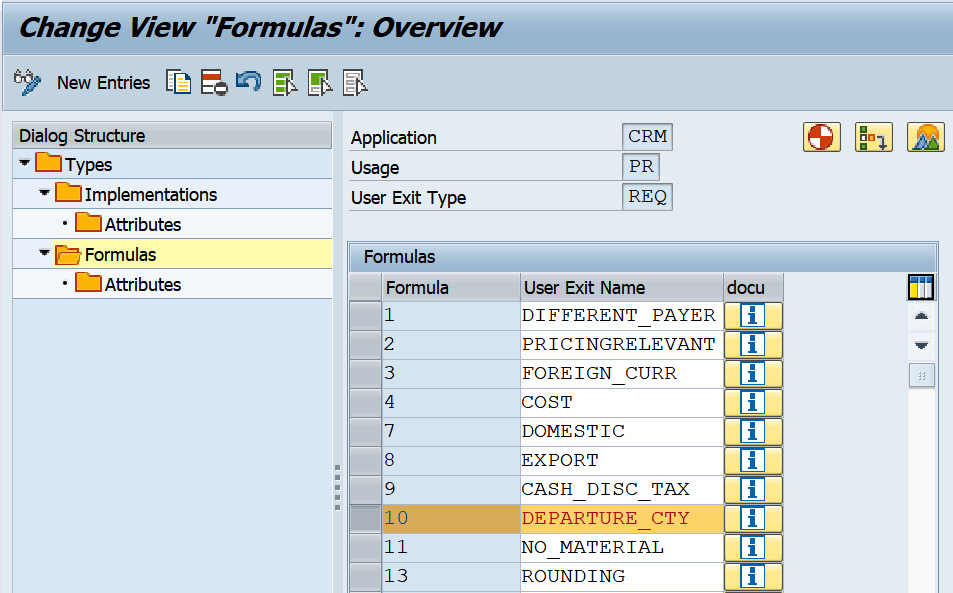
After defining the implementation for the user exit type, the next step is to assign the formula. The customer formula extends from 600 to 999 and the number is the same as what is being assigned in the pricing procedure. Each user exit type must have a formula number assigned to it as shown:
Figure 2.34 – Formulas assigned to the user exit
Attributes assigned
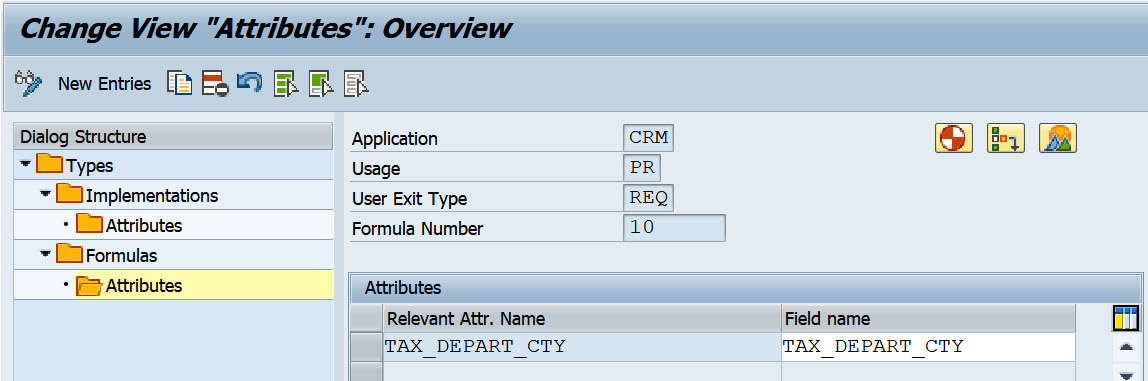
The next screenshot shows tax departure city as one of the attributes assigned that is used to determine the price for the condition type:
Figure 2.35 – Attributes assigned to the formula
After going through all the configuration steps, it is necessary to reset VMC (transaction code SM53) and run the IPC_DET_CLEAR_CUST_BUFFER IPC buffer program to make your changes effective. In the CRM SMOFPARSFA table, you can control the pricing redetermination in ECC for CRM orders by adding the entry for PRICINGTYPE with the pricing indicator, for example, pricing indicator G is set for reprising tax in ECC when the sales orders are replicated from CRM to ECC.
Verifying routines loaded to SAP CRM
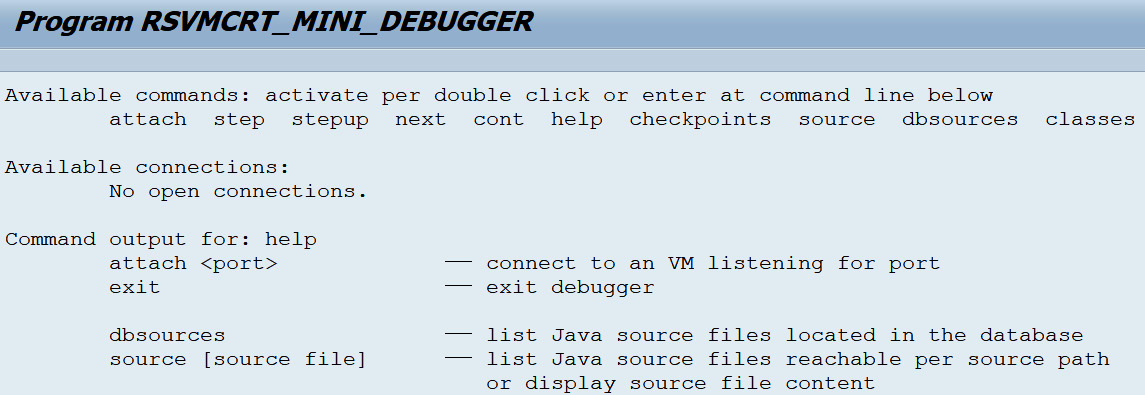
You can verify routines in SAP CRM that are loaded via /SAPCND/UE_DEV. Access transaction code VMCJDB and double-click on dbsources as highlighted:
Figure 2.36 – Virtual machine container mini debugger
You will see the list of the routines you have uploaded to the SAP CRM system under the list of Java source files located in the database. Double-click on one of the routines to view the Java source file.
We have covered the pricing master data concept, that is, the configuration to determine the price on the business transaction, configuration required to communicate pricing to the Virtual Machine (VM) container, and download pricing from SAP ECC to SAP CRM. Now that we have covered business partners, products, and pricing, let's continue to understand how vendors work in SAP CRM.





 Free Chapter