





Alright, you are at the root of the tree and ready to climb up. In Linux, just like an actual tree, the beginning of the filesystem starts at the root directory. You can use the cd command followed by a forward slash to get to the root:
elliot@ubuntu-linux:~$ cd /
The cd command is short for Change Directory and is one of the most used commands in Linux. You can't move around in Linux without it. It's like your limbs (arms and legs), can you climb a tree without your limbs?
The forward slash character represents the root directory. Now to make sure you're at the root directory, you can run pwd:
elliot@ubuntu-linux:~$ pwd
/
And sure enough, we are at the root of the Linux filesystem. Whenever you are lost and you don't know where you are, pwd is here to rescue you.
Alright, while we are still at the root directory, let's see what's in there! Run the ls command to view the contents of the current directory:
elliot@ubuntu-linux:/$ ls
bin etc lib proc tmp var boot
dev home opt root sbin usr
To have a better view of the contents, you can use the long listing -l option with the ls command:
elliot@ubuntu-linux:/$ ls -l
drwxr-xr-x   2 root root           4096 Dec 28 15:36 bin
drwxr-xr-x 125 root root          12288 Jan  1 11:01 etc
drwxr-xr-x  21 root root           4096 Dec 26 23:52 lib
dr-xr-xr-x 227 root root              0 Jan  3 02:33 proc
drwxrwxrwt  15 root root           4096 Jan  3 02:35 tmp
drwxr-xr-x  14 root root           4096 Jul 24 21:14 var
drwxr-xr-x   3 root root           4096 Dec 29 07:17 boot
drwxr-xr-x  18 root root           4000 Jan  3 02:33 dev
drwxr-xr-x   3 root root           4096 Dec 26 23:47 home
drwxr-xr-x   3 root root           4096 Dec 27 15:07 opt
drwx------   4 root root           4096 Dec 29 09:39 root
drwxr-xr-x   2 root root          12288 Dec 28 15:36 sbin
drwxr-xr-x  10 root root           4096 Jul 24 21:03 usr
This output gives you a lot of valuable information that we will discuss in detail in the upcoming chapters. But for now, we focus on the first letter in the first column of the output. Take a look at the first column of the output:
drwxr-xr-x
drwxr-xr-x
drwxr-xr-x
drwxr-xr-x
.
.
.
.
You will see that the first letter is d, which means that the file is a directory. The first letter reveals the file type. The last column of the output displays the filename.
You will have more files under your root (/) directory. I have only chosen the most important and common ones that should exist on every Linux distribution. So don't freak out when you see way more files than those listed in this book.
Now each one of these directories has a special purpose, as you can see in the following table:
|
/ |
This is the root of your filesystem, where everything begins. |
|
/etc |
This directory contains system configuration files. |
|
/home |
This is the default home directory for all users (except the root user). |
|
/root |
This is the home directory for the root user. |
|
/dev |
This is where your devices such as your hard disks, USB drives, and optical drives reside on your system. |
|
/opt |
This is where you can install additional 3rd party software. |
|
/bin |
This is where essential binaries (programs) reside on your system. |
|
/sbin |
This is where system binaries (programs) that are typically used by the system administrator are stored. |
|
/tmp |
This is where temporary files are stored; they are usually deleted after a system reboot, so never store important files here! |
|
/var |
This directory contains files that may change in size, such as mail spools and log files. |
|
/boot |
All the files required for your system to boot are stored here. |
|
/lib |
This directory contains libraries needed by the essential binaries in the /bin and /sbin directories. A library is basically a set of precompiled functions that can be used by a program. |
|
/proc |
This is where information about running processes is stored. |
|
/usr |
This directory contains files and utilities that are shared between users. |
You can also run the man hier command to read more about the Linux filesystem hierarchy:
elliot@ubuntu-linux:/$ man hier
Alright, now let's do further climbing on the Linux directory tree. Take a look at figure 1, and you will understand why we choose a tree to describe the structure of the Linux filesystem.
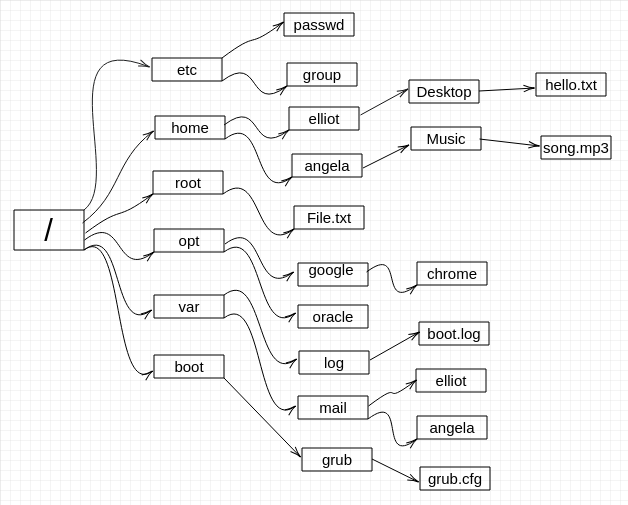
The preceding figure only features very few files and by no means is a representation for the whole directory tree, as the Linux filesystem literally contains thousands of files. So you can think of the preceding figure as a subtree of the actual Linux directory tree.



