-
Book Overview & Buying
-
Table Of Contents

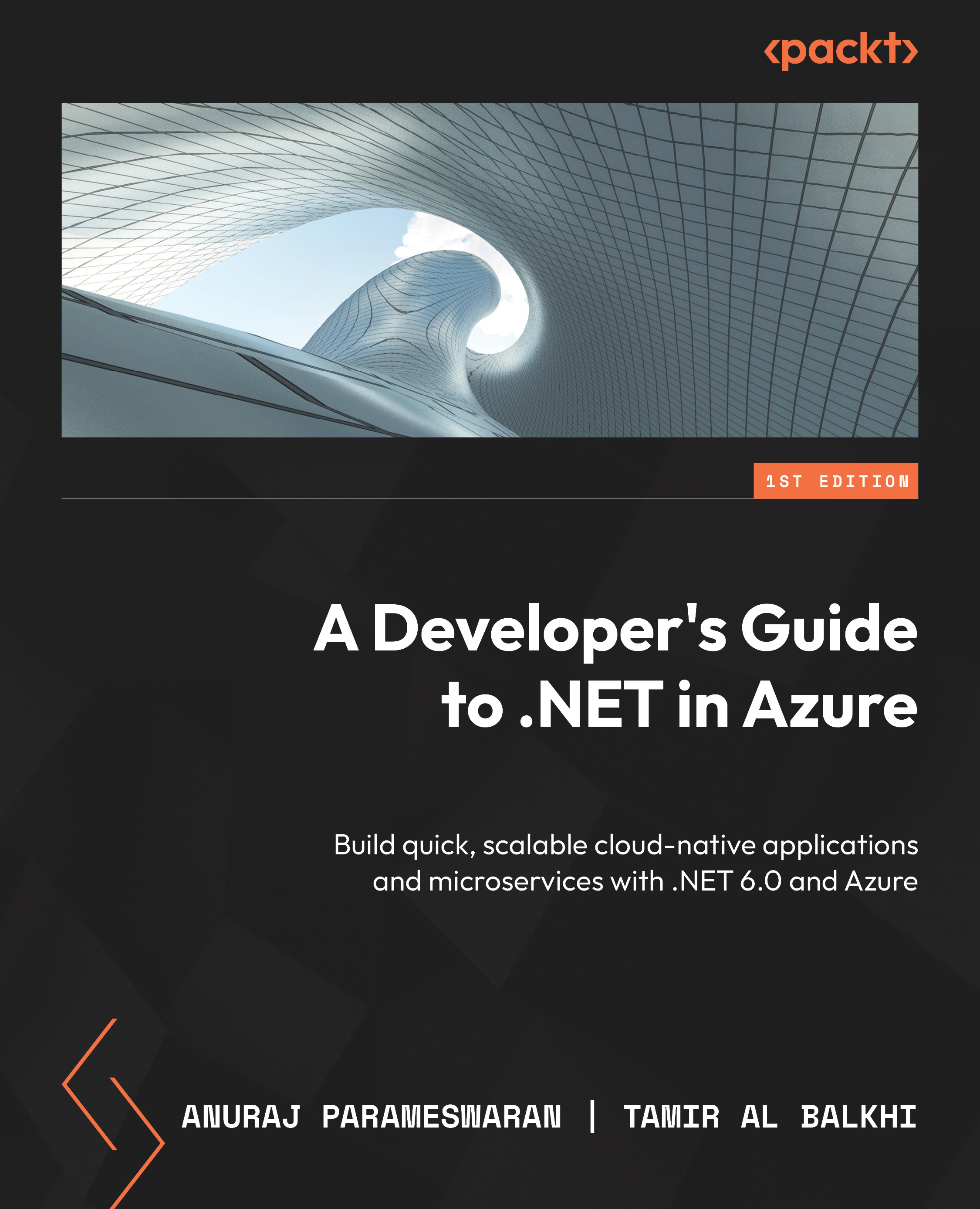
A Developer's Guide to .NET in Azure
By :


A Developer's Guide to .NET in Azure
By:
Overview of this book
A Developer’s Guide to .NET in Azure helps you embark on a transformative journey through Microsoft Azure that is tailored to .NET developers. This book is a curated compendium that’ll enable you to master the creation of resilient, scalable, and highly available applications.
The book is divided into four parts, with Part 1 demystifying Azure for you and emphasizing the portal's utility and seamless integration. The chapters in this section help you configure your workspace for optimal Azure synergy. You’ll then move on to Part 2, where you’ll explore serverless computing, microservices, containerization, Dapr, and Azure Kubernetes Service for scalability, and build pragmatic, cost-effective applications using Azure Functions and Container apps. Part 3 delves into data and storage, showing you how to utilize Azure Blob Storage for unstructured data, Azure SQL Database for structured data, and Azure Cosmos DB for document-oriented data. The final part teaches you about messaging and security, utilizing Azure App Configuration, Event Hubs, Service Bus, Key Vault, and Azure AD B2C for robust, secure applications.
By the end of this book, you’ll have mastered Azure's responsive infrastructure for exceptional applications.
Table of Contents (20 chapters)
Preface


Part 1: An Introduction to Your Environment
 Free Chapter
Chapter 1: Setting Up Your Development Environment

Part 2: Serverless and Microservices
Chapter 2: Creating Docker Containers on Azure
Chapter 3: Building Resilient Applications with Dapr
Chapter 4: Designing Microservices with AKS and Containers in Azure
Chapter 5: Building Serverless Apps with Azure Functions and Container Apps
Part 3: Data and Storage
Chapter 6: Exploring Azure Blob Storage
Chapter 7: Creating an Azure SQL Database
Chapter 8: Creating Documents via .NET for Azure Cosmos DB
Part 4: Messaging Mechanisms and Security
Chapter 9: Utilizing Azure App Configuration
Chapter 10: Processing Data with Azure Event Hubs
Chapter 11: Designing Ready-Made Solutions with Azure Service Bus
Chapter 12: Enhancing Data Protection with Azure Key Vault
Chapter 13: Managing Access with Azure Active Directory B2C
Index