-
Book Overview & Buying
-
Table Of Contents
Beginning C++ Game Programming - Second Edition
By :
Now that you know a bit more about how we will be making games, it is time to set up a development environment so we can get coding.
The games that we will be making can be built to run on Windows, Mac, and Linux! The code we use will be identical for each platform. However, each version does need to be compiled and linked on the platform for which it is intended, and Visual Studio will not be able to help us with Mac and Linux.
It would be unfair to say, especially for complete beginners, that this book is entirely suited for Mac and Linux users. Although, I guess, if you are an enthusiastic Mac or Linux user and you are comfortable with your operating system, you will likely succeed. Most of the extra challenges you will encounter will be in the initial setup of the development environment, SFML, and the first project.
To this end, I can highly recommend the following tutorials, which will hopefully replace the next 10 pages (approximately), up to the Planning Timber!!! section, when this book will become relevant to all operating systems.
For Linux, read this to replace the next few sections: https://www.sfml-dev.org/tutorials/2.5/start-linux.php.
On Mac, read this tutorial to get started: https://www.sfml-dev.org/tutorials/2.5/start-osx.php.
To start creating a game, we need to install Visual Studio 2019. Installing Visual Studio can be almost as simple as downloading a file and clicking a few buttons. I will walk you through the installation process a step at a time.
Important note
Note that, over the years, Microsoft is likely to change the name, appearance, and download page that’s used to obtain Visual Studio. They are likely to change the layout of the user interface and make the instructions that follow out of date. However, the settings that we configure for each project are fundamental to C++ and SFML, so careful interpretation of the instructions that follow in this chapter will likely be possible, even if Microsoft does something radical to Visual Studio. Anyway, at the time of writing, Visual Studio 2019 has been released for just two weeks, so hopefully this chapter will be up to date for a while. If something significant does happen, then I will add an up-to-date tutorial on http://gamecodeschool.com as soon as I find out about it.
Let’s get started with installing Visual Studio:

vs_community__33910147.1551368984.exe. Yours will be different based on the current version of Visual Studio. 

Now, we are ready to turn our attention to SFML.
This short tutorial will guide you through downloading the SFML files that allow us to include the functionality contained in the library in our projects. In addition, we will see how we can use the SFML DLL files that will enable our compiled object code to run alongside SFML. To set up SFML, follow these steps:


SFML. Also, create another folder at the root of the drive where you installed Visual Studio and call it VS Projects.SFML-2.5.1-windows-vc15-32-bit. Your filename will likely reflect a more recent version. Double-click this folder to see its contents, then double-click again into the next folder (mine is called SFML-2.5.1). The following screenshot shows what my SFML-2.5.1 folder’s content looks like. Yours should look the same:SFML folder that you created in Step 3. For the rest of this book, I will refer to this folder simply as “your SFML folder”.Now, we are ready to start using C++ and SFML in Visual Studio.
As setting up a project is a fiddly process, we will go through it step by step so that we can start getting used to it:


Timber in the Project name field. Note that this causes Visual Studio to automatically configure the Solution name field to the same name.VS Projects folder that we created in the previous tutorial. This will be the location that all our project files will be kept. 
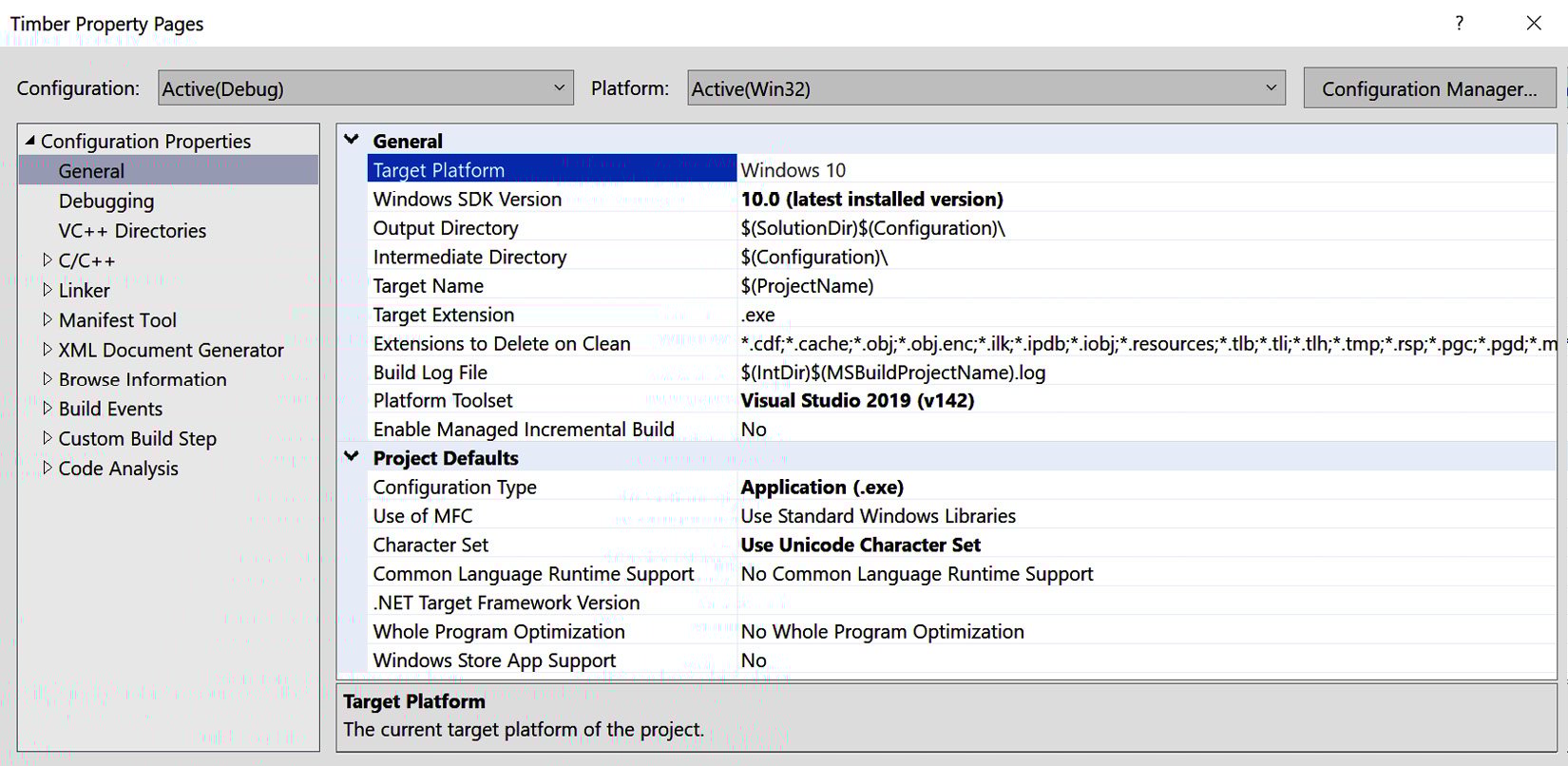
SFML folder. From the main menu, select Project | Timber properties…. You will see the following window:
Tip
In the preceding screenshot, the OK, Cancel, and Apply buttons are not fully formed. This is likely a glitch with Visual Studio not handling my screen resolution correctly. Yours will hopefully be fully formed. Whether your buttons appear like mine do or not, continuing with the tutorial will be the same.
Next, we will begin to configure the project properties. As these steps are quite intricate, I will cover them in a new list of steps.
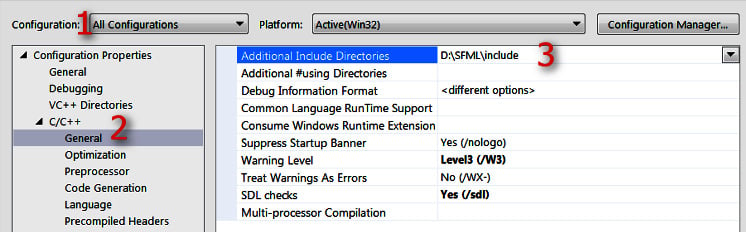
At this stage, you should have the Timber Property Pages window open, as shown in the preceding screenshot at the end of the previous section. Now, we will begin to configure some properties while using the following annotated screenshot for guidance:
We will add some fairly intricate and important project settings in this section. This is the laborious part, but we will only need to do this once per project. What we need to do is tell Visual Studio where to find a special type of code file from SFML. The special type of file I am referring to is a header file. Header files are the files that define the format of the SFML code so that when we use the SFML code, the compiler knows how to handle it. Note that the header files are distinct from the main source code files and they are contained in files with the .hpp file extension. All this will become clearer when we eventually start adding our own header files in the second project. In addition, we need to tell Visual Studio where it can find the SFML library files. In the Timber Property Pages window, perform the following three steps, which are numbered in the preceding screenshot:
\SFML\include. The full path to type, if you located your SFML folder on your D drive, is as shown in the preceding screenshot; that is, D:\SFML\include. Vary your path if you installed SFML on a different drive.SFML folder is, followed by \SFML\lib. So, the full path to type if you located your SFML folder on your D drive is, as shown in the following screenshot, D:\SFML\lib. Vary your path if you installed SFML to a different drive:
sfml-graphics-d.lib;sfml-window-d.lib;sfml-system-d.lib;sfml-network-d.lib;sfml-audio-d.lib; at the indicated place. Be extra careful to place the cursor exactly in the right place and not to overwrite any of the text that is already there.
Phew; that’s it! We have successfully configured Visual Studio and can move on to planning the Timber!!! project.