-
Book Overview & Buying
-
Table Of Contents
-
Feedback & Rating
Mastering Windows Server 2025 - Fifth Edition
By :
Driving around the interface of Windows Server is usually comfortable territory for anybody who regularly works on a Windows computer. This is because, historically, Windows Server operating systems have utilized the same code base for a graphical interface as their workstation counterparts. Additionally, in most cases throughout Windows rollout history, it has been true that any release of a major version of Windows Server follows closely on the heels of a Windows workstation version increase, and familiarity with your desktop equates to automatic ease of navigation on the new server. In fact, let’s take a minute and walk through that history for anybody here who is not on the gray-hair side of IT (me) and may not have this historical context.
Many years ago, Microsoft adjusted its operating system release ideology so that the latest Windows Server operating system maintained a similar graphical structure, and very similar release date, to whatever the latest and greatest Windows client operating system was going to have. This has been the trend for some time now, with Server 2008 R2 closely reflecting Windows 7, Server 2012 feeling a lot like Windows 8 (unfortunately), and many of the same usability features that came with the Windows 8.1 update also included with Server 2012 R2. This, of course, carried over to Server 2016 as well—giving it the same look and feel as if you were logged into a Windows 10 workstation.
At the time of Server 2016’s release, we were already familiar and comfortable with the Windows 10 interface, and it felt quite natural to jump right into Server 2016 and start giving it a test drive. Windows Server 2019 diverged from this standard path a little bit by maintaining a look and feel that was very similar to its predecessor, Windows Server 2016. Why did Windows Server 2019 not come with a fancy new graphical interface to match the new version of the Windows client operating system? Because Microsoft changed the game with Windows 10. Now, instead of releasing new versions of Windows (11, 12, 13, and so on), we were, for the time being, simply sticking with Windows 10 and giving it sub-version numbers, indicative of the dates when each operating system version was released. For example, Windows 10 version 1703 was released around March 2017. Windows 10 version 1709 was released in September 2017.
Then came 1803 and 1809—although 1809 was delayed a little and didn’t release until somewhere closer to November, which wasn’t the original plan. Follow that up with 1903 and 1909, and you start to see a pattern emerging. Then we moved into the year 2020, and suddenly our spring release of Windows 10 was called 2004. Hmm… 2004 sounds fine when you pronounce it “twenty-oh-four”, indicating the year 2020 and the month of April, but when seeing 2004 on paper, most folks started calling it “two-thousand-four,” which sounds quite old and outdated, don’t you think? I can’t say for sure, but perhaps this is part of the reason that the next release version of Windows 10 went by the name 20H2. This nomenclature seems to have stuck around, and we are continuing the trend with bi-annual client OS releases that reflect this pattern. All in all, you can see that Microsoft’s current plan is to continue releasing a new feature release version of the Windows operating system every 6 months or so.
However, expecting IT departments to lift and shift all of their servers just for the purposes of moving to an OS that is 6 months newer is crazy; sometimes it takes longer than that simply to plan a migration, let alone execute it.
Anyway, I’m getting ahead of myself a little, as we will discuss the versioning of Windows Server later in this chapter, in our Windows Server versions and licensing section. The point here is that Windows Server 2019 looks and feels like the latest version of the Windows client operating system that was released at about the same time—that OS being Windows 10 1809.
Now, forget everything I ever told you, as we cue the caveat of Windows Server 2022. When this last major server version hit shelves, it was after Windows 11 was out in the wild, yet Server 2022 stuck with the more traditional Windows 10 graphical interface. At the time, I thought this to be a good idea, and indeed, I maintain that, given some discomforts with Windows 11 at the time, this seems to have been a good move, whether it was intentional or a side effect of the updated GUI not being quite ready to ride on a server. Whatever the true reason, Microsoft essentially left the GUI alone when releasing Windows Server 2022. It is genuinely difficult to tell, graphically, whether you are working on 2019 or 2022 without checking System Properties.
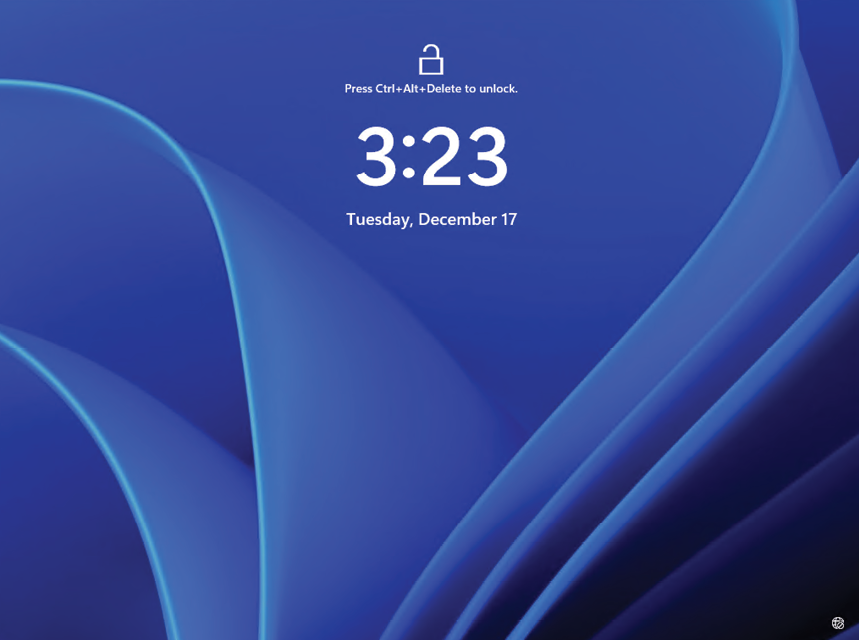
So, what about Windows Server 2025? I just finished creating an instance of this brand-new operating system, it booted successfully, and I’m staring this in the face.

Figure 1.1: The Server 2025 lock screen
I’m sure you saw where this was going. We now have the Windows 11 graphical interface! At this point in the Windows 11 journey, you should be quite comfortable with using it. Indeed, as I type these words, we are facing the fact that Windows 10 goes end-of-life in less than one year. We will see much more of this updated interface as we work through the entire book, but for the purpose of this chapter, I want to discuss more of the conceptual enhancements and benefits brought to us through Windows Server 2025.
Before we get started talking about the features of Windows Server, it is important to establish a baseline for usability and familiarity with the operating system itself before diving deeper into the technologies running under the hood.
Let’s spend a few minutes exploring the new graphical interface and options that are available for finding your way around this latest release of Windows Server, as we cover the following topics:
Let’s get started!
Change the font size
Change margin width
Change background colour