-
Book Overview & Buying
-
Table Of Contents
Mastering Windows Server 2025 - Fifth Edition
By :
If you work in IT and have used Windows 10 on a client machine for any period of time, it’s a sure bet that you have already worked within the newer Settings interface. Settings in Windows Server 2025 is just what the name implies, an interface from which you configure various settings within the operating system.
What can sometimes be difficult or confusing about the existence of Settings is that we also have a different landing platform for settings contained inside Windows that has been around for a zillion years. It’s called Control Panel.
The Settings menu inside Windows isn’t a brand-new idea, but it looks and feels quite new when compared to Control Panel. Windows Server 2012 and 2012 R2 had a quasi-presence of this newer Settings screen that, as far as I know, went largely unused by systems administrators. I believe that to be the effect of poor execution, as the Settings menu in 2012 was accessed and hidden behind the Charms bar, which most folks have decided was a terrible idea. We will not spend too much time on technology of the past, but the Charms bar in Server 2012 is a little bit like an AMC Pacer in the car world. You may have never even heard of it, or you may be old enough to have had the unfortunate experience of owning one yourself, and it is now irrevocably part of your own story. The Charms bar was a menu that presented itself when you swiped your finger in from the right edge of the screen. What’s that, you ask? Servers don’t usually have touchscreens? I’m right there with you—not any that I have ever worked on, anyway. So, the Charms bar was also presented when you hovered the mouse up near the top right of the screen. It was quite difficult to access, yet it seemed to always appear whenever you didn’t want it to, such as when you were trying to click on something on the right side of the screen, and instead you clicked on something inside the Charms bar that suddenly popped out of nowhere.
I am only giving you this background information in order to segue into this next idea. Much of the user interface in Windows 10+, and therefore Windows Server 2016+, can be considered a small step backward from the realm of finger swipes and touchscreens. Windows 8 and Server 2012 were so focused on big app buttons and finger swipes that a lot of people got lost in the shuffle. It was so different from what we had ever seen before and difficult to use at an administrative level. Because of feedback received from that release, the graphical interface and user controls, including both the Start menu and the Settings menu in Windows Server 2025, are sort of smack-dab in the middle between Server 2008 and Server 2012. This backward step was the right one to take, and I have heard nothing but praise so far for the newer user interfaces.
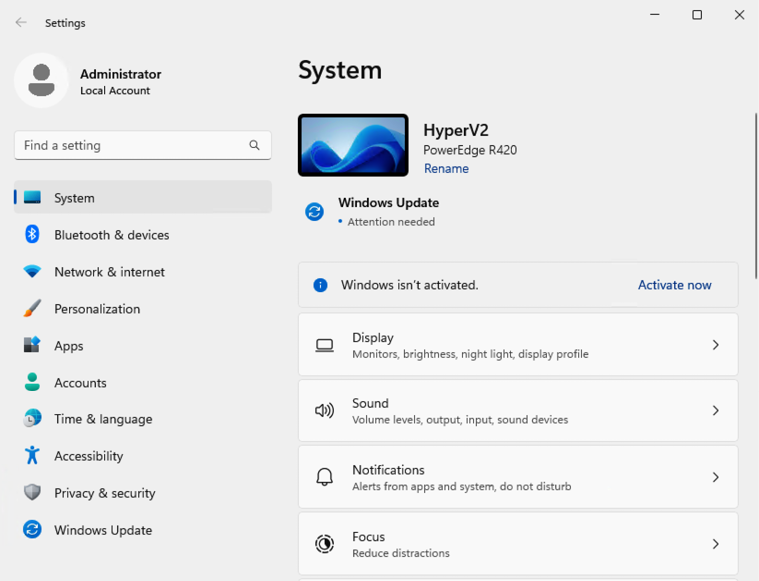
So, getting back to the Settings menu, if you click on your Start button, then click on that little gear labeled Settings, you will see this new interface:

Figure 1.13: Windows Settings
There are many settings and pieces of the operating system that you can configure in this new Settings menu. Some settings in Windows now only exist in this interface, but many can still be accessed either here or through the traditional Control Panel. The goal seems to be a shift toward all configurations being done through the new menu in future releases, but, for now, we can still administer most setting changes through our traditional methods if we so choose. I mentioned Windows Update earlier, and that is a good example to look over. Historically, we would configure our Windows Update settings via Control Panel, but they have now been completely migrated over to the new Settings menu in Windows Server 2025. Search Control Panel for Windows Update, and the only result is that you can view currently installed updates. But, if you search the new Settings menu for Windows Update, you’ll find it right away.
Remember, you can always use the Windows search feature to look for any setting! Hit your WinKey and type Windows Update, and you’ll be given quick links that take you straight into the appropriate Settings menus.
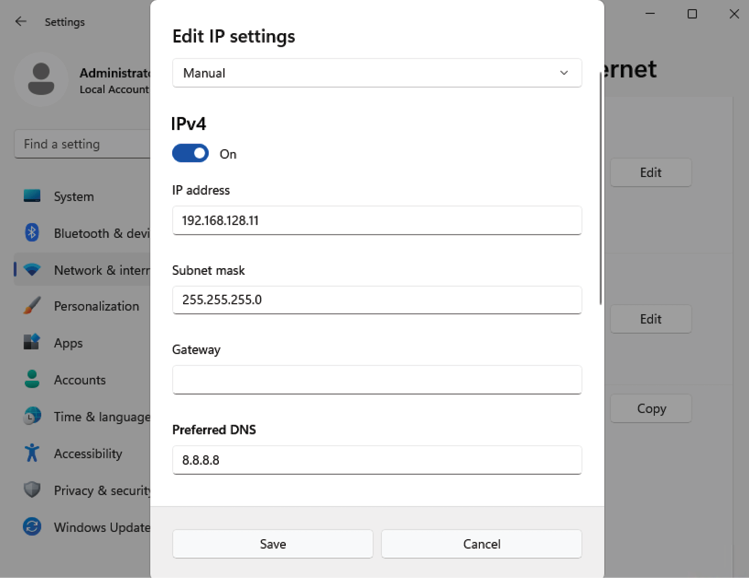
For the moment, you will have to use a combination of Control Panel and the Settings menu to do your work. This gets confusing occasionally. With each new release of the Windows operating system, Microsoft moves more and more functions directly into Settings, lessening the requirements on Control Panel. As an example, even in Windows Server 2022, if you wanted to change a NIC’s IP address, you would always need to visit one of the older configuration screens. You could view NIC settings inside the Settings console, but clicking the button to edit the IP address of a network card would then launch the older Network Connections screen. While Network Connections still exists and you can certainly still use it to edit NIC configurations, for the first time in the history of Windows Server, you can now change your IP address directly from inside the Settings interface!
Go ahead and try it out. Launch the Settings menu and navigate to Network & internet. Then click Ethernet in the right column. Scrolling down a little bit, you will find your IP assignment displayed, alongside a button called Edit. Previously, selecting the option here to edit an IP address would immediately launch a separate window to the old-style Control Panel screens, but as of today, we have the ability to edit our IP address right here inside Settings!

Figure 1.14: Editing IP address inside Settings
While Microsoft continues to move Windows configuration items into the Settings console, don’t be surprised if you still run across some items that take you back to those classic Control Panel screens. They still exist, even if they are starting to collect dust on the shelf.
Potentially confusing as well, until you get used to navigating around in here, is that you can sometimes accomplish the same task in either Control Panel or the Settings menu, but the process that you take in each interface can have a vastly different look and feel. Let’s take a look at that firsthand by trying to create a new user account on our server, once via Control Panel, and again via Settings.
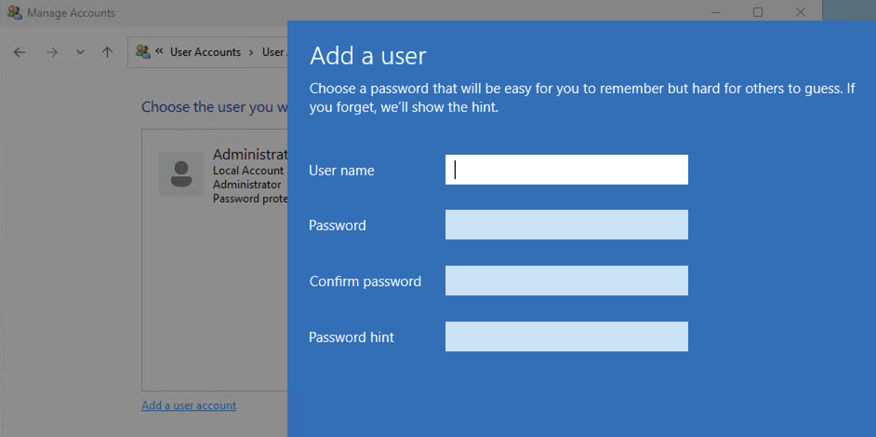
You are probably familiar with this. Open Control Panel and click on User Accounts. Then, click on the User Accounts heading. Now, click on the Manage another account link. Inside this screen is the Add a user account option. Click on that and you get the dialog box where you enter a username and password for your new user:

Figure 1.15: Adding a user account via Control Panel
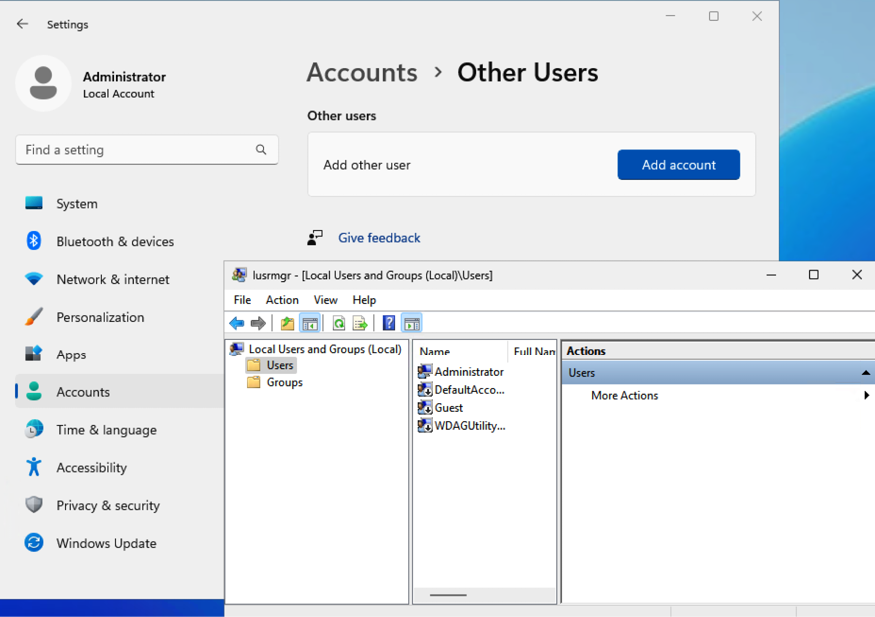
Let’s take this newer Settings interface for a test drive. Open the Settings menu and click on Accounts. Now, click on Other users in the right column. There is an Add account button here; go ahead and click on that:

Figure 1.16: Adding a user account via Settings
What in the world is that? Not what I expected, unfortunately. To my surprise, the old Control Panel user account launches a nice, fresh-looking interface from which I can create new user accounts. Accessing user accounts via the newer Settings console launches me into the old Local Users and Groups manager. Technically, from here, I could go ahead and create new user accounts, but it seems like there is some sort of a disconnect here. You would naturally think that the new Settings would initiate the newer, nicer screen to add new user accounts, but we found the opposite to be true.
We walked through this simple example of attempting to perform the same function through two different interfaces to showcase that there are some items that can, and must, be performed within the new Settings menu context, but there are many functions within Windows that still need to be accomplished through our traditional interfaces. While Control Panel continues to exist, and probably will for a very long time, you should start navigating your way around the Settings menu and figure out what is available inside, so that you can start to shape your ideas for the best combination of both worlds in order to manage your servers effectively.
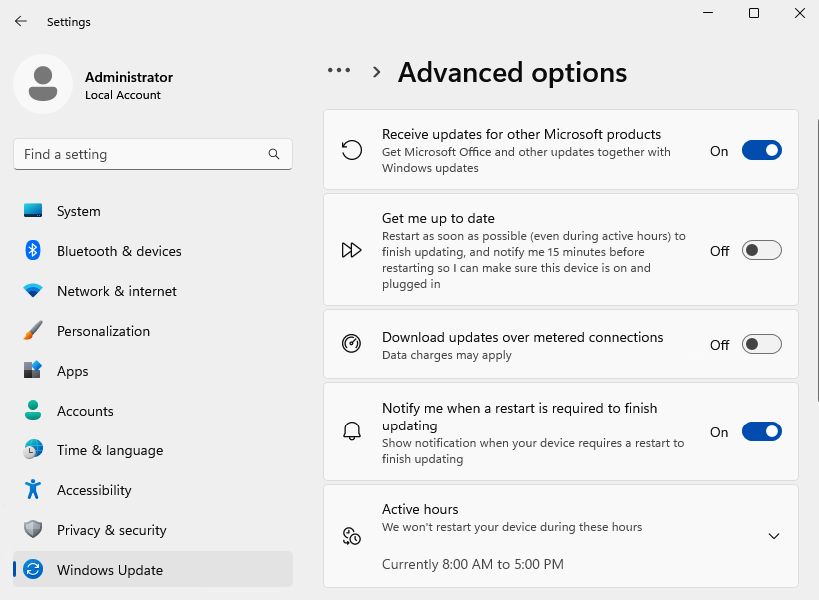
Just one last thing to point out as we start getting comfortable with the way that the new Settings menu looks: many of the settings that we configure in our servers are on/off types of settings. By that I mean we are setting something to either one option or another. Historically, these kinds of configurations were handled by either drop-down menus or radio buttons. That is normal; that is expected; that is Windows. Now, you will start to see little swipe bars, or sliders, that allow you to switch settings on or off, like a light switch. Anyone who has used the settings interface of any smartphone knows exactly what I am talking about. This user interface behavior has now made its way into the full Windows operating systems and is probably here to stay. Just to give you an idea of what it looks like in the context of the new Settings menu, here is a screenshot of the current Windows Update -> Advanced options settings page.
This is a good example of those on/off slider buttons:

Figure 1.17: Windows Update | Advanced options
Let’s explore the Task Manager tool next.
Change the font size
Change margin width
Change background colour