-
Book Overview & Buying
-
Table Of Contents

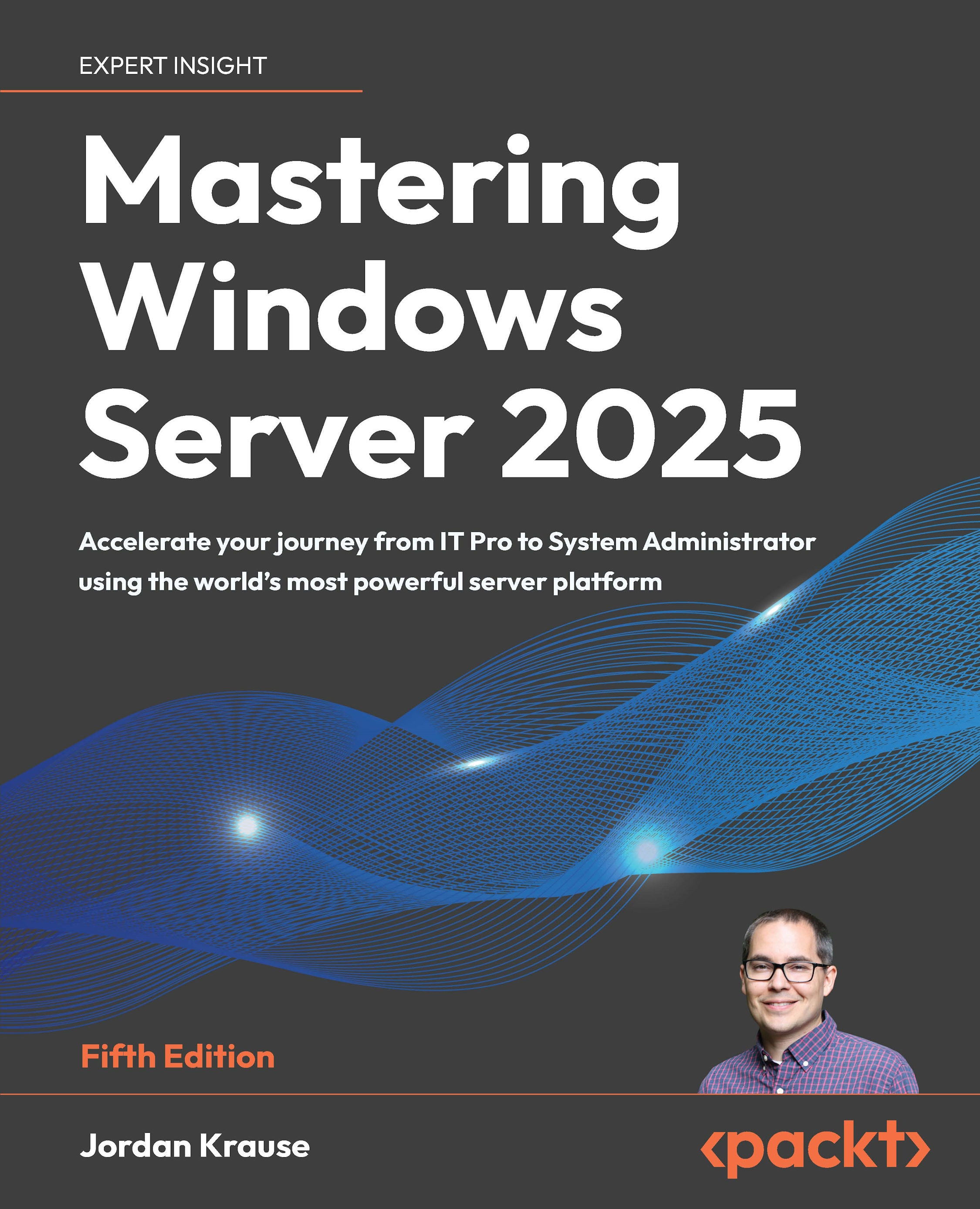
Mastering Windows Server 2025 - Fifth Edition
By :


Mastering Windows Server 2025
By:
Overview of this book
Written by a 10-time Microsoft MVP with 25 years of IT and technical coaching experience, this practical guide offers real-world expertise in Windows Server management. From building and connecting servers to securing them, and even intentionally breaking them to learn, you’ll find comprehensive, experience-based coverage that takes you deep into professional administration.
Fully updated for the 2025 release, this edition prepares you to manage any Windows Server environment, whether deploying the latest version or maintaining Server 2012 in a modern infrastructure. You'll work with PowerShell, Server Manager, Windows Admin Center, RSAT, and Azure Arc to achieve centralized and efficient administration. While the focus is on Windows Server 2025 LTSC with Desktop Experience, the book also explores Server Core, containerization, and the evolving role of Nano Server.
Along the way, you'll gain hands-on experience with core services, including Active Directory, DNS, DHCP, and Group Policy, and explore advanced topics such as certificate services and PKI, Hyper-V virtualization, Remote Desktop Services, failover clustering, DFS, and Intune integration.
By the end of this book, you’ll have the skills to manage and modernize complex server infrastructures with confidence.
Table of Contents (21 chapters)
Preface


 Free Chapter
Getting Started with Windows Server 2025

Installation and Management
Active Directory
DNS and DHCP
Group Policy
File Management
Certificates
Networking with Windows Server 2025
Remote Access
Hardening and Security
Server Core
PowerShell
Redundancy in Windows Server 2025
Containers
Hyper-V
Remote Desktop Services
Troubleshooting
Other Books You May Enjoy
Index
Appendix: Answers to the End-of-Chapter Questions