
Sign In Start Free Trial
Account

Add to playlist

Create a Playlist

Modal Close icon
You need to login to use this feature.
  • Book Overview & Buying Jira Quick Start Guide
  • Table Of Contents Toc
Jira Quick Start Guide

Jira Quick Start Guide

By : Ravi Sagar
2.6 (5)
close
close
Jira Quick Start Guide

Jira Quick Start Guide

2.6 (5)
By: Ravi Sagar

Overview of this book

Jira is an issue tracker and project management system. With their latest release, the Jira team has now expanded their user base to agile teams as well as business teams. This book provides a comprehensive explanation covering all major components of Jira, including Jira Software, Jira Core, and Jira Service Desk. This book starts with an introduction to Jira's unique features and how it can be used as an issue-tracking tool. It will then teach you about how a new project is created by a Jira administrator, what responsibilities there are, and using correct and relevant schemes in your project. You will then learn how to configure project workflows and fields for project screens. You will understand the various permissions used in projects and the importance of project roles in Jira. Then, the book talks about the concepts of versions acting as milestones and using components when handling issues in your projects. It will then focus on analysing data using built-in reports and creating dashboards in Jira. At the end, it will discuss various best practices for users as well as project managers or project administrators.
Table of Contents (10 chapters)
close
close

Creating a Jira Service Desk project

Let's create a Jira Service Desk project in our instance. We've already enabled a Jira Service Desk subscription in our instance.

Perform the following steps to create a Jira Service Desk project:

  1. Go to Jira settings | Projects and then click on the Create project button in the top-right corner, as shown here:
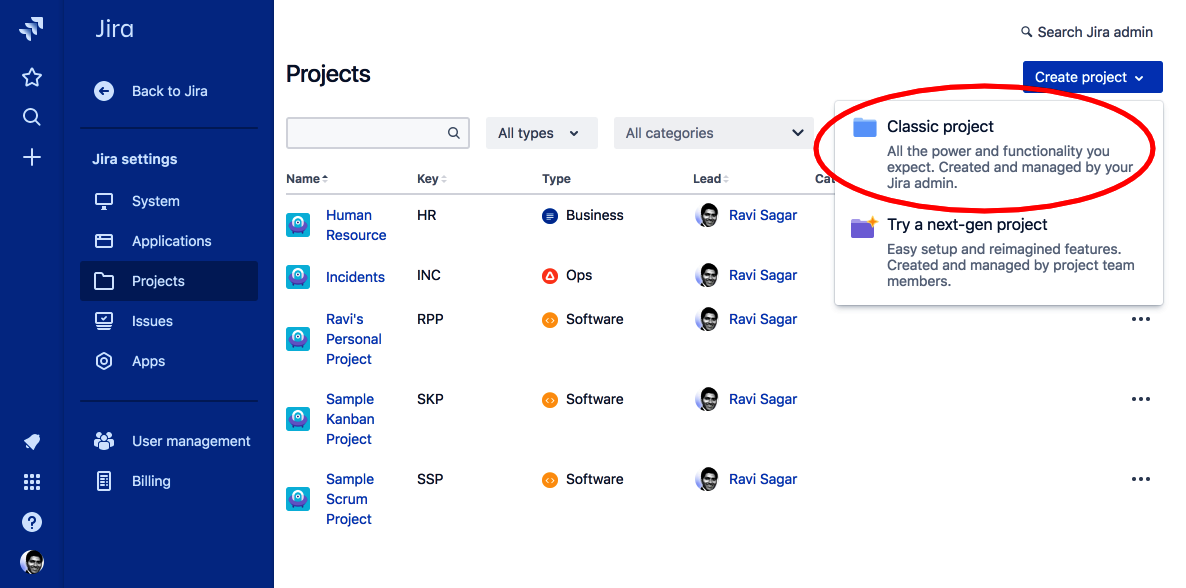
Figure 1
  1. Click on Classic project | Change template and select IT service desk, as shown here:
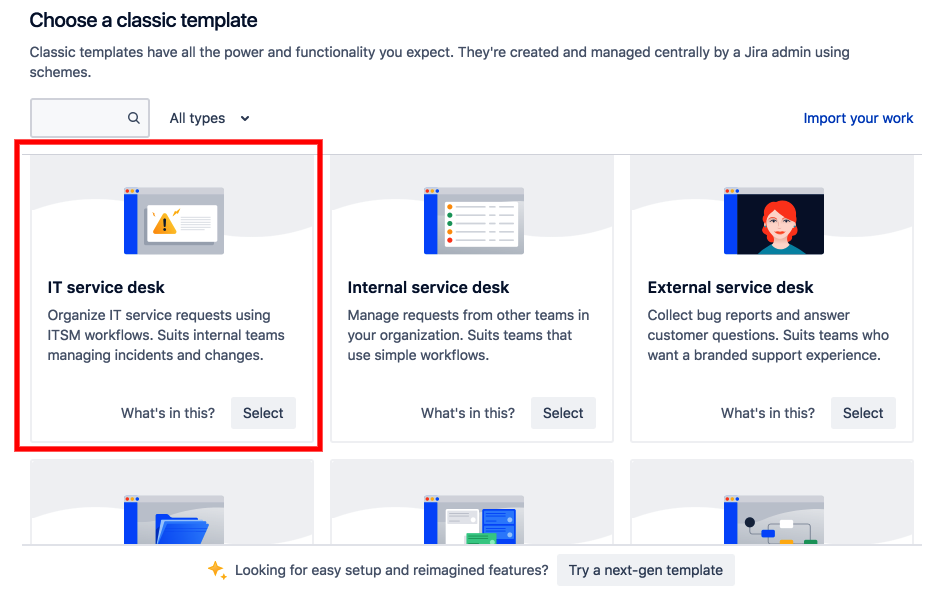
Figure 2
  1. In the Create project screen, enter the Name of the project and click on the Create button, as shown here:
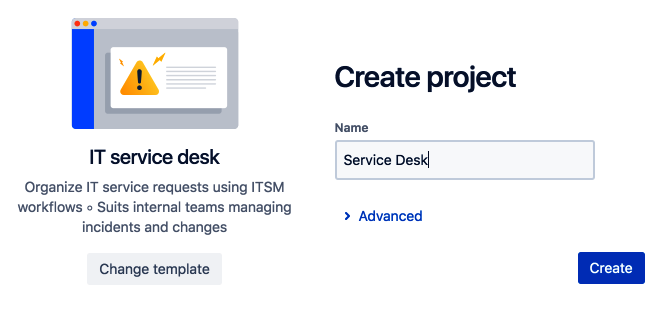
Figure 3
  1. Your new Jira Service Desk project is ready. The screen will be similar to the following:
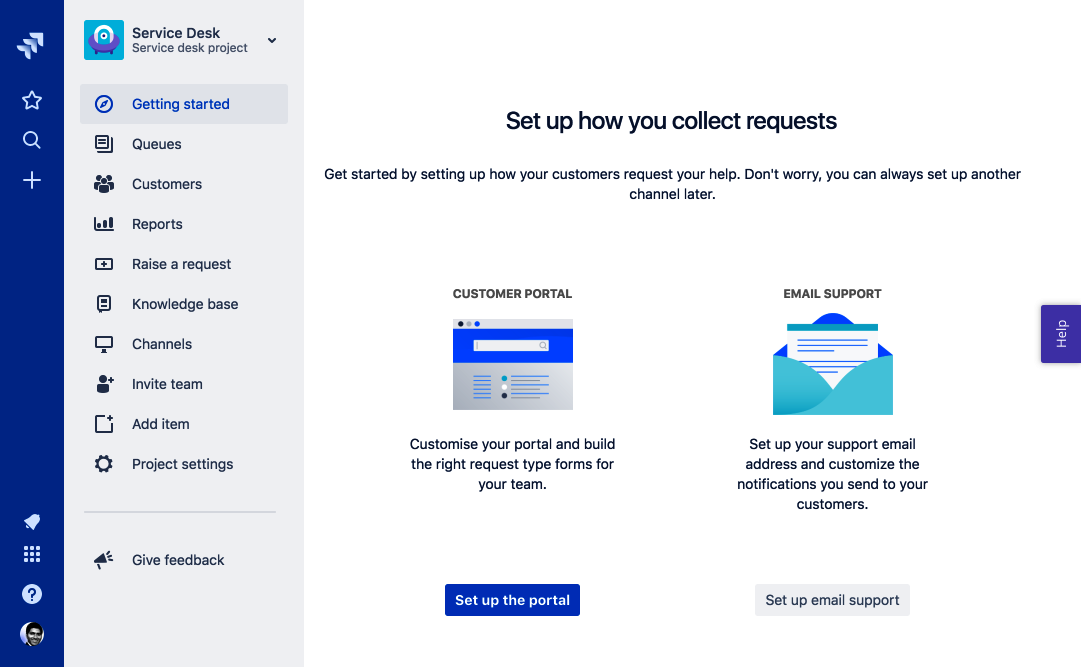
Figure 4

You can start using this project straightaway as the IT service desk template comes with out-of-the-box configurations; however, we'll go through various aspects of the project to understand how...

CONTINUE READING
83
Tech Concepts
36
Programming languages
73
Tech Tools
Icon Unlimited access to the largest independent learning library in tech of over 8,000 expert-authored tech books and videos.
Icon Innovative learning tools, including AI book assistants, code context explainers, and text-to-speech.
Icon 50+ new titles added per month and exclusive early access to books as they are being written.
Jira Quick Start Guide
notes
bookmark Notes and Bookmarks search Search in title playlist Add to playlist download Download options font-size Font size

Change the font size

margin-width Margin width

Change margin width

day-mode Day/Sepia/Night Modes

Change background colour

Close icon Search
Country selected

Close icon Your notes and bookmarks

Confirmation

Modal Close icon
claim successful

Buy this book with your credits?

Modal Close icon
Are you sure you want to buy this book with one of your credits?
Close
YES, BUY

Submit Your Feedback

Modal Close icon
Modal Close icon
Modal Close icon