Sign In Start Free Trial
Account

Add to playlist

Create a Playlist

Modal Close icon
You need to login to use this feature.
  • Book Overview & Buying Unreal Engine 4 Scripting with C++ Cookbook
  • Table Of Contents Toc
Unreal Engine 4 Scripting with C++ Cookbook

Unreal Engine 4 Scripting with C++ Cookbook

By : Stephen Whittle, William Sherif
3.1 (7)
close
close
Unreal Engine 4 Scripting with C++ Cookbook

Unreal Engine 4 Scripting with C++ Cookbook

3.1 (7)
By: Stephen Whittle, William Sherif

Overview of this book

Unreal Engine 4 (UE4) is a complete suite of game development tools made by game developers, for game developers. With more than 100 practical recipes, this book is a guide showcasing techniques to use the power of C++ scripting while developing games with UE4. It will start with adding and editing C++ classes from within the Unreal Editor. It will delve into one of Unreal's primary strengths, the ability for designers to customize programmer-developed actors and components. It will help you understand the benefits of when and how to use C++ as the scripting tool. With a blend of task-oriented recipes, this book will provide actionable information about scripting games with UE4, and manipulating the game and the development environment using C++. Towards the end of the book, you will be empowered to become a top-notch developer with Unreal Engine 4 using C++ as the scripting language.
Table of Contents (14 chapters)
close
close
13
Index

Changing the code font and color in Visual Studio

Customizing the font and color in Visual Studio is not only extremely flexible, you will also find it very necessary if your monitor resolution is quite high or quite low.

Getting ready

Visual Studio is a highly customizable code editing tool. You might find the default fonts too small for your screen. You may want to change your code's font size and color. Or you may want to completely customize the coloration of keywords and the text background colors. The Fonts and Colors dialog box, which we'll show you how to use in this section, allows you to completely customize every aspect of the code editor's font and color.

Getting ready

How to do it...

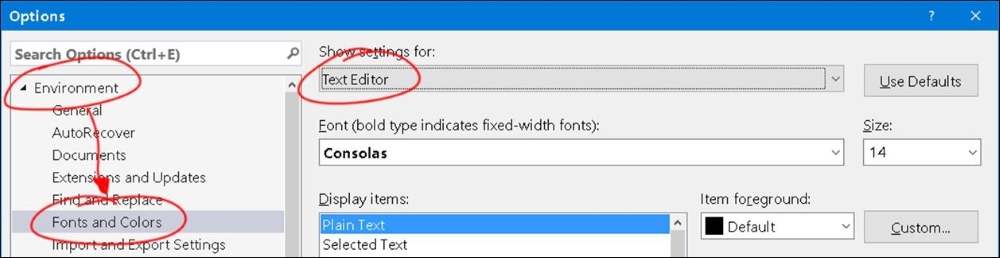
  1. From within Visual Studio, go to Tools | Options…
    How to do it...
  2. Select Environment | Fonts and Colors from the dialog that appears. It will look like the following screenshot:
    How to do it...
  3. Play around with the font and font size of Text Editor/Plain Text. Click OK on the dialog, and see the results in the code-text editor.
    How to do it...

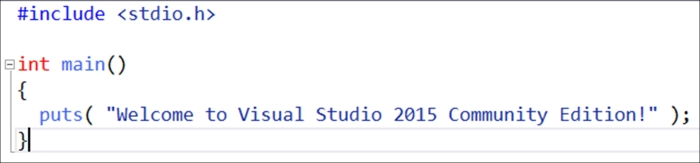
Text Editor/Plain Text describes the font and size used for all code text within the regular code editor. If you change the size of the font, the size changes for any text entered into the coding window (for all languages, including C, C++, C#, and others).

How to do it...

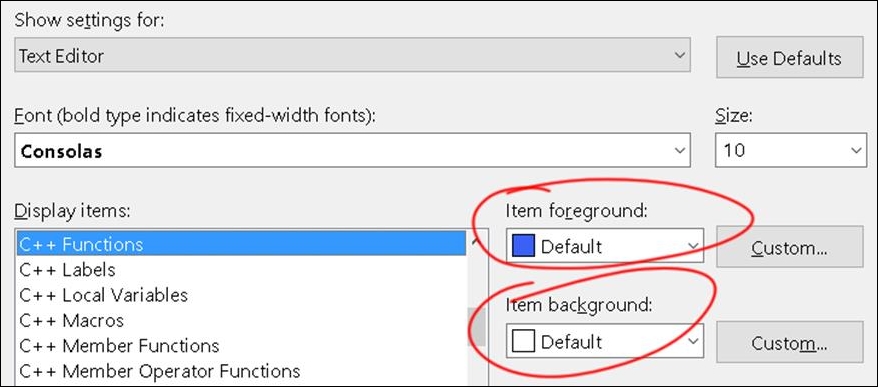
The color (foreground and background) is completely customizable for each item. Try this for the Text Editor/Keyword setting (affects all languages), or for C++-specific items, such as Text Editor/C++ Functions. Click OK, and you will see the changed color of the item reflected in the code editor.

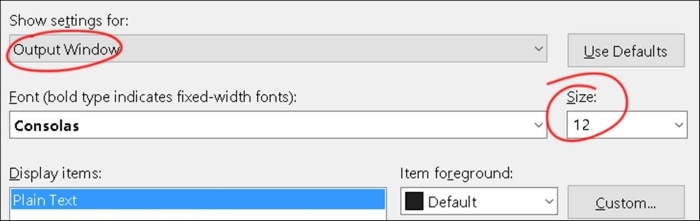
You may also want to configure the font size of the Output Window—choose Show settings for => Output Window as seen in the following screenshot:

How to do it...

The Output Window is the little window at the bottom of the editor that displays build results and compiler errors.

Tip

You can't save-out (export) or bring in (import) your changes to the Fonts and Colors dialog. But you can use something called the Visual Studio Theme Editor Extension, learn more refer to Extension – changing the color theme in Visual Studio to export and import customized color themes.

For this reason, you may want to avoid changing font colors from this dialog. You must use this dialog to change the font and font-size, however, for any setting (at the time of writing).

How it works...

The Fonts and Colors dialog simply changes the appearance of code in the text editor as well as for other windows such as the output window. It is very useful for making your coding environment more comfortable.

There's more...

Once you have customized your settings, you'll find that you may want to save your customized Fonts and Colors settings for others to use, or to put into another installation of Visual Studio, which you have on another machine. Unfortunately, by default, you won't be able to save-out your customized Fonts and Colors settings. You will need something called the Visual Studio Theme Editor extension to do so. We will explore this in the next recipe.

See also

  • The Extension – changing the color theme in Visual Studio section describes how to import and export color themes
CONTINUE READING
83
Tech Concepts
36
Programming languages
73
Tech Tools
Icon Unlimited access to the largest independent learning library in tech of over 8,000 expert-authored tech books and videos.
Icon Innovative learning tools, including AI book assistants, code context explainers, and text-to-speech.
Icon 50+ new titles added per month and exclusive early access to books as they are being written.
Unreal Engine 4 Scripting with C++ Cookbook
notes
bookmark Notes and Bookmarks search Search in title playlist Add to playlist font-size Font size

Change the font size

margin-width Margin width

Change margin width

day-mode Day/Sepia/Night Modes

Change background colour

Close icon Search
Country selected

Close icon Your notes and bookmarks

Confirmation

Modal Close icon
claim successful

Buy this book with your credits?

Modal Close icon
Are you sure you want to buy this book with one of your credits?
Close
YES, BUY

Submit Your Feedback

Modal Close icon
Modal Close icon
Modal Close icon