Sign In Start Free Trial
Account

Add to playlist

Create a Playlist

Modal Close icon
You need to login to use this feature.
  • Book Overview & Buying ArcGIS for Desktop Cookbook
  • Table Of Contents Toc
ArcGIS for Desktop Cookbook

ArcGIS for Desktop Cookbook

By : Daniela C Docan
1 (1)
close
close
ArcGIS for Desktop Cookbook

ArcGIS for Desktop Cookbook

1 (1)
By: Daniela C Docan

Overview of this book

This book is a good companion to get you quickly acquainted with everything you need to increase your productivity with the ArcGIS Desktop. It would be helpful to have a bit of familiarity with basic GIS concepts. If you have no previous experience with ArcGIS, this book will still be helpful for you because it will help you catch up to the acquainted users from a practical point of view.
Table of Contents (13 chapters)
close
close
12
Index

Creating a feature class

Features are representations of the real-word objects in a geodatabase. Features are grouped in classes based on their common components: shape (geometry) and attributes. Features from a feature class share the same spatial reference. A feature class stores simple features (for example, point, multipoint, line, and polygon) or non-simple features (for example, dimension and annotation). When a feature class is created, the user can add two optional geometry properties for features: z value (3D data) and m value (used for linear referencing). The feature class table contains some default attribute fields, which are managed by ArcGIS: OBJECTID and SHAPE. The OBJECTID field has the Object ID type property and stores the unique identifier for each feature. The SHAPE field refers to the Geometry type property and stores the x and y coordinates of the features and optionally z and m values if the feature class has the z and/or m properties enabled. The feature class that stores line or polygon features has two supplementary fields: SHAPE_Length (length of the feature line) and SHAPE_Area (area of the feature polygon).

Note

For more details about the feature class and field data types, please refer to Geodata/Data types/Feature Class and Geodata/Geodatabases/Defining the properties of data in a geodatabase/Geodatabase table properties/ArcGIS field data types from ArcGIS help (10.2) online.

Usually, feature classes are stored inside a feature dataset and automatically inherit the spatial reference of the feature dataset. A feature class that is stored at the root level of a geodatabase is a standalone feature class and has its own spatial reference.

Getting ready

You will continue to work at the geodatabase structure by creating four feature classes: Buildings (polygon features), Watercourse (polygon features), WatercourseL (polyline features), and LandUse (polygon features).

How to do it...

Follow these steps to create feature classes using the ArcCatalog context menu:

  1. Start ArcCatalog. In Catalog Tree, go to <drive>:\PacktPublishing\Data\MyGeodatabase\Topo5k.gdb.
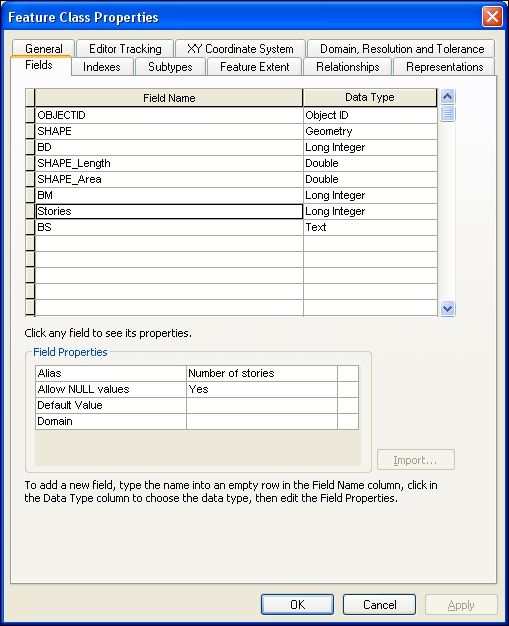
  2. Right-click on the Buildings feature dataset, and choose New | Feature Class. For Name, type Buildings and for Alias, type Buildings. For Type, choose Polygon Feature. Leave the Geometry Properties options unchecked. Click on Next. Select Default for the Configuration Keyword section. Click on Next. There are two default attribute fields: OBJECTID and SHAPE. You will create five new attribute fields: BD (Alias=Destination), BM (Alias=Material), Stories (Alias=Number of stories), BS (Alias=State of buildings) and LandUseID. For Field Name, in the first empty cell below SHAPE, type BD, and for Data Type, select Long Integer from the drop-down list. In the Field Properties section, for the Alias, type Destination and for Allow NULL values, select Yes. Leave empty the Default Value property. You will add the default value later on in this chapter. You should see something similar to the following screenshot:
    How to do it...
  3. Repeat step 2 for BM (Default Value: 0), Stories, and LandUseID.
  4. For the BS attribute field, choose Text from the drop-down list. Notice that the Field Properties options have changed according to the data type. For Alias, type State of buildings, and for the Length property, type 4. Click on OK to close the Feature Class Properties dialog. To inspect the results, return to the Feature Class Properties dialog. Right-click on the Buildings feature class, and navigate to Properties | Fields. Notice the two geometry attribute fields: SHAPE_Length and SHAPE_Area.
  5. Right-click on the Hydrography feature dataset, and navigate to New | Feature Class. For Name, type Watercourse, and for Alias, type Watercourse. For Type, choose Polygon Feature. Leave the Geometry Properties options unchecked. Click on Next. Select Default for the Configuration Keyword section. Click on Next, and add the following attribute fields:

    Name

    Data type

    Alias

    Allow NULL values

    Default Value

    HType

    Long Integer

    Water category

    Yes

    <none>

    HYC

    Long Integer

    Hydrologic category

    Yes

    <none>

  6. Click on OK to close the Feature Class Properties dialog.
  7. Right-click on the Hydrography feature dataset, and choose New | Feature Class. For Name, type WatercourseL and for Alias, type WatercourseL. For Type, choose Line Feature. Leave the Geometry Properties options unchecked. Click on Next. Select Default for the Configuration Keyword section. Click on Next. You will add field definitions by selecting the Import button. Navigate to Topo5k.gdb | Hydrography, and select the Watercourse polygon feature class. Click on Add. You now have two attribute fields: HType (Water category), HYC (Hydrologic category), along with Name. Click on OK.
  8. Right-click on LandUse, and choose New | Feature Class. For Name, type LandUse and for Type, choose Polygon Feature. Click on Next twice, and add the following attribute fields:

    Name

    Data type

    Alias

    Allow NULL values

    Default Value

    CAT

    Long Integer

    Category

    Yes

    <none>

    SCAT

    Text with Length 5

    SubCategory

    Yes

    <none>

  9. Click on OK to close the Feature Class Properties dialog. Return to the Feature Class Properties dialog for every feature class to inspect the results.

How it works...

For every feature class, you defined different attribute fields. Because the WatercourseL feature class has the same attribute fields as Watercourse, you imported the field definitions from Watercourse at step 7. For all attribute fields, you have selected Yes for Allow NULL values. When you add a new feature in ArcMap, the attribute field will have a NULL value or an empty value that will be ignored by the functions in ArcMap. To enforce data integrity, you can specify that a field cannot contain empty or null values by setting Allow NULL values to No. This condition can be validated in the ArcMap edit session using the Validate Features option from Editor in Editor toolbar. You have another option to enforce field values by setting the Default Value property. A default value is automatically assigned to an attribute field when a new feature is being created in the ArcMap edit session.

There's more...

Regarding spatial reference of the feature class, if you want to move WatercourseL in the LandUse feature dataset, you simply select the feature class and drag and drop it into the LandUse feature dataset. You will succeed because both feature datasets have the same spatial reference. If you drag and drop the WatercourseL feature class into the root of the geodatabase, you will have a standalone feature class.

See also

  • In the following Creating subtypes recipe, you will learn how to group features in a feature class based on a subtype field
CONTINUE READING
83
Tech Concepts
36
Programming languages
73
Tech Tools
Icon Unlimited access to the largest independent learning library in tech of over 8,000 expert-authored tech books and videos.
Icon Innovative learning tools, including AI book assistants, code context explainers, and text-to-speech.
Icon 50+ new titles added per month and exclusive early access to books as they are being written.
ArcGIS for Desktop Cookbook
notes
bookmark Notes and Bookmarks search Search in title playlist Add to playlist font-size Font size

Change the font size

margin-width Margin width

Change margin width

day-mode Day/Sepia/Night Modes

Change background colour

Close icon Search
Country selected

Close icon Your notes and bookmarks

Confirmation

Modal Close icon
claim successful

Buy this book with your credits?

Modal Close icon
Are you sure you want to buy this book with one of your credits?
Close
YES, BUY

Submit Your Feedback

Modal Close icon
Modal Close icon
Modal Close icon