-
Book Overview & Buying
-
Table Of Contents
ArcGIS for Desktop Cookbook
By :
The domains define the valid values for the attribute fields of feature classes or non-spatial tables. The domains are properties of a geodatabase, and obviously are stored at the geodatabase level. In a feature class/table, an attribute field can have one or many domains associated with it. The multiple domains associated with a field are based on the existing subtypes that you have already defined for a feature class. A domain can be associated with one or many attribute fields of one or more feature classes from a geodatabase.
There are two domain types: Range and Coded Values. A range domain defines minimum and maximum values and can be used only by the numeric and date field types. A coded domain can be used by the numeric, date, and text field types and defines an explicit list of valid values. Every valid value has a code and a description. A domain defines the attribute behavior when a feature is split or merged in ArcMap using the Split policy and the Merge policy.
For more details about domains, please refer to Geodata/Data types/Domains from ArcGIS help (10.2) online.
Let's continue to work with geodatabase schema by defining valid values for the attribute fields of feature classes that you created in the Creating a feature class recipe. You will create the domains in the geodatabase Properties.
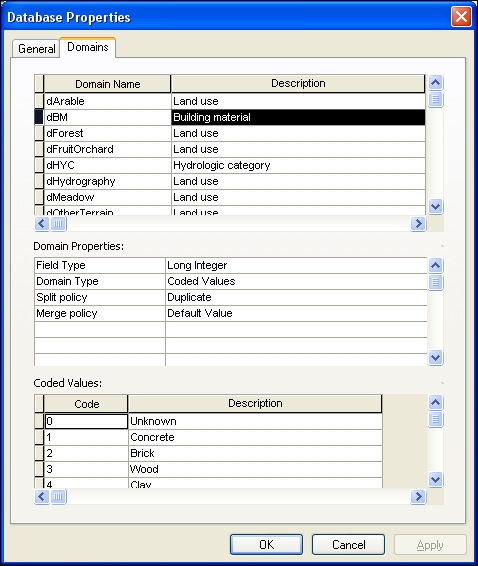
In the Database Properties dialog, the Domains section has three main sections:
Follow these steps to create domains using the ArcCatalog context menu:
<drive>:\PacktPublishing\Data\MyGeodatabase\Topo5k.gdb. Right-click on the Topo5k.gdb file geodatabase, and select Properties | Domains.dBM. For the Description column, type Building material. In the second section, Domain Properties, for the Field Type tab, choose Long Integer from the drop-down list. For Domain Type, select Coded Values from the drop-down list. For Split policy, select Duplicate and for Merge policy, leave Default Value. You will establish the default values later in this recipe. In the Coded Values section, add the following codes and descriptions:|
Code |
Description |
Code |
Description |
|---|---|---|---|
|
|
|
|
|
|
|
|
|
|
|
|
|
|
|
|
|
|
|
|

dStories with Description of Number of stories. In the Domain Properties section, for the Field Type option, choose Long Integer. For Domain Type, select Range from the drop-down list. For Minimum value, type 1, and for Maximum value, type 6. For Split policy, select Duplicate, and for Merge policy, leave Default Value.dState with Description: State of building. In the Domain Properties section, for the Field Type option, choose Text. For Domain Type, select Coded Values from the drop-down list. For Split policy, select Duplicate, and for Merge policy, leave Default Value. You will establish the default values later in this recipe. In the Coded Values section, add the following code and description:|
Code |
Description |
Code |
Description |
|---|---|---|---|
|
|
|
|
|
|
|
|
|
|
|
|
|
|
|
dHYC. For the Description column, type Hydrologic category. In the Domain Properties section, for the Field Type option, choose Long Integer. For Domain Type, select Coded Values from the drop-down list. For Split policy, select Duplicate, and for Merge policy, leave Default Value. In the Coded Values section, add the following code and description:|
Code |
Description |
Code |
Description |
|---|---|---|---|
|
|
|
|
|
|
|
|
|
|
dUnkn. For the Description column, type Unknown Text. In the Domain Properties section, for the Field Type option, choose Text. For Domain Type, select Coded Values from the drop-down list. For Split policy, select Duplicate, and for Merge policy, leave Default Value. In the Coded Values section, you will add the code and description. For the Code column, type Unkn, and for Description, type Unknown.At step 2, for Split policy, you selected Duplicate. When you split a building made of Brick material (domain code: 2) during the edit session in ArcMap, you will have two buildings made from bricks. For Merge policy, you selected Default Value. Let's suppose you already established the Default Value option for the BM (Building material) field to 0. When you merge two buildings made of Brick material (domain code: 2) during the edit session in ArcMap, you will have two buildings made of Unknown material (domain code: 0). The range and coded values can be validated in the ArcMap edit session using the Validate Features option from Editor present in the Editor toolbar. The Validate Features option helps you to find mistaken attribute values in the sense that it is not a valid value.
To create a new coded value domain for a file geodatabase, based on a table that contains the defined codes and descriptions for a domain, you can use the Table To Domain tool from ArcToolbox. In ...\Data\DesigningGeodatabase\LandUseDomains folder, you have five dBASE tables corresponding to the following domains: dArable, dPasture, dMeadow, dVineyard, and dFruitOrchard.
Follow these steps to create more domains for your file geodatabase using ArcToolbox:
...\Data\DesigningGeodatabase\ LandUseDomains\Arable.dbfDescript...\Data\MyGeodatabase\Topo5k.gdbdArableLand Use domain from tableTopo5k.gdb feature class to check the subtypes you just added. Repeat step 1 to add the dPasture, dMeadow, dVineyard, and dFruitOrchard domains.Change the font size
Change margin width
Change background colour