Sign In Start Free Trial
Account

Add to playlist

Create a Playlist

Modal Close icon
You need to login to use this feature.
  • Book Overview & Buying High-Performance Programming in C# and .NET
  • Table Of Contents Toc
High-Performance Programming in C# and .NET

High-Performance Programming in C# and .NET

By : Jason Alls
3.6 (8)
close
close
High-Performance Programming in C# and .NET

High-Performance Programming in C# and .NET

3.6 (8)
By: Jason Alls

Overview of this book

Writing high-performance code while building an application is crucial, and over the years, Microsoft has focused on delivering various performance-related improvements within the .NET ecosystem. This book will help you understand the aspects involved in designing responsive, resilient, and high-performance applications with the new version of C# and .NET. You will start by understanding the foundation of high-performance code and the latest performance-related improvements in C# 10.0 and .NET 6. Next, you’ll learn how to use tracing and diagnostics to track down performance issues and the cause of memory leaks. The chapters that follow then show you how to enhance the performance of your networked applications and various ways to improve directory tasks, file tasks, and more. Later, you’ll go on to improve data querying performance and write responsive user interfaces. You’ll also discover how you can use cloud providers such as Microsoft Azure to build scalable distributed solutions. Finally, you’ll explore various ways to process code synchronously, asynchronously, and in parallel to reduce the time it takes to process a series of tasks. By the end of this C# programming book, you’ll have the confidence you need to build highly resilient, high-performance applications that meet your customer's demands.
Table of Contents (22 chapters)
close
close
1
Part 1: High-Performance Code Foundation
7
Part 2: Writing High-Performance Code
16
Part 3: Threading and Concurrency

Native compilation

When .NET code is compiled, it is compiled into Microsoft Intermediate Language (MSIL). MSIL gets interpreted by a JIT compiler when it is needed. The JIT compiler then compiles the necessary MSIL code into native binary code. Subsequent calls to the same code call the binary version of the code, not the MSIL version of the code. This means that MSIL code is always slower than native code, as it is compiled to native on the first run.

JIT code has the advantage of being cross-platform code at the expense of longer startup times. The code of an MSIL assembly that runs is compiled to native code by the JIT compiler. The native code is optimized by the JIT compiler for the target hardware it is running on.

By default, UWP applications are compiled to native code using .NET Native, while iOS applications are compiled to native code via Xamarin/Xamarin.Forms. Microsoft .NET Core can also be compiled into native code.

Performing native compilation of .NET Core applications

When using dotnet to compile an assembly to native code, you will need to specify a target framework. For a list of supported target frameworks, please refer to https://docs.microsoft.com/en-us/dotnet/standard/frameworks. You will also need to specify a Runtime Identifier (RID). For a list of supported RIDs, please refer to https://docs.microsoft.com/en-us/dotnet/core/rid-catalog.

Note

At the time of writing, native compilation against .NET 5.0 does have its issues. So, to keep things simple, we will demonstrate native compilation into a single executable against netcoreapp3.1 and win10-x64.

To demonstrate the compilation of Microsoft .NET Core applications into natively compiled single executables, we will write a simple demonstration application that traverses a directory structure and converts audio files from one format into another:

  1. Start a new console application and target .NET 6.
  2. Visit https://ffmpeg.org/download.html and download ffmpeg for your operating system. Mine is Windows 10.
  3. On Windows 10, extract the ffmpeg files into the C:\Tools\ffmpeg folder. Add the following using statements to the top of the Program.cs file:
    using System;
    using System.Diagnostics;
    using System.IO;
  4. We will be batch processing audio files in a folder hierarchy on our local systems. Here, the using statements listed will help us debug our code and perform I/O on the filesystem. Now, at the top of the Program class, add the following three fields:
    private static string _baseDirectory = string.Empty;
    private static string _sourceExtension = string.Empty;
    private static string _destinationExtension = string
        .Empty;
  5. The BaseDirectory member holds the starting directory that will be processed. sourceExtension holds the extension of the file type, such as .wav, we are after converting to, while destinationExtension holds the extension, such as .ogg, of the file type we are after converting to. Update your Main method so that it looks as follows:
    static void Main(string[] args)
    {
    Console.Write("Enter Source Directory: ");
    _baseDirectory = Console.ReadLine();
    Console.Write("Enter Source Extension: ");
    _sourceExtension = Console.ReadLine();
    Console.Write("Enter Destination Extension: ");
    _destinationExtension = Console.ReadLine();
    new Program().BatchConvert();
    }
  6. In our Main method, we have requested that the user enters the source directory, source extension, and destination extension. Then, we set out member variables and called the BatchConvert method. Let's add our BatchConvert method:
    private void BatchConvert()
    {
    var directory = new DirectoryInfo(_baseDirectory);
    ProcessFolder(directory);
    }
  7. The BatchConvert method creates a new DirectoryInfo object called directory and then passes the directory object into the ProcessFolder method. Let's add this method now:
    private void ProcessFolder(DirectoryInfo 
        directoryInfo)
    {
    Console.WriteLine($"Processing Directory: 
        {directoryInfo.FullName}");
    var fileInfos = directoryInfo.EnumerateFiles();
    var directorieInfos = directoryInfo.
        EnumerateDirectories();
           foreach (var fileInfo in fileInfos)
                 if (fileInfo.Extension.Replace(".", "") 
                     == sourceExtension)
                        ConvertFile(fileInfo);
    foreach (var dirInfo in directorieInfos)
                 ProcessFolder(dirInfo);
    }
  8. The ProcessFolder method outputs a message to the screen so that the user knows what folder is being processed. Then, it obtains an enumeration of the FileInfo and DirectoryInfo objects from the directoryInfo parameter. After this, it converts all the files in that folder that have the required source file extension. Once all the files have been processed, each of the DirectoryInfo objects is processed by calling the ProcessFolder method recursively. Finally, let's add our ConvertFile method:
    private void ConvertFile(FileInfo fileInfo)
    {    
    }
  9. Our ConvertFile method takes a FileInfo parameter. This parameter contains the file that is to undergo conversion. The remaining code will be added to this ConvertFile method. Add the following three variables:
    var timeout = 10000;
    var source = $"\"{fileInfo.FullName}\"";
    var destination = $"\"{fileInfo.FullName.Replace
         (_sourceExtension, _destinationExtension)}\"";
  10. The timeout variable is set to 10 seconds. This gives the process 10 seconds to process each file. The source variable contains the full name of the file to be converted, while the destination variable contains the full path of the newly converted file. Now, add the check to see if the converted file exists:
    if (File.Exists(fileInfo.FullName.Replace
         (_sourceExtension, _destinationExtension)))
    {
    Console.WriteLine($"Unprocessed: {fileInfo.FullName}");
           return;
    }
  11. If the destination file exists, then the conversion has already taken place, so we do not need to process the file. So, let's output a message to the user to inform them that the file is unprocessed, and then return from the method. Let's add the code to perform the conversion:
    Console.WriteLine($"Converting file: {fileInfo.FullName}
        from {_sourceExtension} to {_destination
            Extension}.");
    using var ffmpeg = new Process
    {
    StartInfo = {
                 FileName = @"C:\Tools\ffmpeg\bin
                    \ffmpeg.exe",
                  Arguments = $"-i {source} 
                    {destination}",
                  UseShellExecute = false,
                  RedirectStandardOutput = true,
                  RedirectStandardError = true,
                  CreateNoWindow = true
    }
    };
    ffmpeg.EnableRaisingEvents = false;
    ffmpeg.OutputDataReceived += (s, e) => Debug.WriteLine
         ($"Debug: e.Data");
    ffmpeg.ErrorDataReceived += (s, e) => Debug.WriteLine
         ($@"Error: {e.Data}");
    ffmpeg.Start();
    ffmpeg.BeginOutputReadLine();
    ffmpeg.BeginErrorReadLine();
    ffmpeg.WaitForExit(timeout);
  12. Here, we output a message to the window informing the user of the file being processed. Then, we instantiate a new process that executes ffmpeg.exe and converts an audio file from one format into another, as specified by the user. The converted file is then saved in the same directory as the original file.
  13. With that, we have completed our sample project. So, let's see it running. On an external hard disk, I have some Ghosthack audio samples that I own. The files are in .wav file format. However, they need to be transformed into .ogg files to be used in an Android program that I use. You can use your own audio file or music folders.

    Note

    If you don't have any audio files to hand to test this small program, you can download some royalty-free sounds from https://www.bensound.com. You can check the following page for links to various public music domains: https://www.lifewire.com/public-domain-music-3482603.

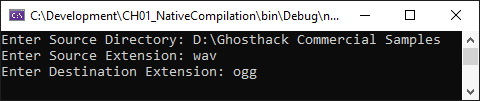
  14. Fill out the questions and press Enter:
Figure 1.12 – Our file converter showing the directory and file conversion formats

Figure 1.12 – Our file converter showing the directory and file conversion formats

The program will now process all files and folders under the specified parent folder and process them.

The program is working as expected in its MSIL form. However, we can see the delay in performing the file conversions. Let's compile our file converter into a single native executable, and then see if it is visibly any faster:

  1. Open the Visual Studio Developer Command Prompt as an administrator and navigate to the folder that contains your solution and project file. When publishing the file, it is worth noting that the TargetFramework property of the project should also be updated to netcoreapp3.1; otherwise, this may not work – that is, if it is set to net5.0. Type the following command and then press Enter:
    dotnet publish --framework netcoreapp3.1 -
        p:PublishSingleFile=true --runtime win10-x64
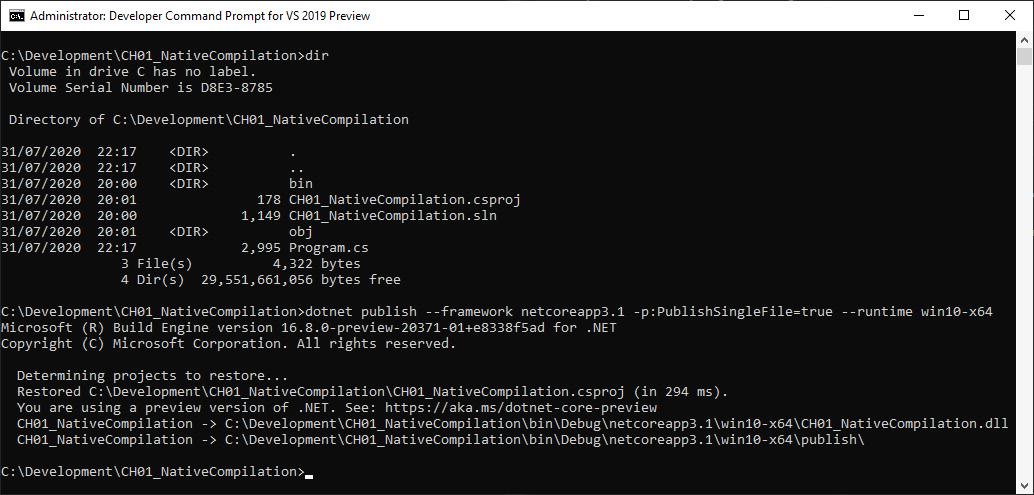
  2. When the command has finished running, your command window should look as follows:
Figure 1.13 – The Developer Command Prompt in administrative mode showing the native compilation output

Figure 1.13 – The Developer Command Prompt in administrative mode showing the native compilation output

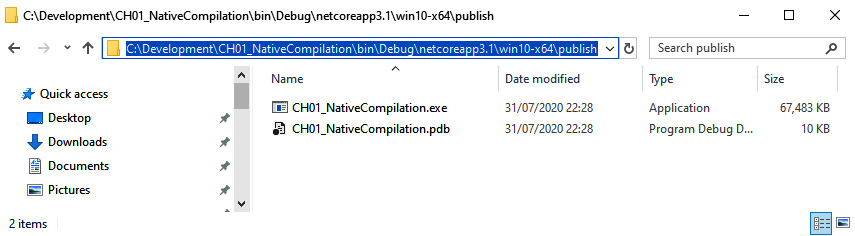
  1. If you navigate to the publish directory, you will see the following output:
Figure 1.14 – Windows Explorer displaying the output files resulting from native compilation

Figure 1.14 – Windows Explorer displaying the output files resulting from native compilation

  1. Run the CH01_NativeCompilation.exe file. You will see that .wav files are processed into .ogg files much quicker.

In this section, we learned how to write a console app. We compile the console app to MSIL and then compile the console app into a single native executable file. Visually, from the user's perspective, the file processes batch audio files much quicker in native form than in MSIL form.

Now, let's learn how to improve Windows Store applications.

Visually different images
CONTINUE READING
83
Tech Concepts
36
Programming languages
73
Tech Tools
Icon Unlimited access to the largest independent learning library in tech of over 8,000 expert-authored tech books and videos.
Icon Innovative learning tools, including AI book assistants, code context explainers, and text-to-speech.
Icon 50+ new titles added per month and exclusive early access to books as they are being written.
High-Performance Programming in C# and .NET
notes
bookmark Notes and Bookmarks search Search in title playlist Add to playlist download Download options font-size Font size

Change the font size

margin-width Margin width

Change margin width

day-mode Day/Sepia/Night Modes

Change background colour

Close icon Search
Country selected

Close icon Your notes and bookmarks

Confirmation

Modal Close icon
claim successful

Buy this book with your credits?

Modal Close icon
Are you sure you want to buy this book with one of your credits?
Close
YES, BUY

Submit Your Feedback

Modal Close icon
Modal Close icon
Modal Close icon