-
Book Overview & Buying
-
Table Of Contents
Microsoft Power Apps Cookbook
By :
To support our help desk solution, we are going to use related tables as our data source. We will design a base column template to keep track of all the information needed. You can customize it to your own needs.
The following tables will make up our solution's data structure with the main focus on the Ticket table; this will be the one from which all other tables will have their relationship. Let's start with this one and then move on to the rest.
This table will hold the base information of the help desk ticket, and it's going to be the primary object of our data model. The column structure is as follows:
Related to the Ticket table, this will hold the specific operations executed to solve the ticket. The structure is as follows:
All tickets are going to be associated with a customer's project. The structure is as follows:
We will take advantage of one of the default business tables that comes with Dataverse when a new database gets created. This table holds our customers' information.
For the table section, set Display name and the plural form, such as Ticket and Tickets. For the Name field, you can put the same as the display name; the system will automatically generate a prefix to help make your name unique.
Title. Choose something that your users can also use to select the rows when the system is listing them.The following is an example of the Ticket table:

Figure 2.5 – Ticket table base structure
Description, and for the Name field, change it back to lowercase as description. Set Data type to Text Area and click on Done.Resolution column.Ticket Status column. For Data type, select Choice. Selecting this will display a new dropdown to choose from the existing choice columns. Choose + New choice from this dropdown, and in the Items section, remove the existing one and add these: New, Pending, Resolved, and Closed. Finally, click on Save and then Done.Ticket Priority column, adding the following items: Low, Medium, and High.Ticket Validation column, adding Phone and Email for the items.Here's an example of the Ticket Status column settings:

Figure 2.6 – Status column sample
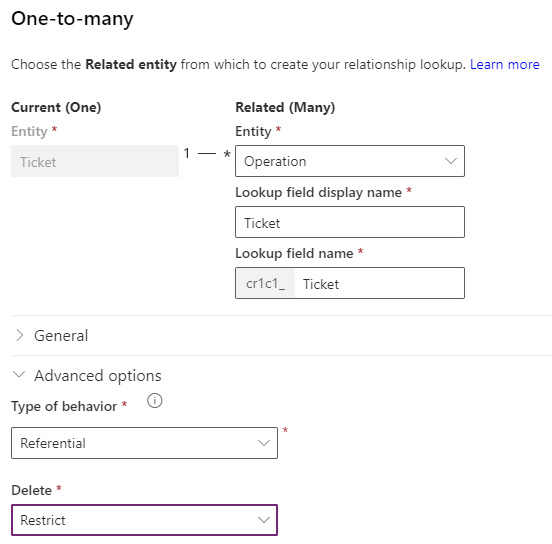
Title. Remember to change the Name fields to lowercase, and then click Done.Description column using Text Area as its Data type value, and then click Done.Operation Status column. For Data type, select Choice, and from the dropdown, choose the one we created in step 7, Ticket Status, and then click Done.Duration. For Data type, select Duration and click Done, and then click on Save Table.Project table. Use Title for Primary Name Column and set the Name fields to lowercase. Click Done.Description column using Text Area as its Data type value, and then click Done.Start column. Set Data type to Date Only and then click Done. Repeat this step to make the End column.Project table.Ticket table, and then click on the Relationships tab. In the toolbar, click on Add relationship and then choose One-to-many. This kind of relationship roughly means that one element from one side (Ticket) can have many child items on the other (Ticket Operations).Project (one) and Ticket (many), and finally between Account (one) and Project (many):
Figure 2.7 – Relationship example
We now have the data structure and relationships in place. To start entering data in our tables, we need to complete the required modifications in the next recipe's data forms, Building the model-driven app. However, the Account table comes by default in the system, so everything is already configured to enter data.
From the Tables list, select to open the Account table, and then select the Data tab. In the toolbar, click on Add record. This action will open up a new browser tab with a form to load data. Fill in all the desired columns and then click Save & Close from the toolbar if you want to add only one account, or click Save and then New to add more records.
Change the font size
Change margin width
Change background colour