-
Book Overview & Buying
-
Table Of Contents
Microsoft Power Apps Cookbook
By :
Creating an application using a low-code approach brings a different methodology when setting up the application building process. On other technologies, you might need to choose the language, infrastructure, database system, and more. For model-driven applications, one of the essential principles is to build everything inside solutions.
A solution creates a container where you can store all the pieces that compose your application, which in turn aids in deployment, distribution, and management—more information on this subject at https://docs.microsoft.com/en-us/powerapps/maker/model-driven-apps/distribute-model-driven-app
The application we will create through all the recipes will get packed into a solution, so all elements can be exported in just one package and then imported into your environment.

Figure 2.8 – New model-driven dialog
The navigation is composed of areas, groups, and subareas. Let's define ours by clicking on Add to include these elements.
Ticket subarea, select the Entity type, so it opens our previously created table. Once you've made the changes, press Save and then Publish. Finally, click at the top left on the App Designer breadcrumb to go back to the model-driven app:
Figure 2.9 – Sitemap example
Ticket table now appears on the entity view. This change is due to the designer adding every related component to the app. Let's complete the table design, starting with the forms.Ticket table. You will see a panel that opens on the right with the list of all forms selected by default. When setting up an application, it's best to select only the ones that will be available, so in this case, deselect the All checkbox. Click on the pencil that appears on the right of the Information form to modify it.Select all the columns we created for this table from the left to add them to the form. You can also drag and drop the columns and components to place them as you see fit. Make these changes and then click on Save, and finally on Publish. Close the designer afterward:

Figure 2.10 – Form designer for the Ticket table
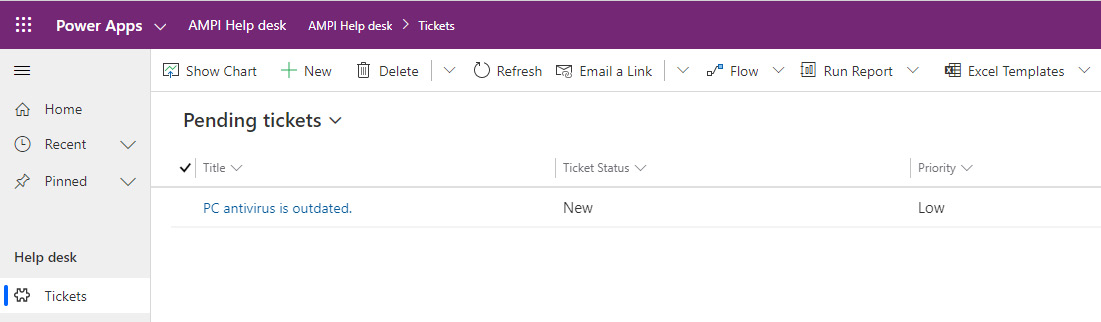
Pending tickets. On the Components tab, click on Column Attributes Primary Entity and drag and drop the desired columns from the right panel to the view in the order you see fit. Be sure to include the Created On column. Click on the header of each column to set the width as desired.Closed or Resolved, and then click OK. Finally, click on Save and then Publish. Close View Designer.The pending tickets view should look like the following screenshot:

Figure 2.11 – Pending tickets view example
After completing the previous steps, we can test our application to verify whether it is working as intended.
From the Solutions section, select to open your solution and look for the model-driven app. Select it, and from the toolbar, press Play. This action will open the application with a menu on the left with a Tickets option inside a Help desk group and in the main display, the new Pending tickets view.
Add some records by clicking on the New button from the toolbar. If you create one with a Ticket Status of Closed or Resolved, it should not appear on the main view. To solve this, change the selected view in your application. In your solution, add as many views as needed to make it easier for your users to track information:
Figure 2.12 – Model-driven application running
In the next recipes, we will add application logic to have data validation. We will also include a dashboard to offer a more informative view of the business process data.