

Sign In Start Free Trial
Account

Add to playlist

Create a Playlist

Modal Close icon
You need to login to use this feature.
  • Book Overview & Buying Visualize Complex Processes with Microsoft Visio
  • Table Of Contents Toc
  • Feedback & Rating feedback
Visualize Complex Processes with Microsoft Visio

Visualize Complex Processes with Microsoft Visio

By : David Parker, Senaj Lelic
4.8 (12)
close
close
Visualize Complex Processes with Microsoft Visio

Visualize Complex Processes with Microsoft Visio

4.8 (12)
By: David Parker, Senaj Lelic

Overview of this book

Every business has process flows, but not all of them are fully described to or verified for accuracy with each stakeholder. This not only presents a risk for business continuity but also removes the ability to make insightful improvements. To make these complex interactions easy to grasp, it’s important to describe these processes visually using symbology that everybody understands. Different parts of these flows should be collaboratively developed and stored securely as commercial collateral. Visualize Complex Processes with Microsoft Visio helps you understand why it is crucial to use a common, systematic approach to document the steps needed to meet each business requirement. This book explores the various process flow templates available in each edition of Microsoft Visio, including BPMN. It also shows you how to use them effectively with the help of tips and techniques and examples to reduce the time required for creating them, as well as how you can improve their integration and presentation. By the end of this book, you’ll have mastered the skills needed to create data-integrated business flowcharts with Microsoft Visio, learned how to effectively use these diagrams collaboratively, but securely, and understood how to integrate them with other M365 apps, including Excel, Word, PowerPoint, and Power Automate.
Table of Contents (14 chapters)
close
close

Automatically highlighting unglued connectors

The Dynamic connector master can be enhanced to be displayed as a red dashed line, for example, if it is not connected at both ends.

Again, we must edit the Dynamic connector master in local Document Stencil and consider the LinePattern and LineColor cells in the Line Format section and the BegTrigger and EndTrigger cells in the Glue Info section, as in the following screenshot:
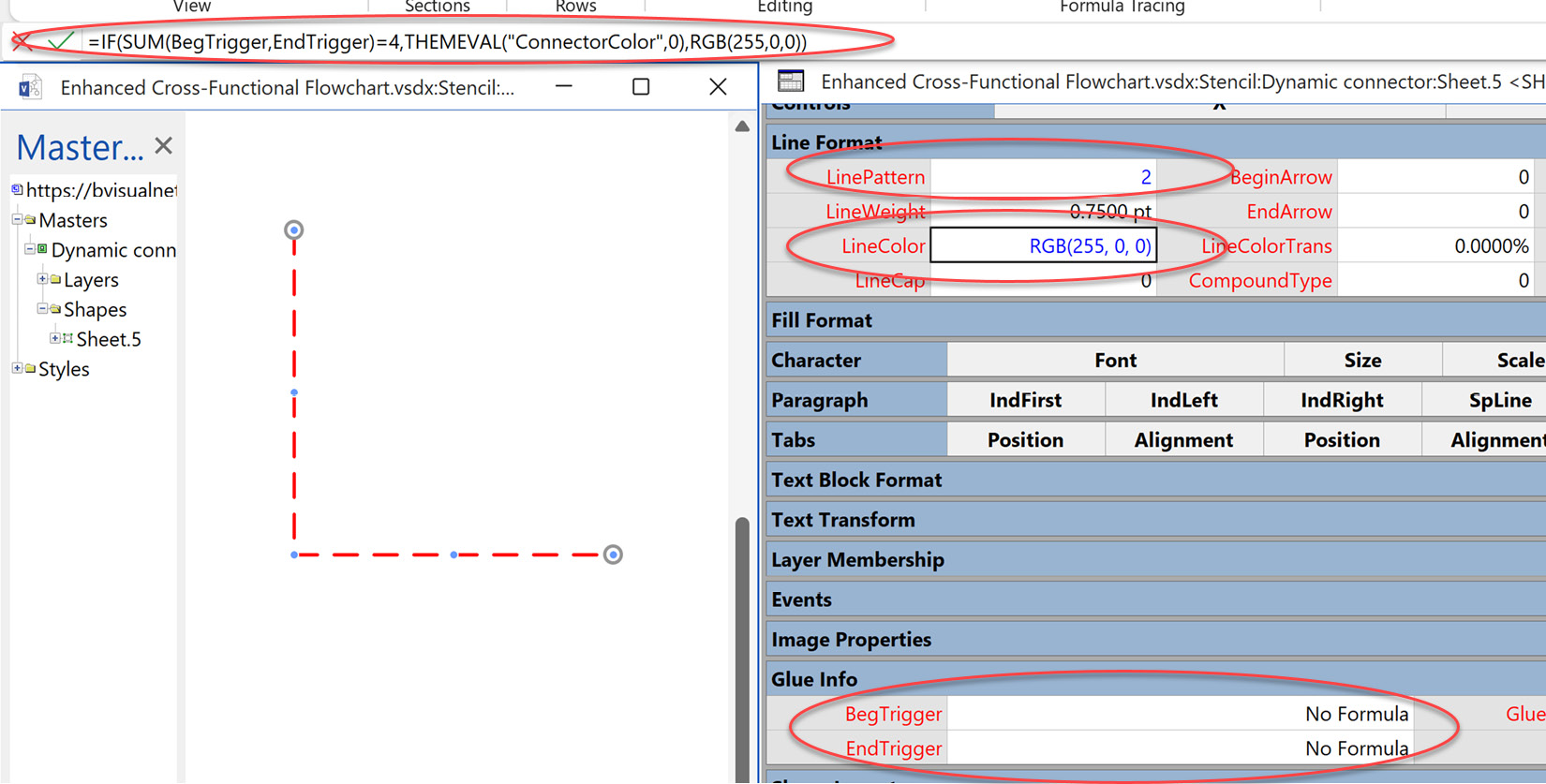
Figure 11.15 – Show unconnected lines with a red dash

Figure 11.15 – Show unconnected lines with a red dash

It is possible to check whether the connector is connected at both ends by checking that the formulas that will be automatically assigned by Visio to the BegTrigger and EndTrigger cells each evaluate to 2.

The default formula for the LinePattern cell is as follows:

=THEMEVAL("ConnectorPattern")

Visio has an ID number for each of the built-in patterns, which you can see on the Format Shape panel. So, if we want it to be dashed, which is ID = 2, we can...

Visually different images
CONTINUE READING
83
Tech Concepts
36
Programming languages
73
Tech Tools
Icon Unlimited access to the largest independent learning library in tech of over 8,000 expert-authored tech books and videos.
Icon Innovative learning tools, including AI book assistants, code context explainers, and text-to-speech.
Icon 50+ new titles added per month and exclusive early access to books as they are being written.
Visualize Complex Processes with Microsoft Visio
notes
bookmark Notes and Bookmarks search Search in title playlist Add to playlist download Download options font-size Font size

Change the font size

margin-width Margin width

Change margin width

day-mode Day/Sepia/Night Modes

Change background colour

Close icon Search
Country selected

Close icon Your notes and bookmarks

Confirmation

Modal Close icon
claim successful

Buy this book with your credits?

Modal Close icon
Are you sure you want to buy this book with one of your credits?
Close
YES, BUY

Submit Your Feedback

Modal Close icon
Modal Close icon
Modal Close icon