Sign In Start Free Trial
Account

Add to playlist

Create a Playlist

Modal Close icon
You need to login to use this feature.
  • Book Overview & Buying Unity AI Programming Essentials
  • Table Of Contents Toc
Unity AI Programming Essentials

Unity AI Programming Essentials

By : Bennett
2.8 (8)
close
close
Unity AI Programming Essentials

Unity AI Programming Essentials

2.8 (8)
By: Bennett

Overview of this book

This book is aimed at developers who know the basics of game development with Unity and want to learn how to add AI to their games. You do not need any previous AI knowledge; this book will explain all the essential AI concepts and show you how to add and use them in your games.
Table of Contents (13 chapters)
close
close

Quick Path AI

Alekhine Games' Quick Path is a $10 AI that you can pick up from the Unity Asset Store. Although the next two AIs have more features, this AI is added because of its blocky nature. This block approach creates a grid-based path and is used with many types of games, but this AI works especially well with the excitement in the voxel game genre; it is suited for cubed topography.

To start with, perform the following steps:

  1. Create a new 3D scene and import the Quick Path AI from the Asset Store.
  2. Next, set up some cubes, planes, or other objects as your terrain, and then place all of these game objects into an empty game object. Name this game object Terrain.
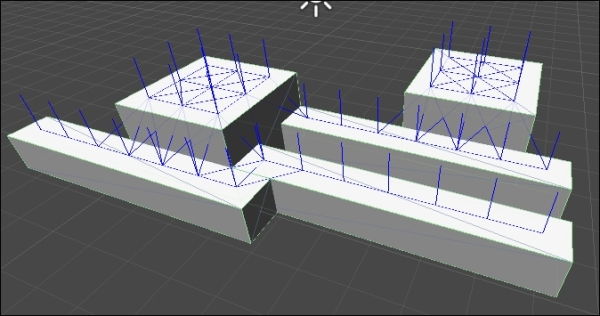
  3. Next, on the Inspector panel, add a component, QuickPath | Grid. Immediately, you should see a series of blue lines that show up on the cubes. These indicate all the points where a character can move in the AI.
    Quick Path AI
  4. Now, we need a character to move around the scene. Create a sphere, or any object, and name it NPC.
  5. Then, we'll add a Component, QuickPath | AI | Follow Mouse Object.
  6. Now, when you run the scene, assuming it is lit up and has the camera pointing where you want it to, you'll see NPC on Terrain.
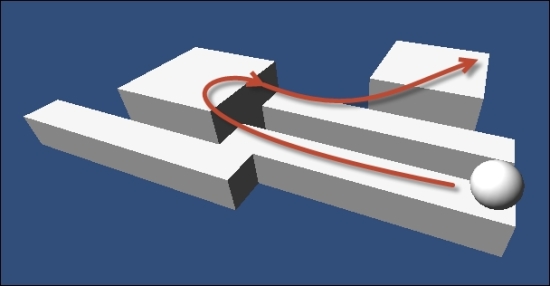
  7. Click somewhere on the Terrain object, and watch the NPC object move to that point.
    Quick Path AI
  8. Although we might say that the pathfinding in this is clearly working, we should also add an obstacle to the scene: something that shouldn't be stepped on. To do this, add another cube somewhere. Go to the Inspector panel for the obstacle and tag it with Obstacle by selecting that tag from the drop-down, or if it is not an option select Add Tag... and add Obstacle to the tag list.
  9. Next, in the Terrain game object, in the Grid component, expand Disallowed Tags, increase the size to 1 and enter Obstacle for the new element.
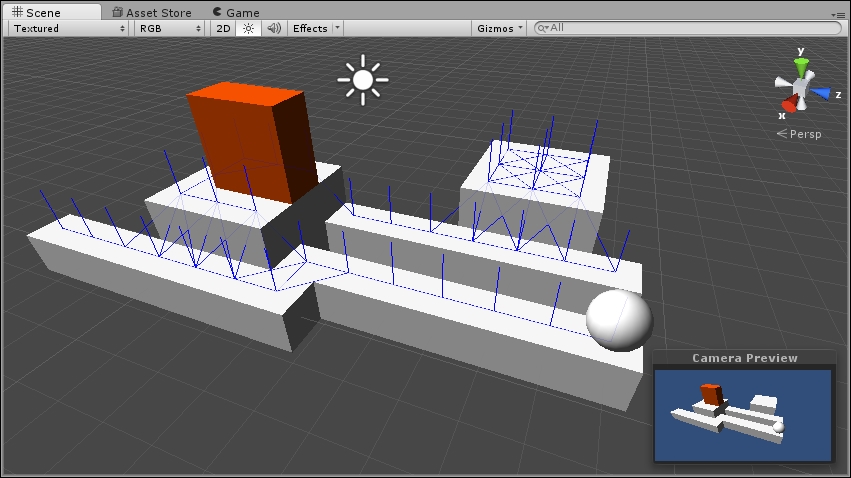
  10. Next, click on the Bake button at the top of the Grid component. Now you will see that the grid markers skipped the cube as an option. If you want to test more, click somewhere else on the Terrain object and watch the NPC object move to the clicked point avoiding the obstacle.
    Quick Path AI

Now, we've seen how to set up pathfinding with Quick Path, so let's look at another way to set up pathfinding with React AI.

CONTINUE READING
83
Tech Concepts
36
Programming languages
73
Tech Tools
Icon Unlimited access to the largest independent learning library in tech of over 8,000 expert-authored tech books and videos.
Icon Innovative learning tools, including AI book assistants, code context explainers, and text-to-speech.
Icon 50+ new titles added per month and exclusive early access to books as they are being written.
Unity AI Programming Essentials
notes
bookmark Notes and Bookmarks search Search in title playlist Add to playlist font-size Font size

Change the font size

margin-width Margin width

Change margin width

day-mode Day/Sepia/Night Modes

Change background colour

Close icon Search
Country selected

Close icon Your notes and bookmarks

Confirmation

Modal Close icon
claim successful

Buy this book with your credits?

Modal Close icon
Are you sure you want to buy this book with one of your credits?
Close
YES, BUY

Submit Your Feedback

Modal Close icon
Modal Close icon
Modal Close icon