


-
Book Overview & Buying
-
Table Of Contents

Building Websites with Microsoft Content Management Server


Building Websites with Microsoft Content Management Server
Overview of this book
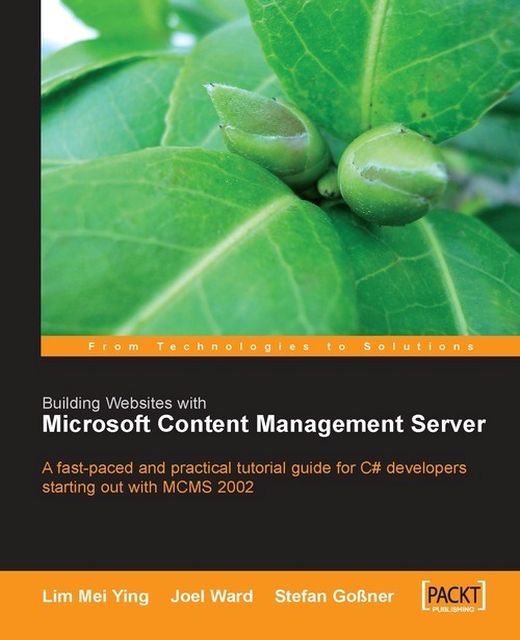
Microsoft Content Management Server 2002 is a dynamic web publishing system with which you can build websites quickly and cost-efficiently. MCMS provides the administration, authoring, and data management functionality, and you provide the website interface, logic, and workflow. Once your website is up and running, your content contributors can add and edit content on their own, without the need to work with developers or the IT department. First time developers of Microsoft Content Management Server 2002 face a relatively steep learning curve. Not only are they expected to be conversant in the Microsoft .NET Framework, they are also required to be familiar with the concepts of MCMS 2002. Many beginners to MCMS start out by looking at the example site that ships with the product; tweaking it, dissecting it and turning it inside out using the obscure code comments as markers. However, when it comes to starting their own website from scratch, many are baffled ? where do they begin? This book exists to answer that question; teaching the essential concepts of MCMS 2002 in a clear, straightforward and practical manner. Containing answers to some of the most asked questions in developer newsgroups, this book is a treasure trove of tricks and tips for solving the problems faced by MCMS developers. This is a unique resource focused exclusively on the needs of developers using MCMS. It doesn?t waste time and pages on user or administrator level information that is well covered in other documentation. It?s a distillation of practical experience that developers need to get results, fast. The authors carefully structured example project complements and extends the knowledge gained from an initial look at the examples that ship with MCMS.
Table of Contents (28 chapters)
Building Websites with Microsoft Content Management Server


Credits
About the Authors
Introduction
 Free Chapter
Overview of Microsoft Content Management Server
Installing Microsoft Content Management Server 2002 for the Developer
The Database Configuration Application
The Server Configuration Application
Setting Up a Website from Scratch
Creating Templates and Postings
Working with Placeholders
Debugging Template Files
Default Postings and Channel Rendering Scripts
Understanding the MCMS Publishing Workflow
Authoring with Microsoft Content Management Server
The Publishing Application Programming Interface
Building Navigation Controls
Customizing Placeholder Controls
Building Custom Placeholder Definitions and Placeholders
Extending the Workflow
Publishing with Authoring Connector
Implementing Forms Authentication
Customizing the Web Author Console

Creating Connected Templates and Pages
Aggregating Content
Enhancing Performance with Caching
Site Deployment
Hosting Multiple Websites and Adding SSL Security


