Sign In Start Free Trial
Account

Add to playlist

Create a Playlist

Modal Close icon
You need to login to use this feature.
  • Book Overview & Buying Python Scripting in Blender
  • Table Of Contents Toc
Python Scripting in Blender

Python Scripting in Blender

By : Paolo Acampora
4.9 (14)
close
close
Python Scripting in Blender

Python Scripting in Blender

4.9 (14)
By: Paolo Acampora

Overview of this book

Blender, a powerful open source 3D software, can be extended and powered up using the Python programming language. This book teaches you how to automate laborious operations using scripts, and expand the set of available commands, graphic interfaces, tools, and event responses, which will enable you to add custom features to meet your needs and bring your creative ideas to life. The book begins by covering essential Python concepts and showing you how to create a basic add-on. You’ll then gain a solid understanding of the entities that affect the look of Blender’s objects such as modifiers, constraints, and materials. As you advance, you’ll get to grips with the animation system in Blender and learn how to set up its behavior using Python. The examples, tools, patterns, and best practices present throughout the book will familiarize you with the Python API and build your knowledge base, along with enabling you to produce valuable code that empowers the users and is ready for publishing or production. By the end of this book, you’ll be able to successfully design add-ons that integrate seamlessly with the software and its ecosystem.
Table of Contents (19 chapters)
close
close
1
Part 1: Introduction to Python
7
Part 2: Interactive Tools and Animation
13
Part 3: Delivering Output

External editor – Visual Studio Code

Visual Studio Code (VS Code), is a fast, multiplatform, free editor from Microsoft, available for Windows, macOS, and Linux. Using an external editor makes our code independent from a session of Blender. Also, a programmer text editor offers many utilities besides syntax highlighting.

VS Code 1.66 is used in this book. It is a fast, lightweight editor available for most platforms, but there are plenty of alternatives – most notably, the following:

  • Notepad++: This is a fast but powerful editor for Windows, available at https://notepad-plus-plus.org.
  • PyCharm: This is a Python integrated development environment (IDE) by JetBrains. A free community version can be found at https://www.jetbrains.com/pycharm.
  • LightTable: This is an interesting open source editor, available at http://lighttable.com.
  • Sublime: This is a commercial text editor, found at https://www.sublimetext.com.

Most Linux distributions come with at least one decent, ready-to-use, text editor. We encourage you to experiment and find the text editor of your choice.

In this section, we will set up VS Code for Python scripting.

Pick the right studio!

VS Code and Visual Studio have a similar name but are two different products from Microsoft. While VS Code is a programmer text editor, Visual Studio is a full development environment for advanced languages such as C++. While C++ projects may require a specific version of the building environment, it is safe to use any version of VS Code as long as Python is a supported language.

Loading our scripts folder

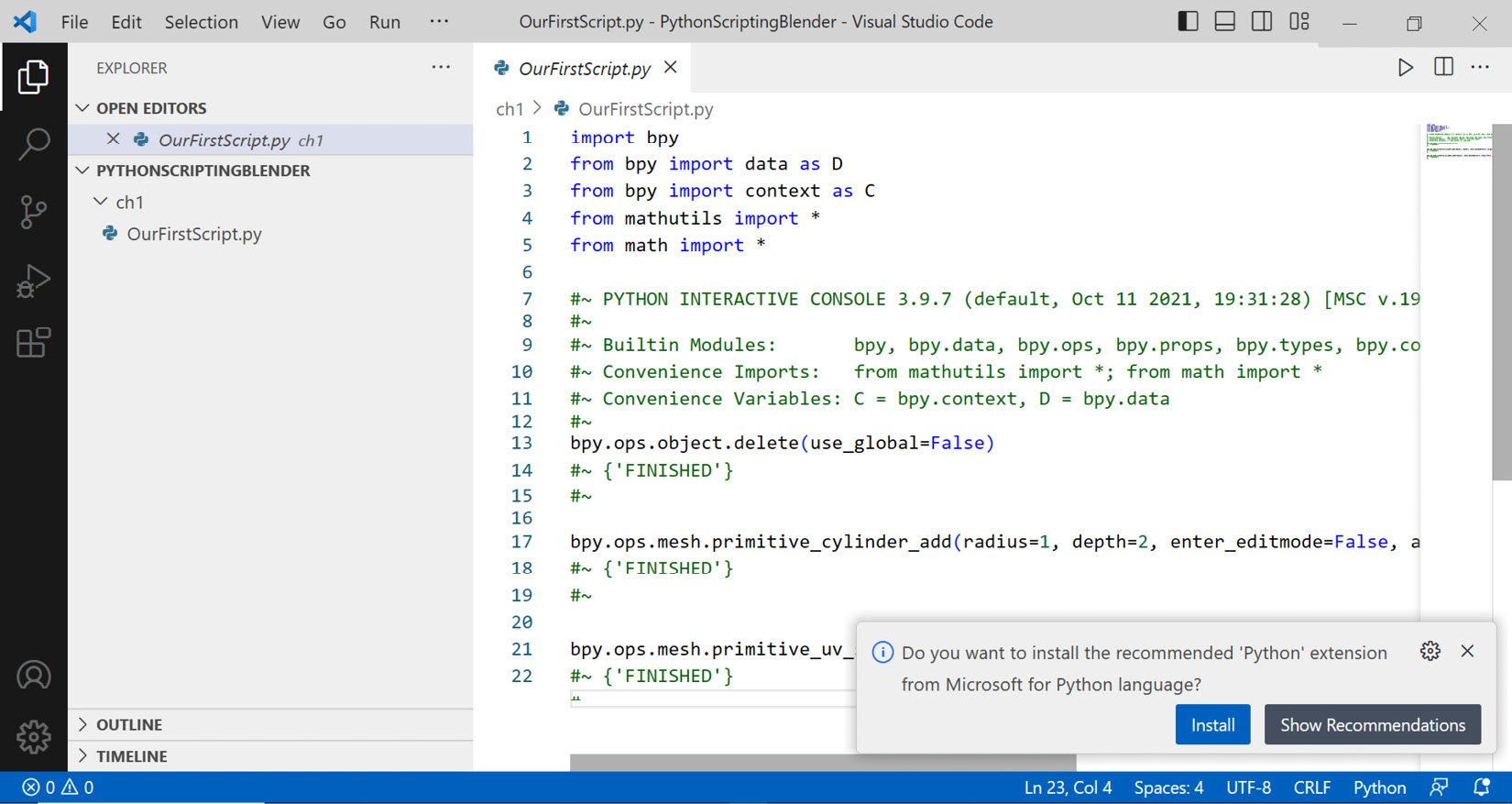
We can load the folder that contains our script files using the Open Folder… entry from the File menu. The editor will display the folder content on the first tab of the left column: the Explorer tab. Clicking on a .py file opens the script for editing.

Additional Python support can be installed by clicking Install on the bottom-right notification:

Figure 1.23: Our Python script in VS Code

Figure 1.23: Our Python script in VS Code

Keeping Blender’s text blocks in sync

When a text file open in Blender is changed by another application, a red question mark appears to the left of the filename:

Figure 1.24: Blender detects changes in a saved script

Figure 1.24: Blender detects changes in a saved script

Clicking the question mark displays the viable actions:

  • Reload from disk: This loads and displays the up-to-date file
  • Make text internal (separate copy): The displayed text is now part of the Blender session, no longer tied to any text file on disk
  • Ignore: Changes are ignored; Blender will still display the old text and keep reporting that it’s out of sync with the text saved on disk

To have additional help, we can add versioning to our files. That allows us to make changes without worrying about breaking things or losing our work.

CONTINUE READING
83
Tech Concepts
36
Programming languages
73
Tech Tools
Icon Unlimited access to the largest independent learning library in tech of over 8,000 expert-authored tech books and videos.
Icon Innovative learning tools, including AI book assistants, code context explainers, and text-to-speech.
Icon 50+ new titles added per month and exclusive early access to books as they are being written.
Python Scripting in Blender
notes
bookmark Notes and Bookmarks search Search in title playlist Add to playlist download Download options font-size Font size

Change the font size

margin-width Margin width

Change margin width

day-mode Day/Sepia/Night Modes

Change background colour

Close icon Search
Country selected

Close icon Your notes and bookmarks

Confirmation

Modal Close icon
claim successful

Buy this book with your credits?

Modal Close icon
Are you sure you want to buy this book with one of your credits?
Close
YES, BUY

Submit Your Feedback

Modal Close icon
Modal Close icon
Modal Close icon