Sign In Start Free Trial
Account

Add to playlist

Create a Playlist

Modal Close icon
You need to login to use this feature.
  • Book Overview & Buying Unreal Engine 5 Game Development with C++ Scripting
  • Table Of Contents Toc
Unreal Engine 5 Game Development with C++ Scripting

Unreal Engine 5 Game Development with C++ Scripting

By : Zhenyu George Li
4.3 (28)
close
close
Unreal Engine 5 Game Development with C++ Scripting

Unreal Engine 5 Game Development with C++ Scripting

4.3 (28)
By: Zhenyu George Li

Overview of this book

Unreal Engine is one of the most popular and accessible game engines in the industry, creating multiple job opportunities. Owing to C++ scripting's high performance, advanced algorithms, and engineering maintenance, it has become the industry standard for developing commercial games. However, C++ scripting can be overwhelming for anyone without a programming background. Unreal Engine 5 Game Development with C++ Scripting will help you master C++ and get a head start on your game development journey. You’ll start by creating an Unreal Engine C++ project from the shooter template and then move on to building the C++ project and the C++ code inside the Visual Studio editor. You’ll be introduced to the fundamental C++ syntax and essential object-oriented programming concepts. For a holistic understanding of game development, you’ll also uncover various aspects of the game, including character creation, player input and character control, gameplay, collision detection, UI, networking, and packaging a completed multiplayer game. By the end of this book, you’ll be well-equipped to create professional, high-quality games using Unreal Engine 5 with C++, and will have built a solid foundation for more advanced C++ programming and game development technologies.
Table of Contents (18 chapters)
close
close
1
Part 1: Getting Started with Unreal C++ Scripting
6
Part 2: C++ Scripting for Unreal Engine
12
Part 3: Making a Complete Multiplayer Game

Creating your C++ Shooter project from a template

Now, it’s the time to get your hands dirty working on a UE5 C++ project yourself. We will go through the steps to create a new C++ project from scratch based on the First Person template.

The First Person template is one of the default game templates that come with UE. When you want to create a new project, you can pick this template from the Unreal Project Browser window. Our new MyShooter game will derive all the features from the template game, and we don’t have to do any additional work.

To get started with C++ scripting, we first need to install an IDE. In this book, we will use MS Visual Studio 2022 as an example.

Installing Visual Studio 2022

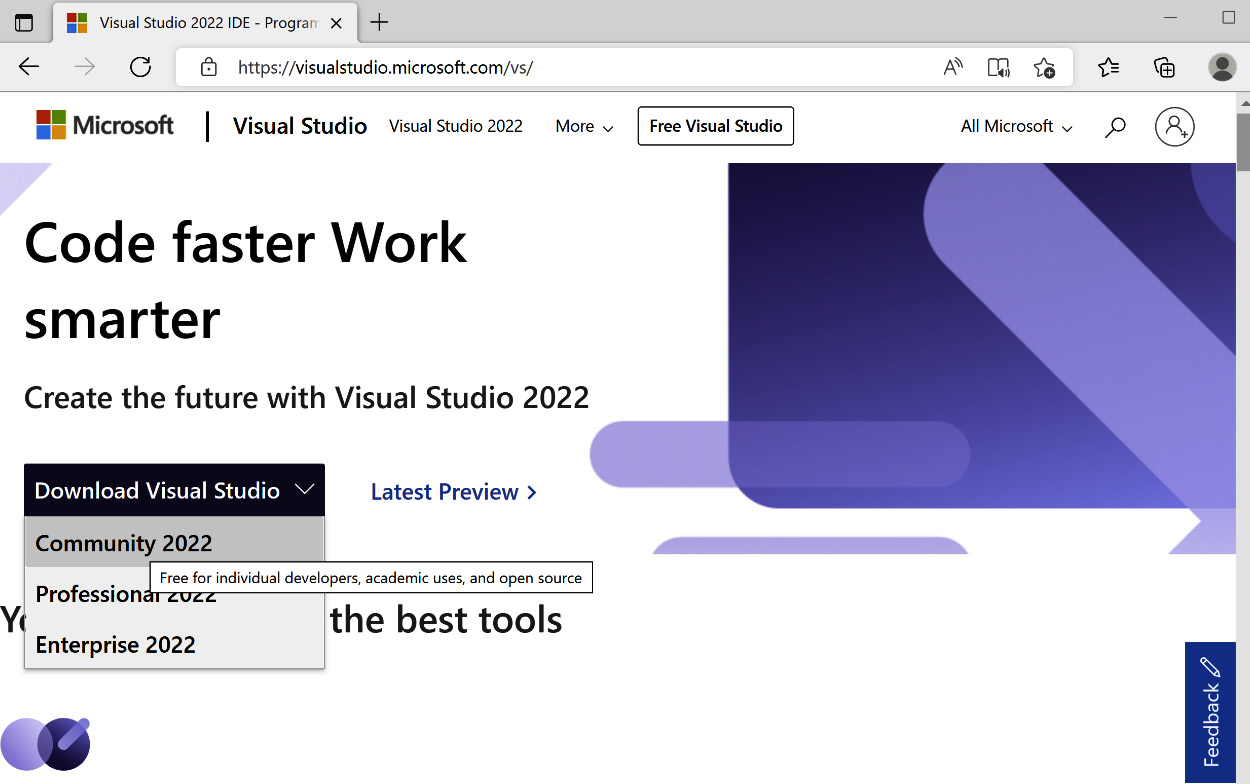
Visual Studio (VS) is an Integrated Development Environment (IDE) from Microsoft. It is a tool used to create, edit, debug, and compile code. In order to do C++ scripting, you need to go to the official website at https://visualstudio.microsoft.com/vs/ and download the Community 2022 version installation package (see Figure 1.1).

Figure 1.1 – Downloading VS 2022

Figure 1.1 – Downloading VS 2022

Note

To install VS, a Microsoft account is typically required. If you don’t have a Microsoft account, you can register using the following page: https://account.microsoft.com/account/.

Next, launch VisualStudioSetup.exe inside the folder where you downloaded the VS installer (the \Downloads folder, for example).

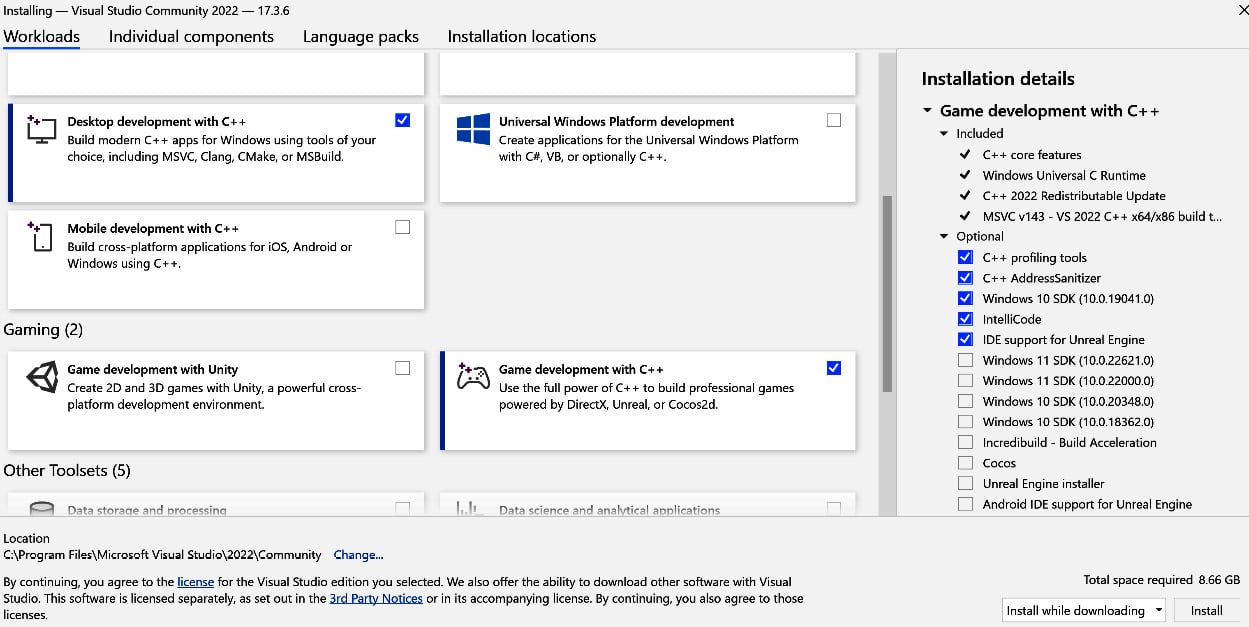
Enable the two Game development with C++ and Desktop development with C++ checkboxes – these two options tell the installer to install the C++ compiler and the professional game development support for UE (see Figure 1.2).

Figure 1.2 – Picking workloads for the VS installation

Figure 1.2 – Picking workloads for the VS installation

Also, keep an eye on the following options on the Installation details panel that belongs to the Desktop development with C++ group, and make sure the following are checked:

  • C++ profiling tools
  • C++ AddressSanitizer
  • Windows 10 SDK
  • IntelliCode
  • IDE support for Unreal Engine

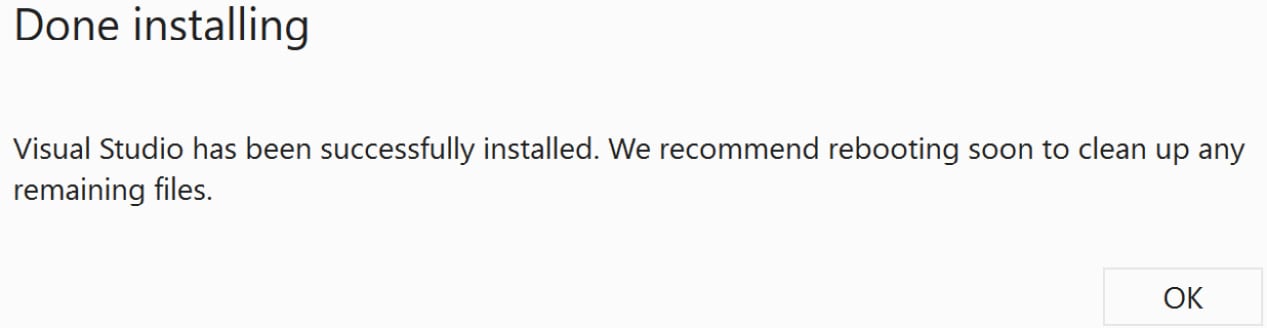
Then, click the Install button to install the workloads and reboot the system, and then you will see a prompt from the dialog popup (see Figure 1.3):

Figure 1.3 – The VS Done installing dialog box

Figure 1.3 – The VS Done installing dialog box

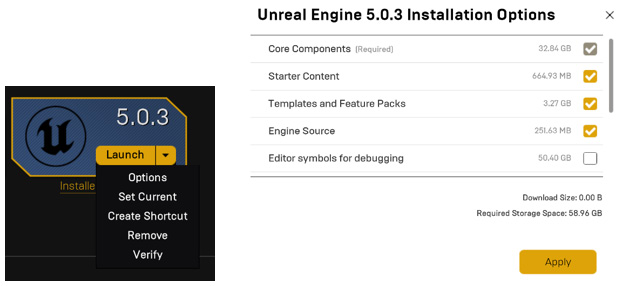
The next thing we need to do is to confirm that we have installed the engine source code together with the UE5 editor. The reason why we need this is that when we generate a new project, the engine source code can be integrated into the new project; under certain circumstances, we may need to modify or customize the engine for the game’s specific needs.

Ensuring your UE has the source code installed

Before launching the UE5 editor, we first need to check whether Engine Source is installed for the editor. By doing this check, we make sure that the UE5 source code is integrated with the C++ projects we are going to create.

The three steps to check or install the engine source code are as follows:

  1. Click the downward arrow button and choose Options from the drop-down menu.
  2. Make sure that the Engine Source option is checked.
  3. Press the Apply button:
Figure 1.4 – The UE5 Options menu

Figure 1.4 – The UE5 Options menu

UE is an ongoing development product, with bugs and defects that may need to be fixed by its users. Also, professional developers sometimes modify the engine source code to adapt to their specific needs. An example of this is when we face an issue with geometry instancing (or instanced rendering) working only in the game’s development build but not in the release build, which is subsequently resolved by our engineer modifying the engine’s source code.

Note

Geometry instancing is a rendering technique that renders multiple instances of a visual object in a single draw call and provides each instance with some unique attributes: https://en.wikipedia.org/wiki/Geometry_instancing.

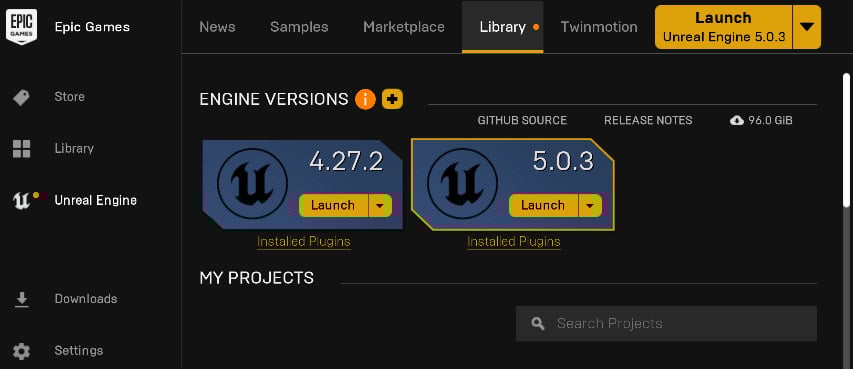
We are now ready to start the UE editor through the Epic Games Launcher.

Launching the UE5 editor through the Epic Games Launcher

Launching the UE5 editor is pretty straightforward. You simply click the Launch button on the 5.03 engine card to start the editor (see Figure 1.5).

Figure 1.5 – Launching the UE5 editor from the Epic Games Launcher

Figure 1.5 – Launching the UE5 editor from the Epic Games Launcher

The next thing we want to do is to create a new game project. Let’s name the new project MyShooter.

Creating the MyShooter C++ project

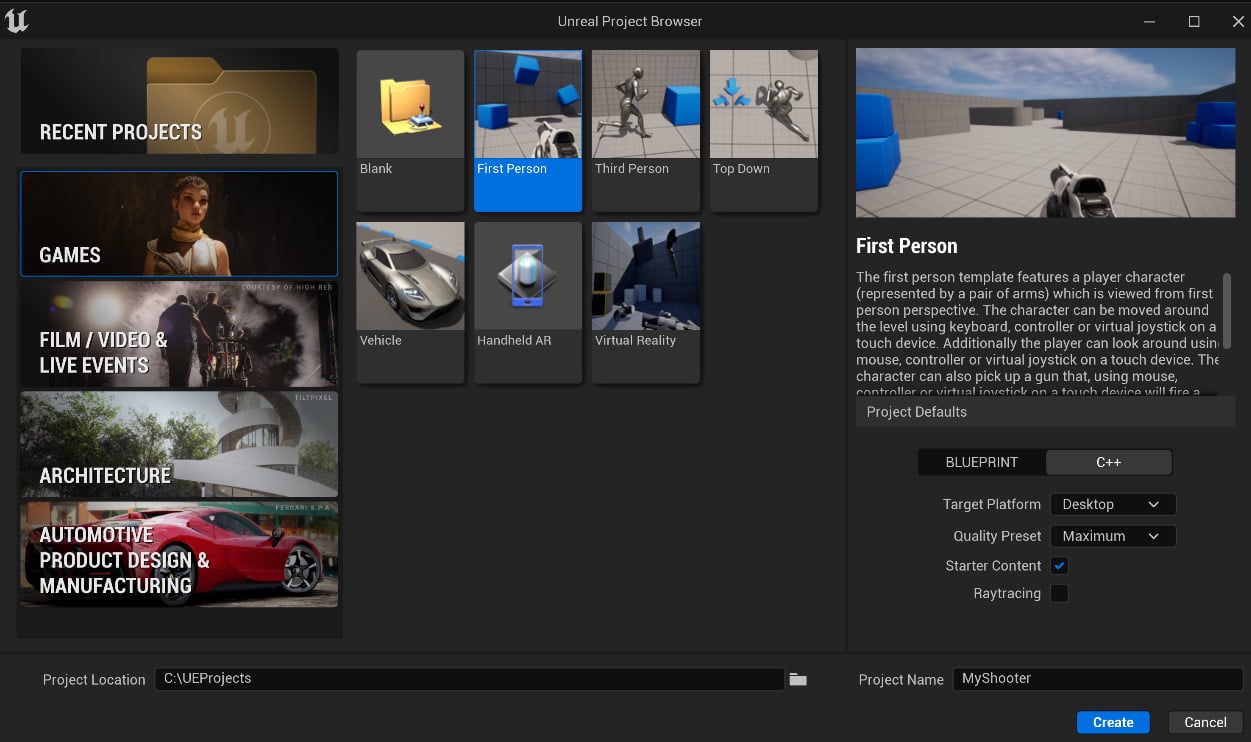
To create the project, follow these steps (and see Figure 1.6 for reference):

  1. In the Unreal Project Browser window, choose the GAMES tab on the left side.
  2. Select the First Person template.
  3. Select the C++ button.
  4. Choose the project location (for example, C:\UEProjects) and type MyShooter in the Project Name field.
  5. Click the Create button.
Figure 1.6 – Creating the MyShooter project

Figure 1.6 – Creating the MyShooter project

The created game project also includes the starter content, which is packaged with assets and resources that can be used to prototype the game.

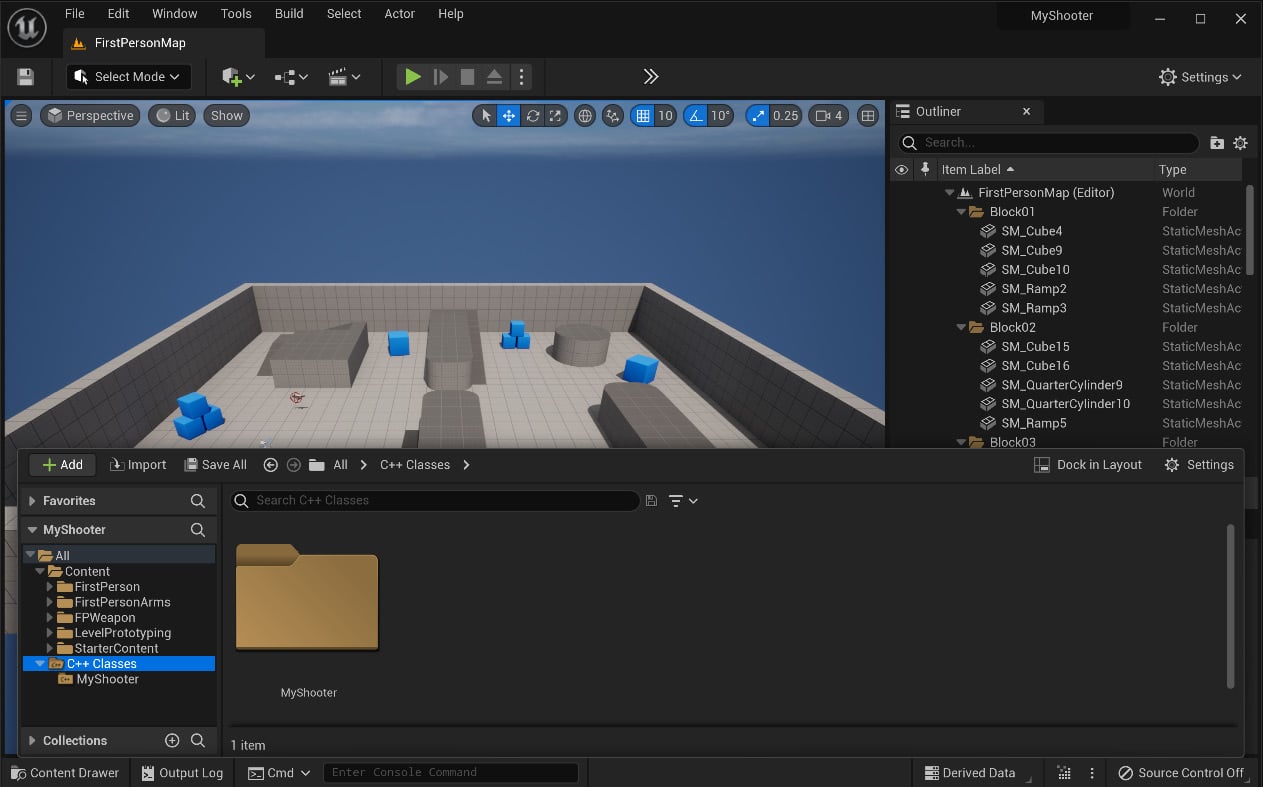
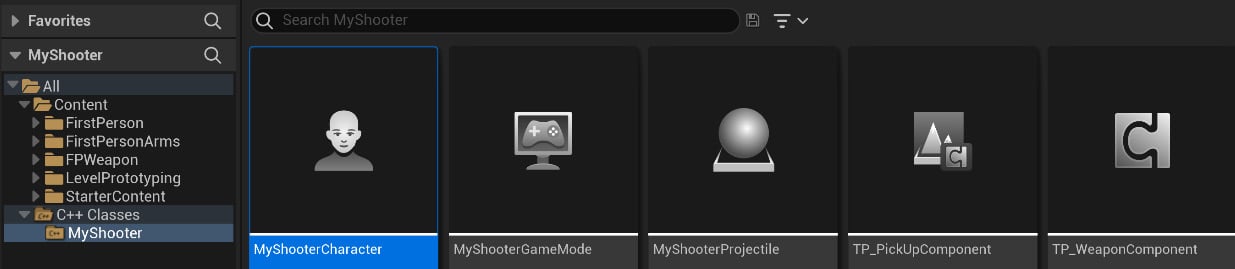
The engine will do some initialization work and then open the editor when things are ready. If you look at the project tree panel’s MyShooter tab in the bottom-left corner of the editor window, you should see the C++ Classes node on the same layer as the Content node (see Figure 1.7).

Figure 1.7 – The MyShooter C++ project opened in the UE5 editor

Figure 1.7 – The MyShooter C++ project opened in the UE5 editor

Associating VS with UE5 as the default source code editor

Since we created the C++, project, all the C++ source code for the game was already generated. To open the source files directly in the UE5 editor, we want to associate VS as the engine editor’s default IDE.

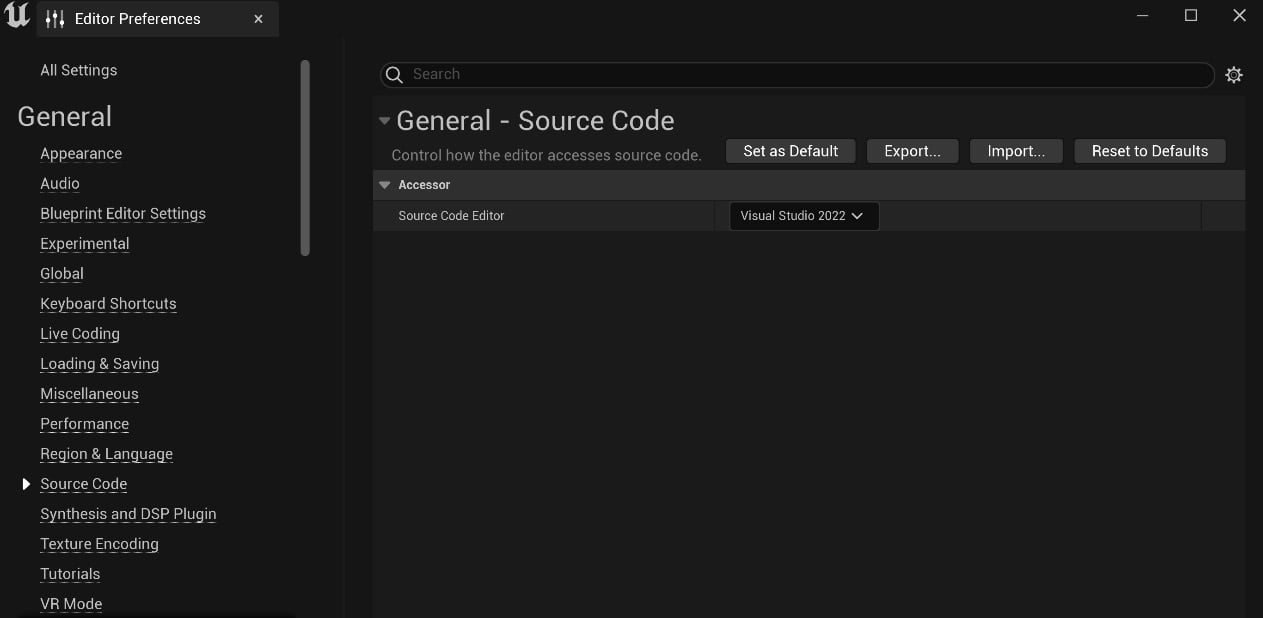
On the UE5 Editor’s main menu, select Edit | Editor Preferences to open the preference window, then find the General | Source Code item on the left panel, and finally, pick Visual Studio 2022 from the Source Code Editor dropdown (see Figure 1.8).

Figure 1.8 – Making VS the default source code editor

Figure 1.8 – Making VS the default source code editor

You can now use VS to open the source code files.

Opening the C++ source code in VS (optional)

If you want to open and view the C++ source code in VS, you can find the source code file (for example, C++/MyShooter/MyShooterCharacter.cpp) in the project and simply double-click on it (see Figure 1.9).

Figure 1.9 – Opening MyShooterCharacter.cpp source code in VS

Figure 1.9 – Opening MyShooterCharacter.cpp source code in VS

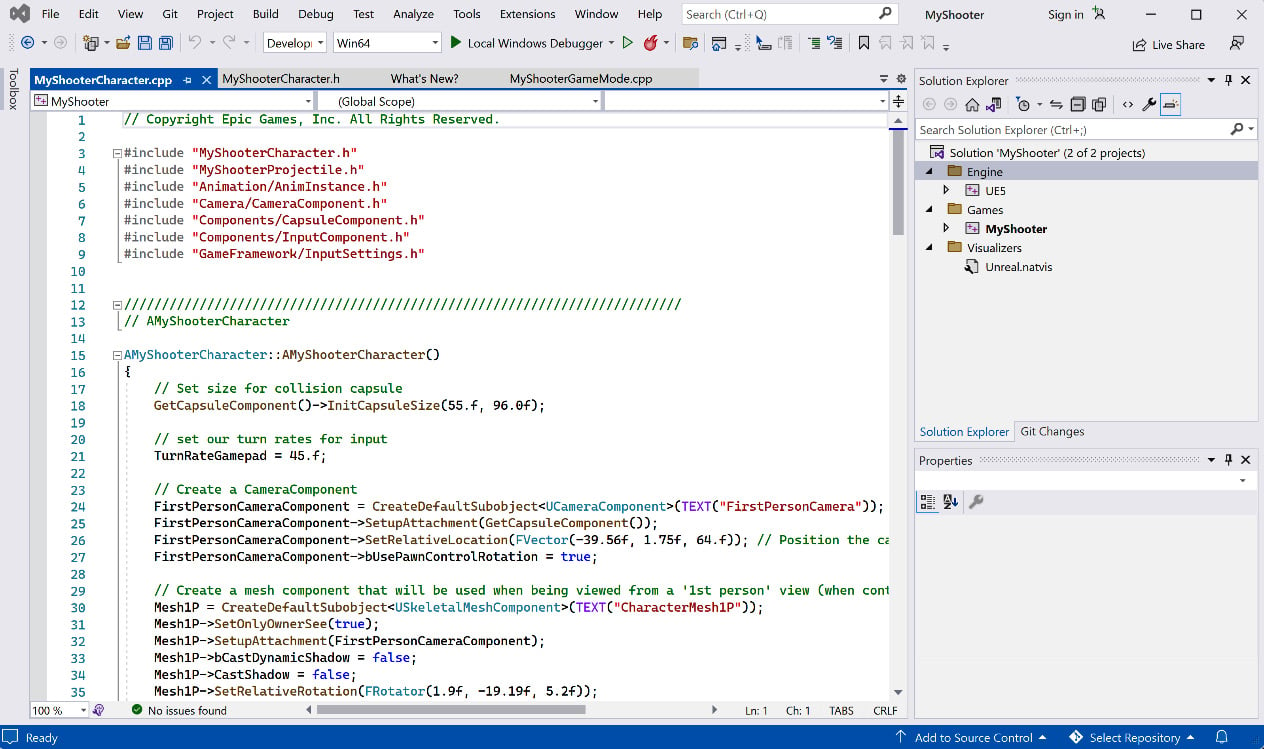
The system will automatically launch VS, and the VS editor will open the MyShooterCharacter.cpp file (see Figure 1.10).

Figure 1.10 – Viewing the MyShooterCharacter.cpp source code in VS

Figure 1.10 – Viewing the MyShooterCharacter.cpp source code in VS

Back in the Unreal editor, click the Play (A picture containing text, electronics, clock radio

Description automatically generated) button to start the game. While playing the game on the battlefield, you can control your character, move them around, and pick up the gun in front of them (see Figure 1.11).
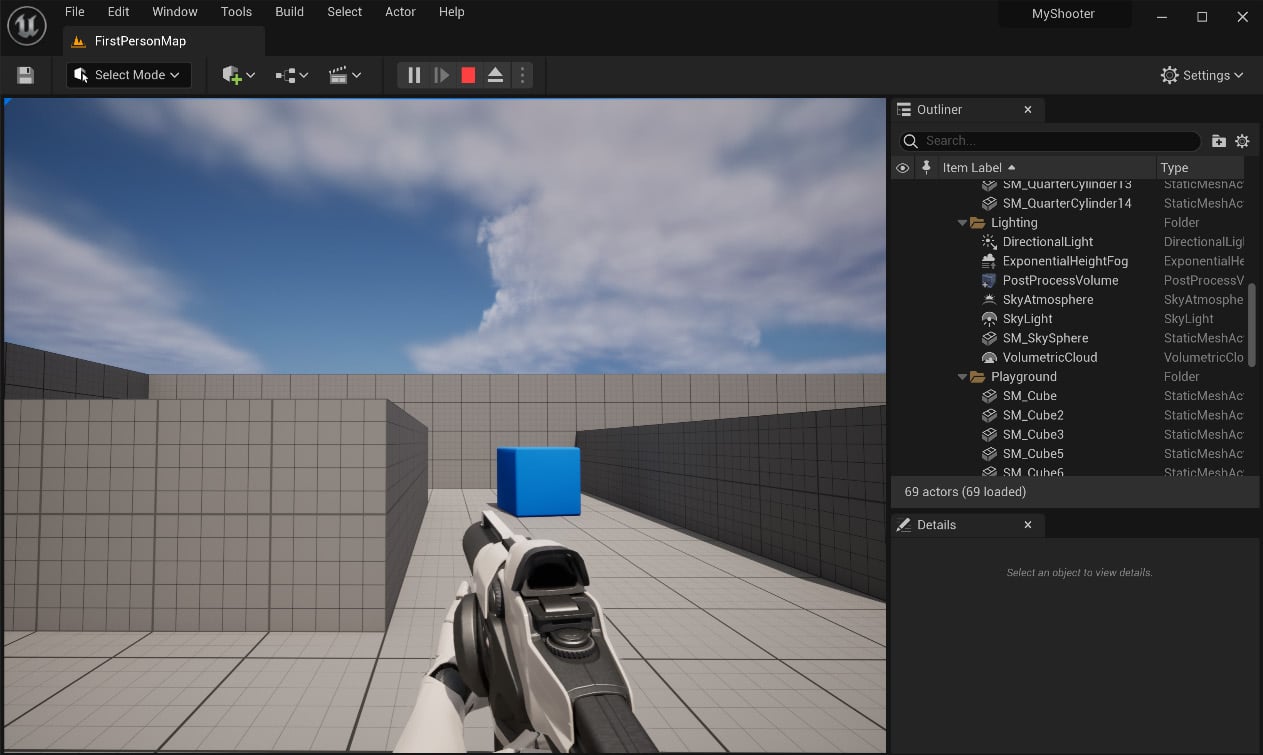
Figure 1.11 – Playing the MyShooter game

Figure 1.11 – Playing the MyShooter game

We have learned how to create a UE C++ project from scratch. However, what if we already have a Blueprint project and want to convert it to a C++ project? UE allows developers to do it by adding a new C++ class to the project. Let’s practice converting a MyBPShooter Blueprint project.

CONTINUE READING
83
Tech Concepts
36
Programming languages
73
Tech Tools
Icon Unlimited access to the largest independent learning library in tech of over 8,000 expert-authored tech books and videos.
Icon Innovative learning tools, including AI book assistants, code context explainers, and text-to-speech.
Icon 50+ new titles added per month and exclusive early access to books as they are being written.
Unreal Engine 5 Game Development with C++ Scripting
notes
bookmark Notes and Bookmarks search Search in title playlist Add to playlist download Download options font-size Font size

Change the font size

margin-width Margin width

Change margin width

day-mode Day/Sepia/Night Modes

Change background colour

Close icon Search
Country selected

Close icon Your notes and bookmarks

Confirmation

Modal Close icon
claim successful

Buy this book with your credits?

Modal Close icon
Are you sure you want to buy this book with one of your credits?
Close
YES, BUY

Submit Your Feedback

Modal Close icon
Modal Close icon
Modal Close icon