Sign In Start Free Trial
Account

Add to playlist

Create a Playlist

Modal Close icon
You need to login to use this feature.
  • Book Overview & Buying Multimedia Programming with Pure Data
  • Table Of Contents Toc
Multimedia Programming with Pure Data

Multimedia Programming with Pure Data

By : Bryan, Wai-ching CHUNG
4.4 (16)
close
close
Multimedia Programming with Pure Data

Multimedia Programming with Pure Data

4.4 (16)
By: Bryan, Wai-ching CHUNG

Overview of this book

Preparing interactive displays, creating computer games, and conducting audio-visual performance are now achievable without typing lines of code. With Pure Data, a graphical programming environment, creating interactive multimedia applications is just visually connecting graphical icons together. It is straightforward, intuitive, and effective. "Multimedia Programming with Pure Data" will show you how to create interactive multimedia applications. You will learn how to author various digital media, such as images, animations, audio, and videos together to form a coherent title. From simple to sophisticated interaction techniques, you will learn to apply these techniques in your practical multimedia projects. You start from making 2D and 3D computer graphics and proceed to animation, multimedia presentation, interface design, and more sophisticated computer vision applications with interactivity. With Pure Data and GEM, you will learn to produce animations with 2D digital imagery, 3D modelling, and particle systems. You can also design graphical interfaces, and use live video for motion tracking applications. Furthermore, you will learn Audio signal processing, which forms the key aspect to multimedia content creation. Last but not least, Network programming using Pure Data extension libraries explores applications to other portable devices.
Table of Contents (17 chapters)
close
close
Multimedia Programming with Pure Data
Credits
About the Author
About the Reviewers
www.PacktPub.com
Preface
2
Index

Creating a counter


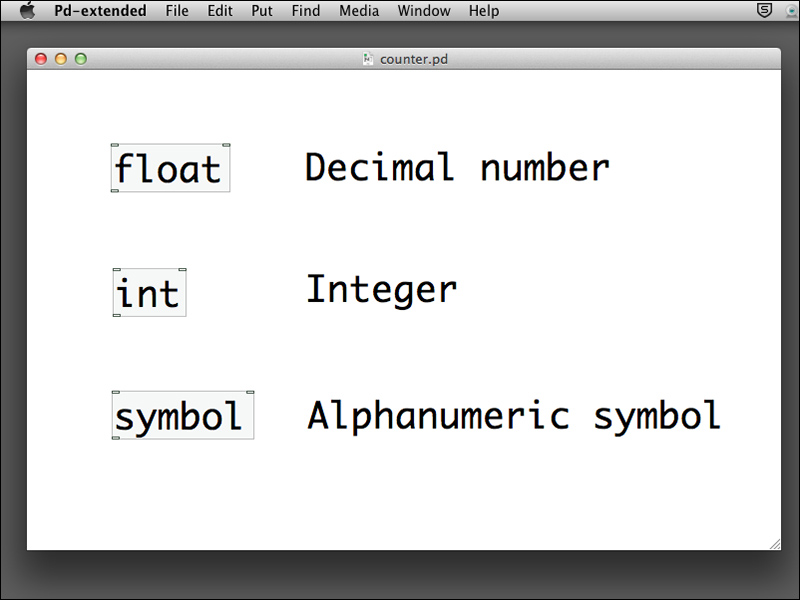
Most programming languages include the facility to store values in a place, and which can be referred afterward. It is usually called a variable. Pure Data uses a graphical object box for this purpose. The most common storage objects are float, int, and symbol. The objects, float and int store floating point and integer numbers respectively. The object symbol stores text without spacing in between, for example, Hello. Note that the descriptions we put next to the objects in the following screenshot are comments. Comments are textual descriptions for you to document your patch. You can add a piece of comment by navigating to Put | Comment. It is always good practice to document your patch for easy maintenance.

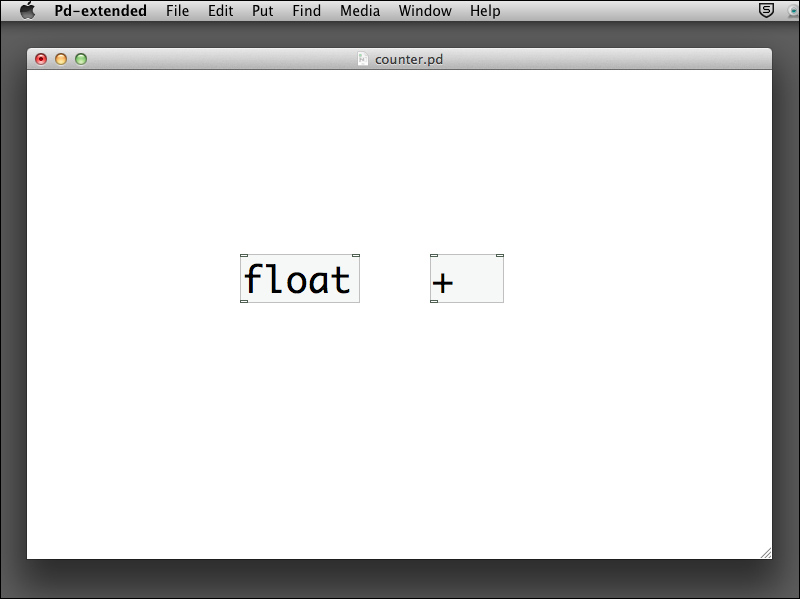
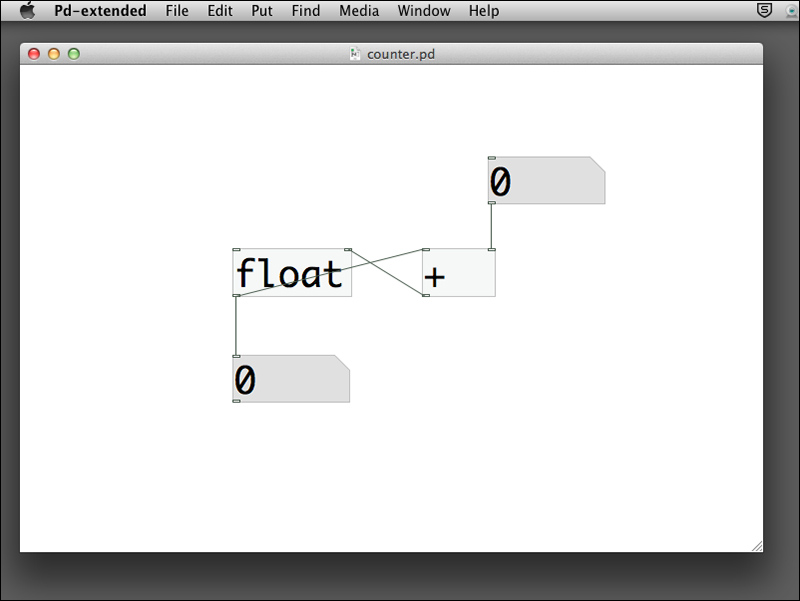
The following example will make use of a float object to function as a counter. Create an empty patch and save it with name counter.pd in your folder. Put the float and plus objects in the patch window.

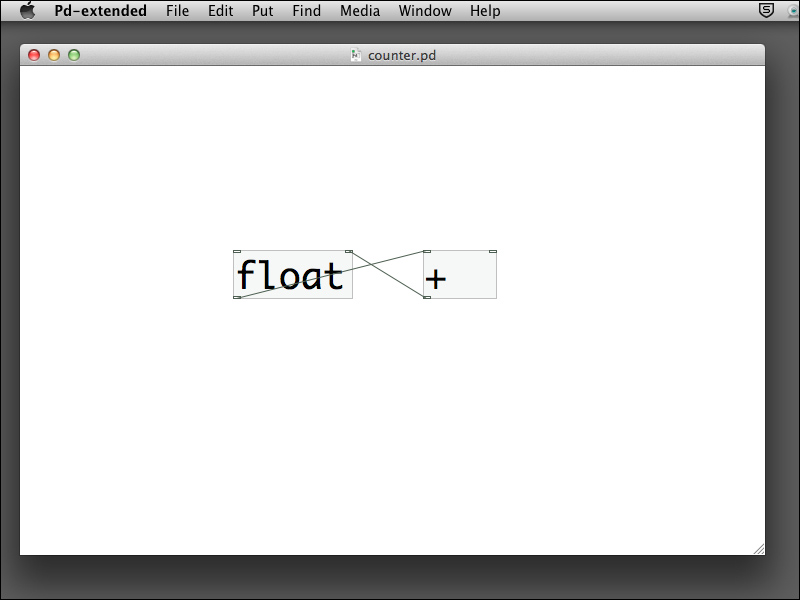
Connect the outlet of the float object to the left (hot) inlet of the plus object. Connect the outlet of the plus object to the right (cold) inlet of the float object. It looks like a cross.

Add two more number boxes and connect one to the right inlet of the plus object and the other to the outlet of the float object. Note that the outlet of the float object is connected to two objects.

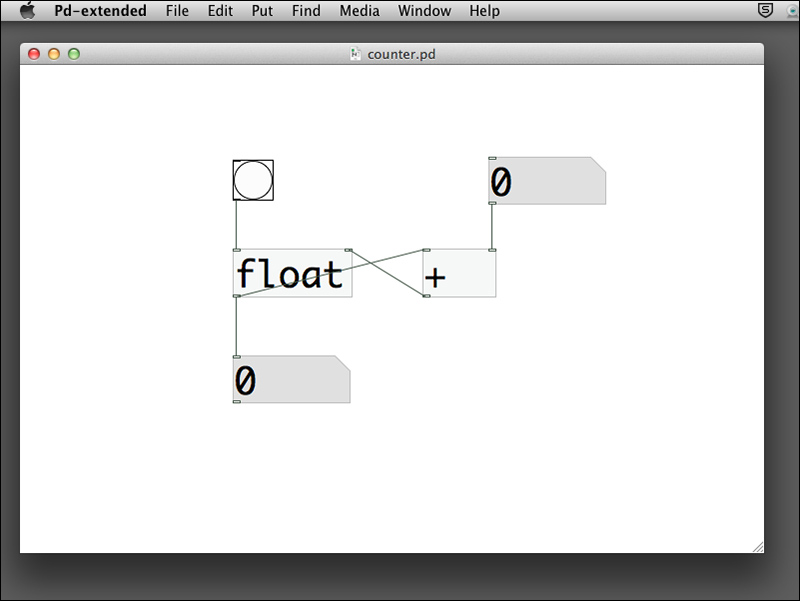
The last step is to put a bang object to the left inlet of the float object. To do this, choose Put | Bang from the menu bar. Connect it to the left inlet of the float object. Note that bang is one of the graphical user interface object and which functions like a push button.

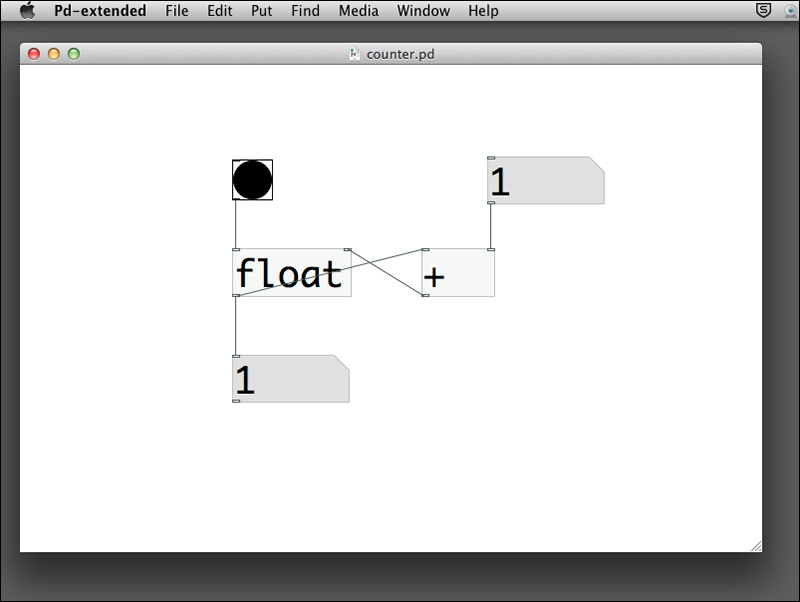
We now switch to Run Mode. Click on the right number box and type in the number 1. Click on the bang button a few times. Each time you click on the bang button, the circle turns black and the bottom number box will increase its value by 1.

Now you can change the right number box value and click on the bang button again. The value determines how much the counter will increment whenever you click on the button.

When you setup this patch, the float object has an initial value of zero in its right inlet. Every time you click on the bang button, it sends out a bang message to the float object to output its value stored in the right inlet. That is the value in the bottom number box. At the same time, there is a connection from the float object outlet to the left inlet of the plus object. It causes the plus object to add 1 (or another value in the right number box) to it and sends the result back to the right inlet of the float object for temporary storage. The next time you click on the bang button, its value will increment again.

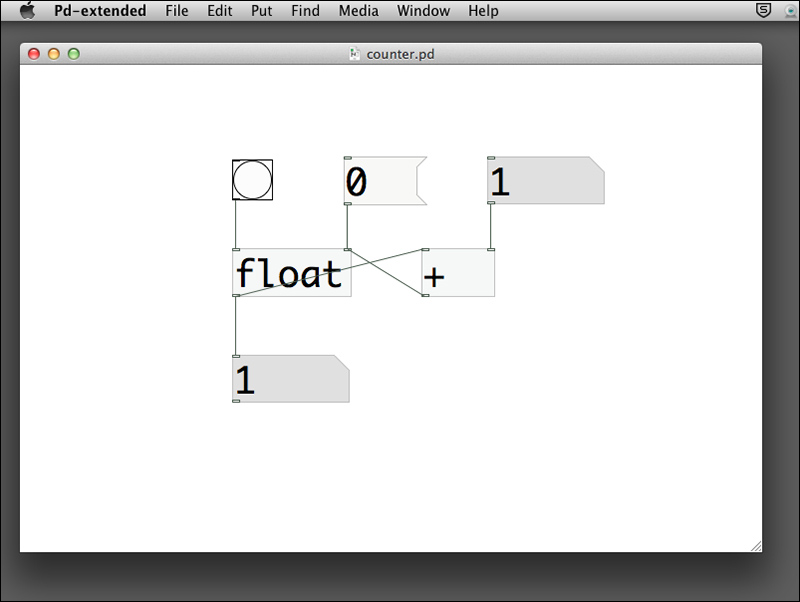
One last point to complete this counter is how you can reset the value to zero. You can achieve it by putting a 0 message to the right inlet of the float object. By clicking on this message, it sends the value zero to reset the counter. Note that we use message instead of a number box because there is no need to change the value 0.

Visually different images
CONTINUE READING
83
Tech Concepts
36
Programming languages
73
Tech Tools
Icon Unlimited access to the largest independent learning library in tech of over 8,000 expert-authored tech books and videos.
Icon Innovative learning tools, including AI book assistants, code context explainers, and text-to-speech.
Icon 50+ new titles added per month and exclusive early access to books as they are being written.
Multimedia Programming with Pure Data
notes
bookmark Notes and Bookmarks search Search in title playlist Add to playlist font-size Font size

Change the font size

margin-width Margin width

Change margin width

day-mode Day/Sepia/Night Modes

Change background colour

Close icon Search
Country selected

Close icon Your notes and bookmarks

Confirmation

Modal Close icon
claim successful

Buy this book with your credits?

Modal Close icon
Are you sure you want to buy this book with one of your credits?
Close
YES, BUY

Submit Your Feedback

Modal Close icon
Modal Close icon
Modal Close icon