-
Book Overview & Buying
-
Table Of Contents
Unity 2022 Mobile Game Development - Third Edition
By :
It’s great that we have some basic tiles, but it’s a good idea to give the player something to do, or in our case, something to avoid. This will provide the player with some kind of challenge and a basic gameplay goal, which is avoiding obstacles here. In this section, you’ll learn how to customize your tiles to add obstacles for your player to avoid. So, let’s look at the steps:
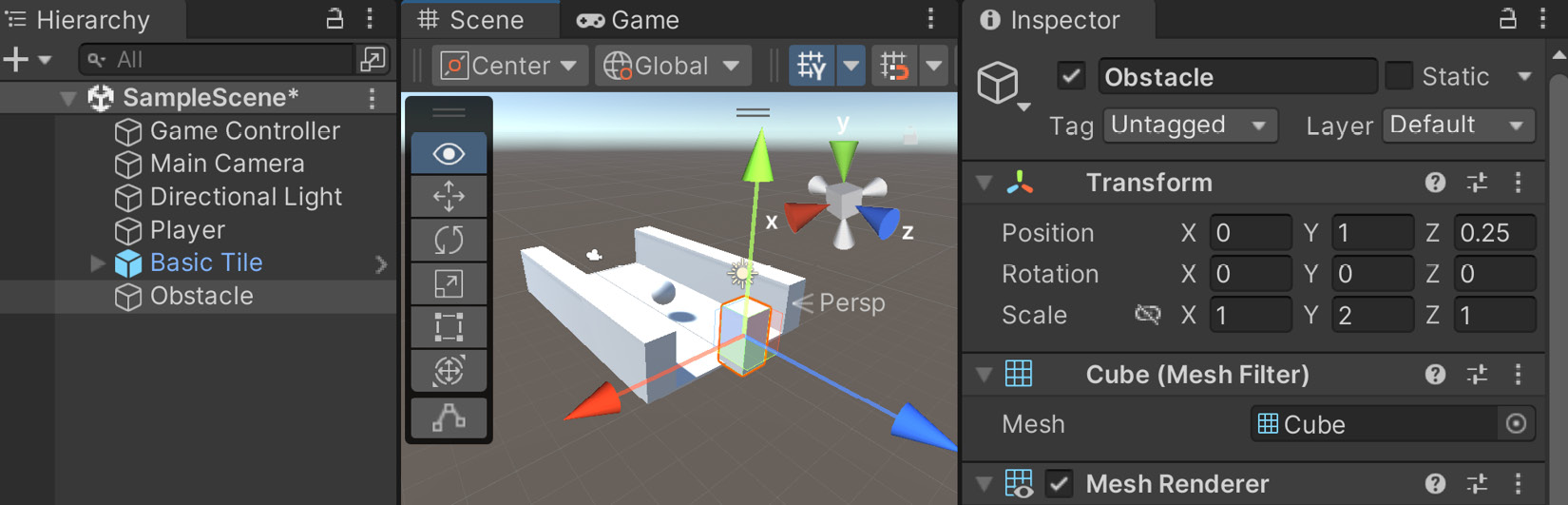
Obstacle. Change the Scale value of Y to 2 and position it above the platform at (0, 1, 0.25):
Figure 1.27 – Adding obstacles
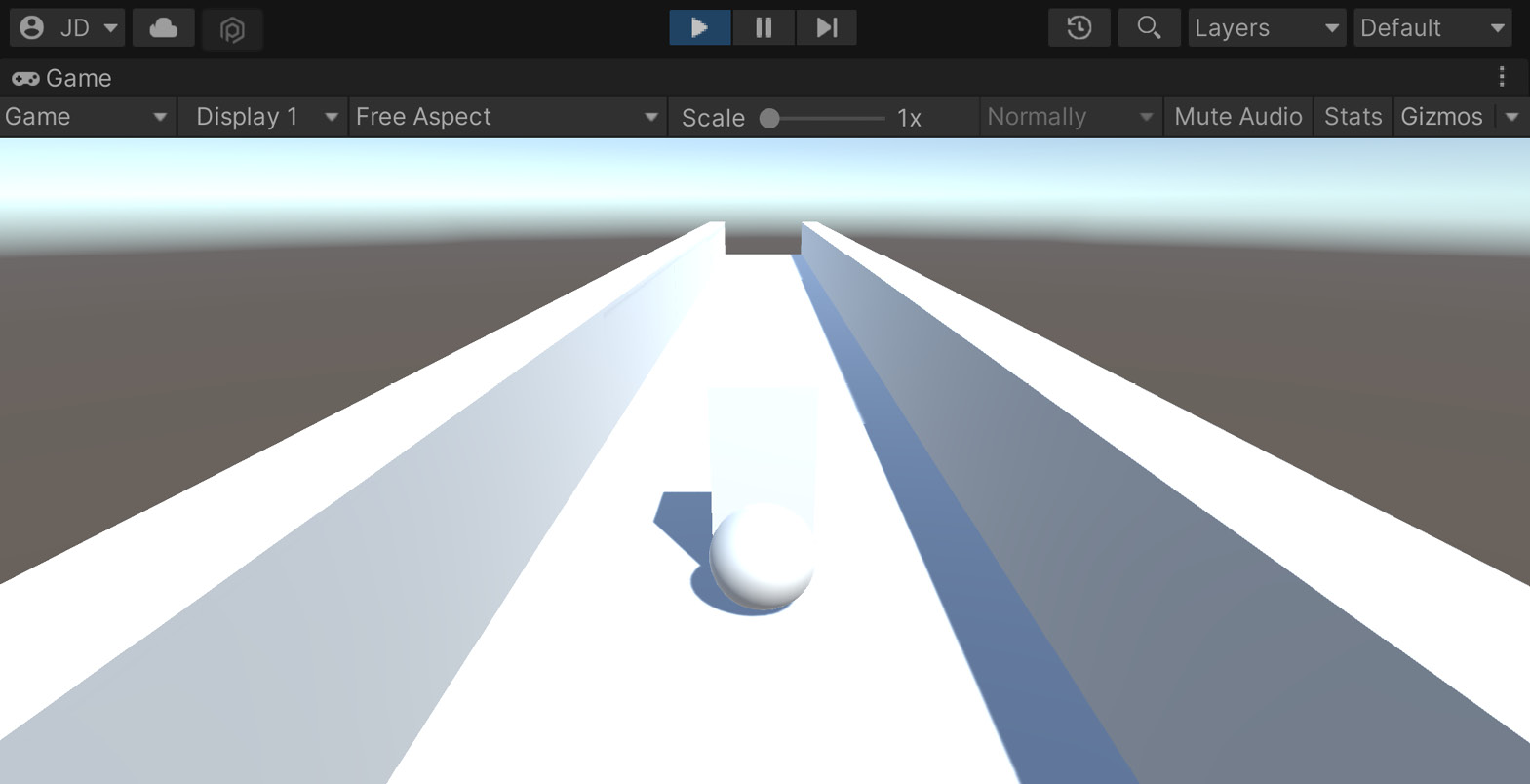
Figure 1.28 – Obstacles stop the player
ObstacleBehaviour. We’ll use the following code:using UnityEngine;
using UnityEngine.SceneManagement; // LoadScene
public class ObstacleBehaviour : MonoBehaviour
{
[Tooltip("How long to wait before restarting the
game")]
public float waitTime = 2.0f;
private void OnCollisionEnter(Collision collision)
{
// First check if we collided with the player
if (collision.gameObject.GetComponent
<PlayerBehaviour>())
{
// Destroy the player
Destroy(collision.gameObject);
// Call the function ResetGame after
// waitTime has passed
Invoke("ResetGame", waitTime);
}
}
/// <summary>
/// Will restart the currently loaded level
/// </summary>
private void ResetGame()
{
// Get the current level's name
string sceneName =
SceneManager.GetActiveScene().name;
// Restarts the current level
SceneManager.LoadScene(sceneName);
}
}Obstacle GameObject we just created.
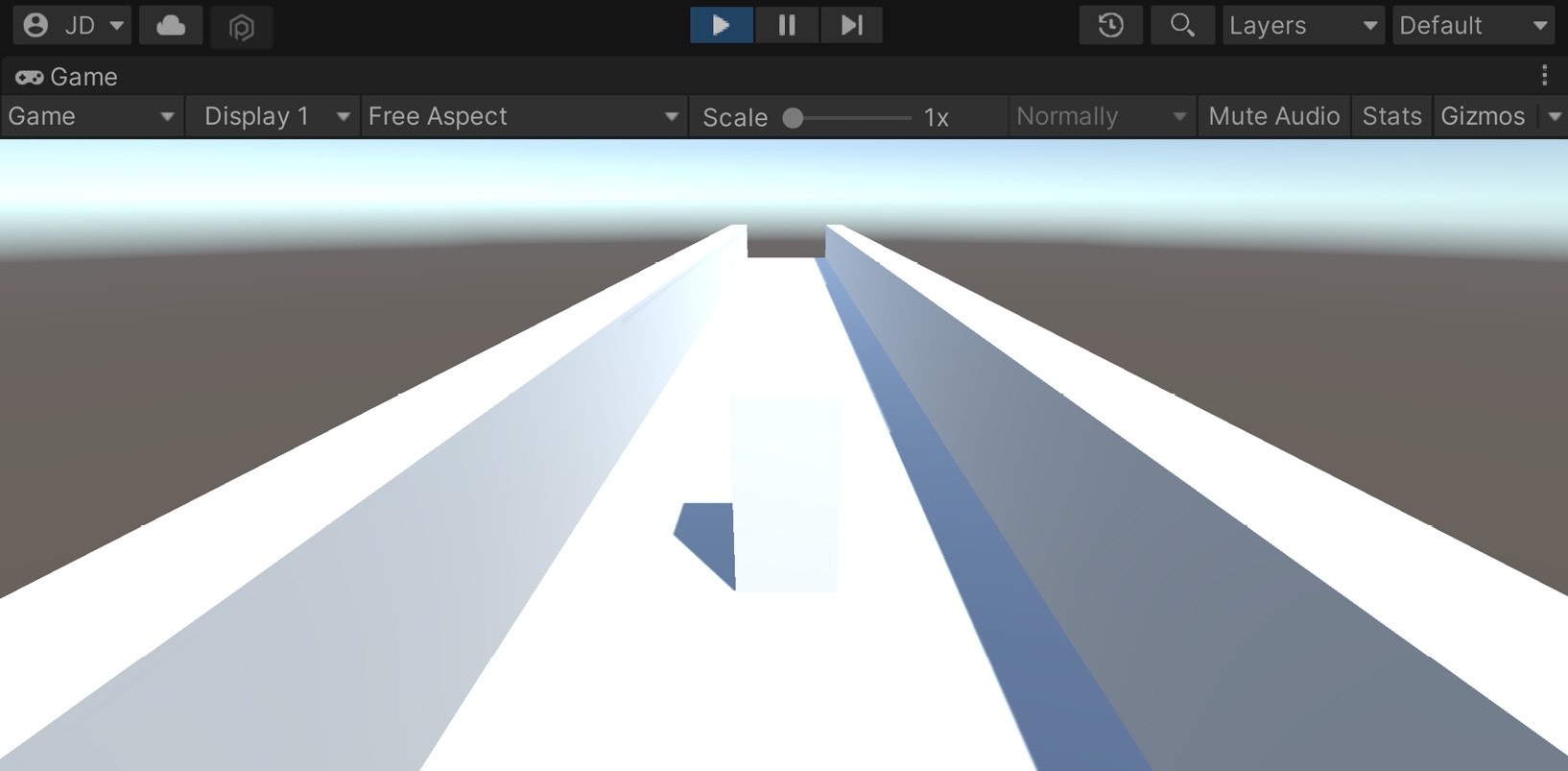
Figure 1.29 – Obstacles destroy the player
As you can see in the preceding screenshot, once we hit the obstacle, the player gets destroyed, and then after a few seconds, the game starts up again. You’ll learn how to use particle systems and other things to polish this up, but at this point, it’s functional, which is what we want.
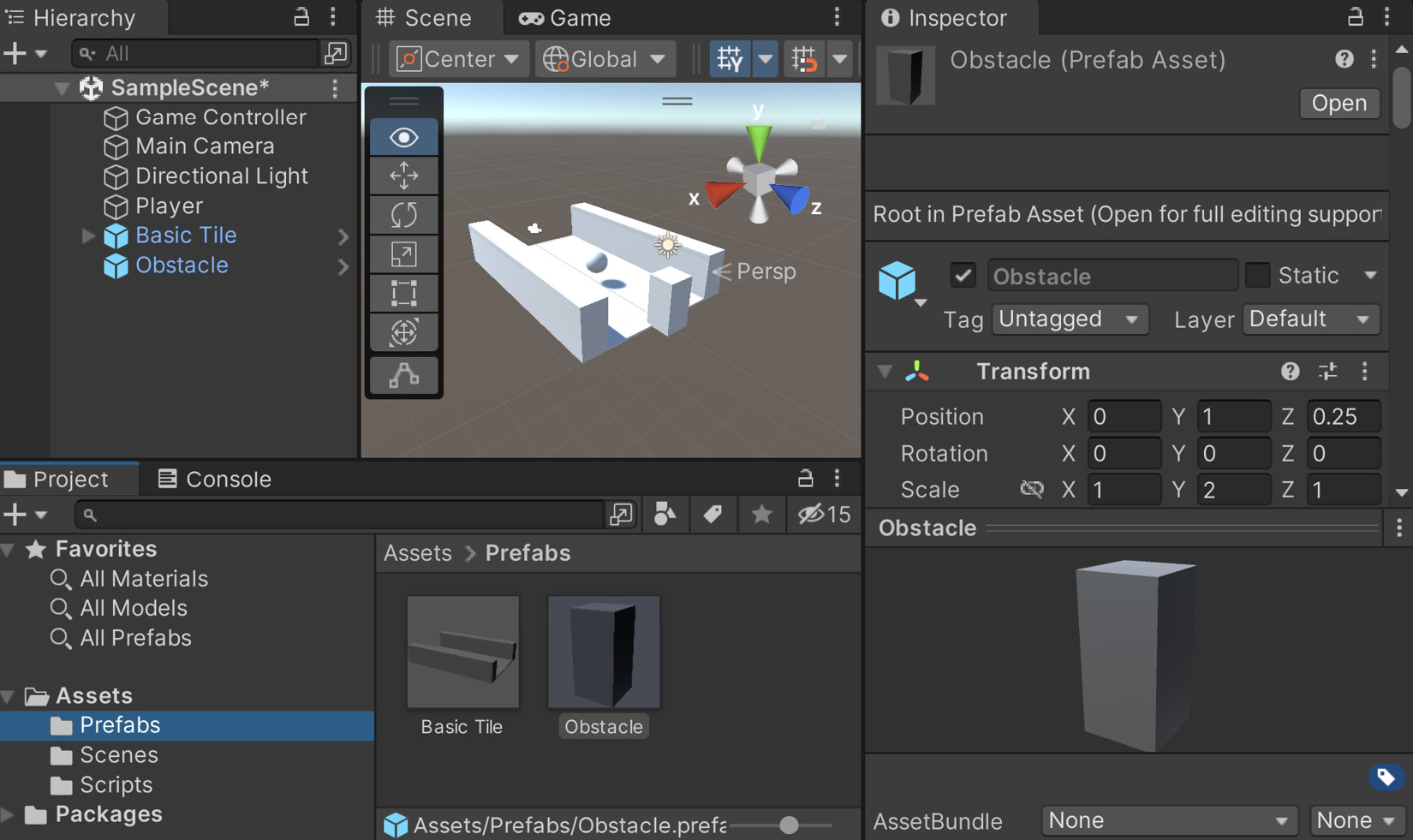
Figure 1.30 – Creating the Obstacle prefab
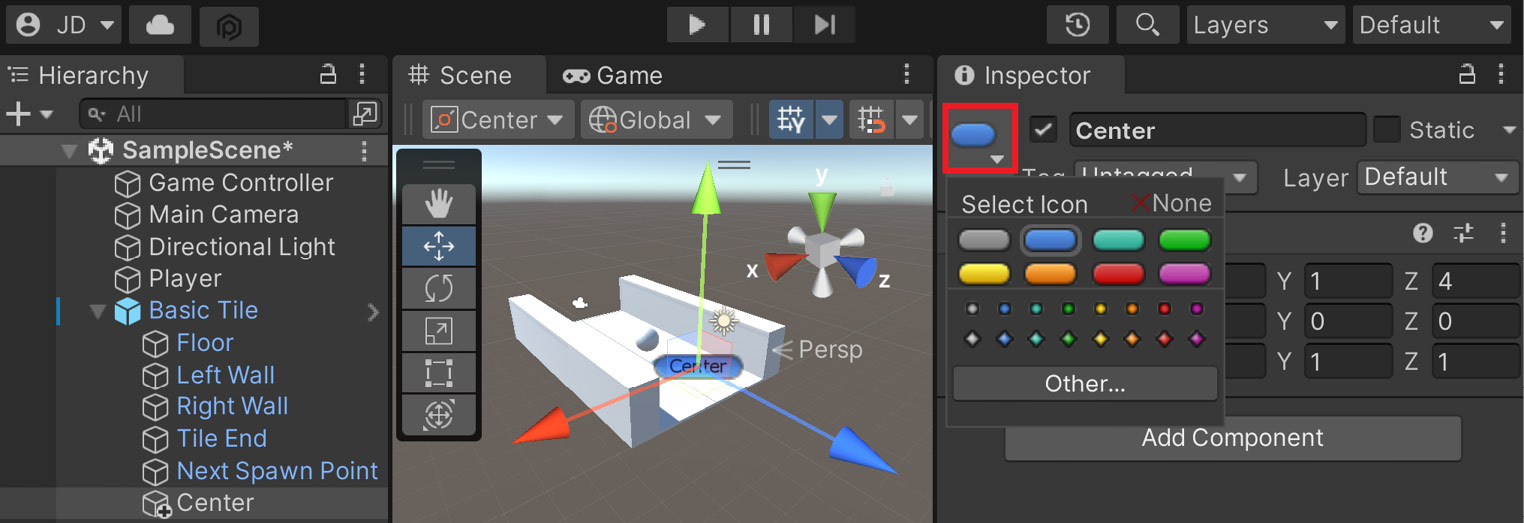
Next Spawn Point object and move the new one’s Position to (0, 1, 4). We will then rename the object Center.
Figure 1.31 – Creating a Center marker
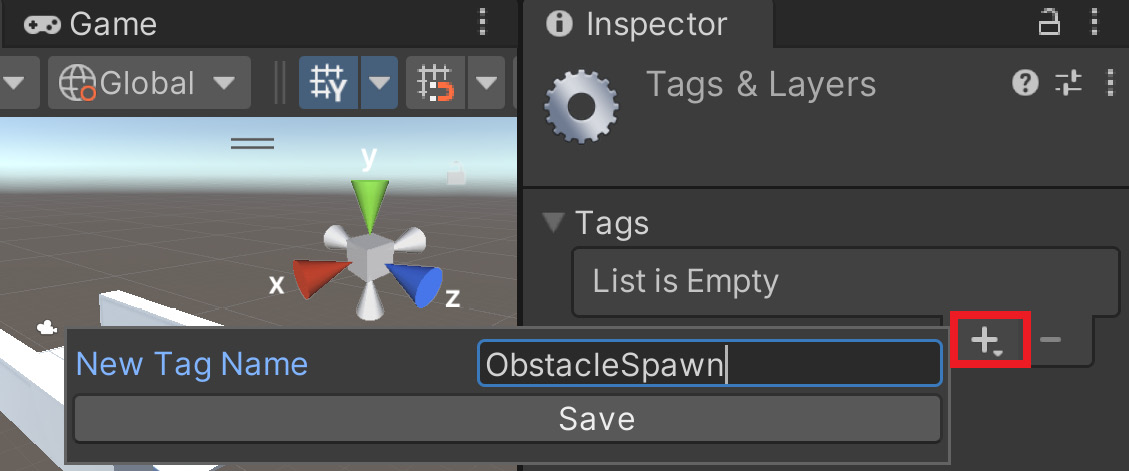
ObstacleSpawn:
Figure 1.32 – Creating the ObstacleSpawn tag
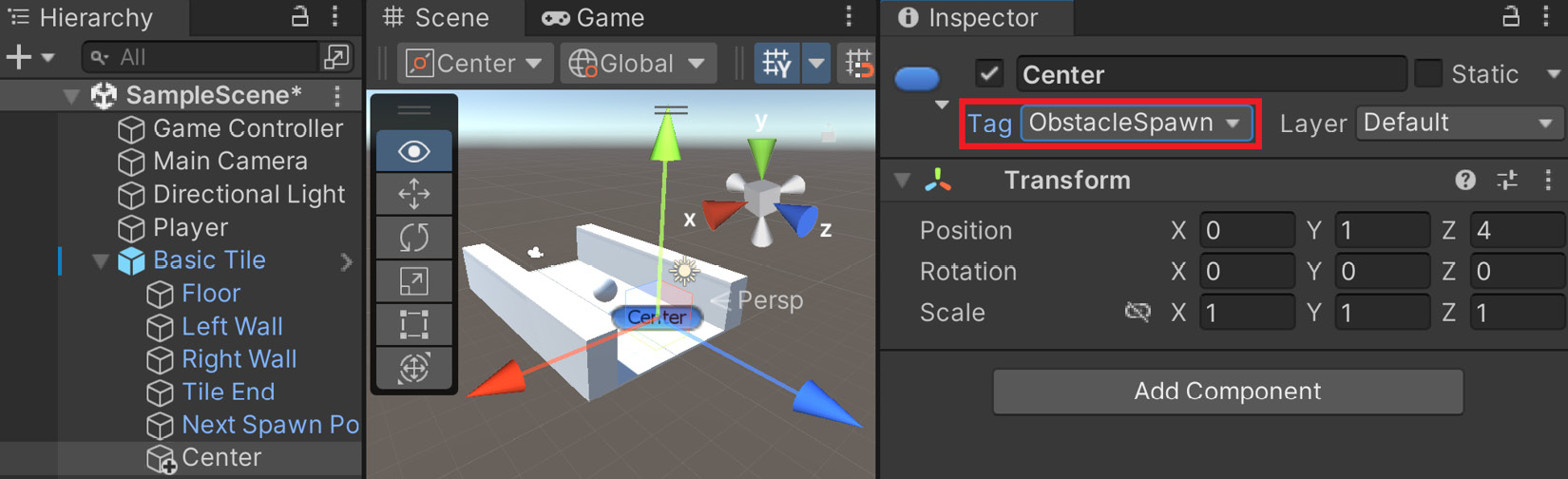
Figure 1.33 – Assigning the tag to the Center object
Note
For more information on tags and why we’d want to use them, check out https://docs.unity3d.com/Manual/Tags.html.
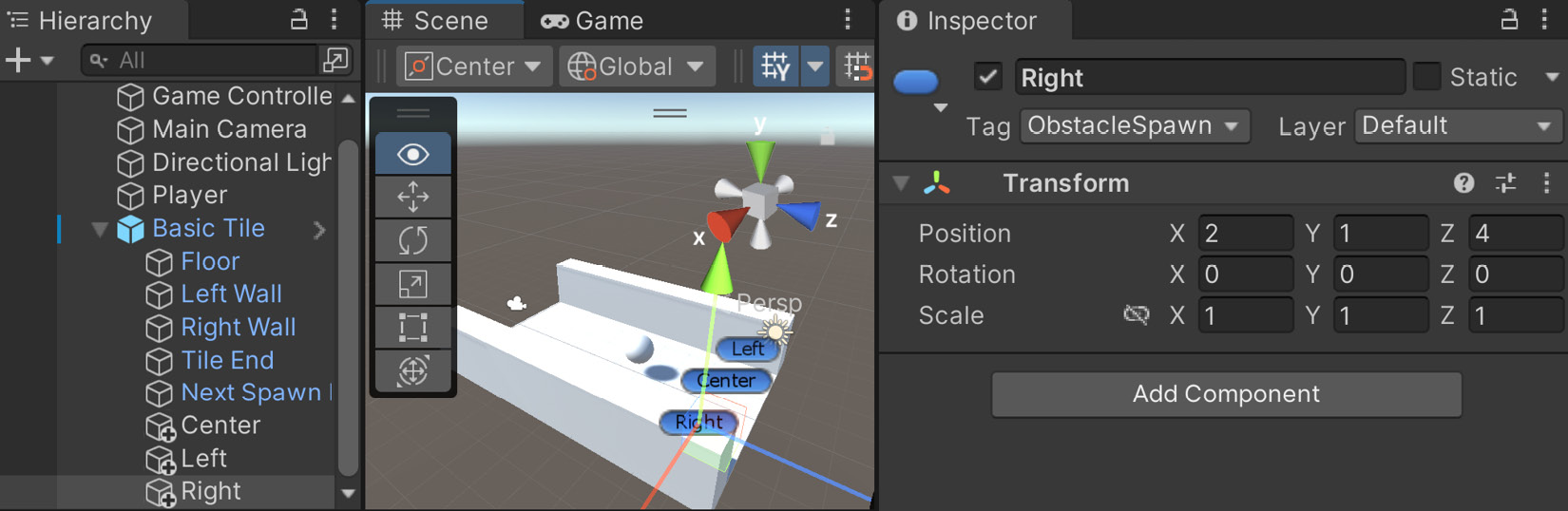
Left and Right, moving them two units to the left and right of the center to become other possible obstacle points:
Figure 1.34 – Creating the Left and Right markers
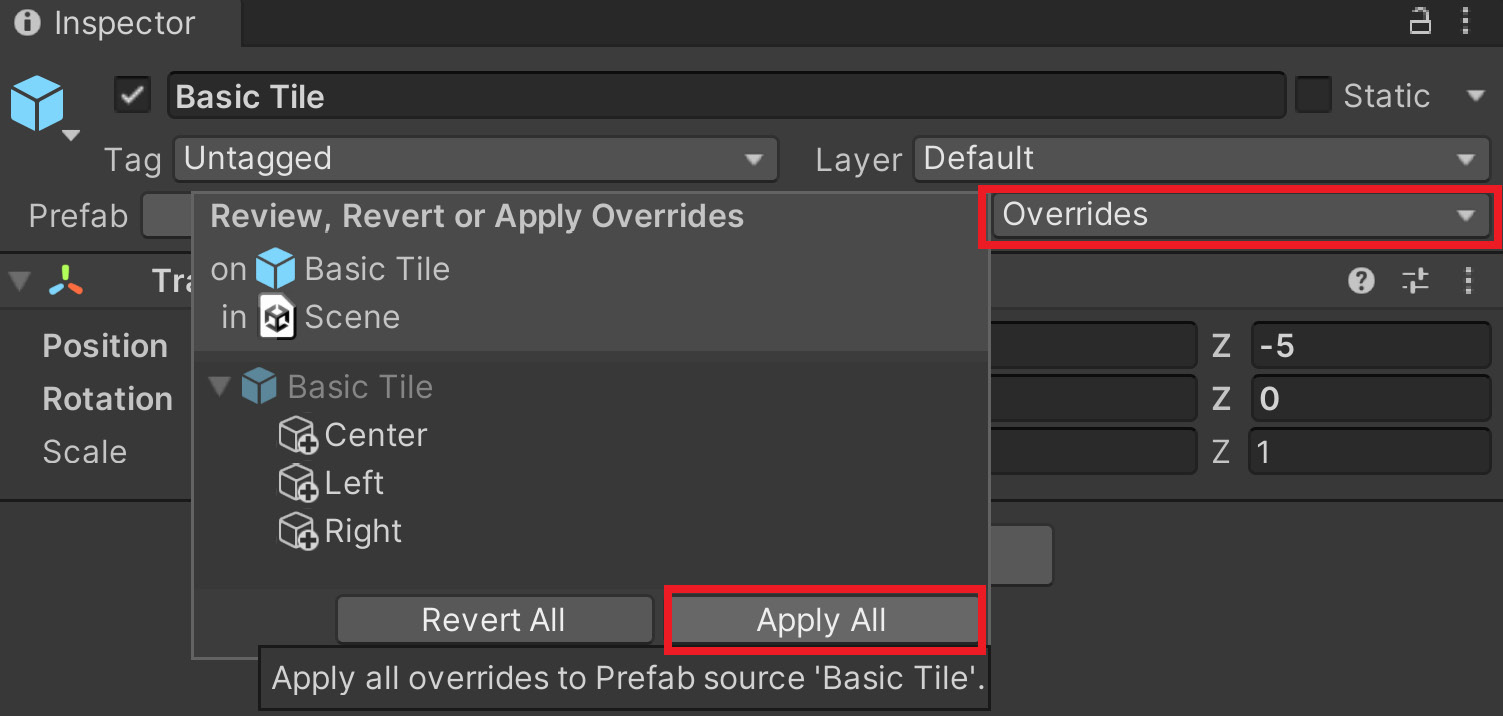
Figure 1.35 – Applying changes to the prefab
GameManager script and make some modifications. To start with, we will need to introduce some new variables:/// <summary>
/// Manages the main gameplay of the game
/// </summary>
public class GameManager : MonoBehaviour
{
[Tooltip("A reference to the tile we want to
spawn")]
public Transform tile;
[Tooltip("A reference to the obstacle we want to
spawn")]
public Transform obstacle;
[Tooltip("Where the first tile should be placed
at")]
public Vector3 startPoint = new Vector3(0, 0, -5);
[Tooltip("How many tiles should we create in
advance")]
[Range(1, 15)]
public int initSpawnNum = 10;
[Tooltip("How many tiles to spawn with no
obstacles")]
public int initNoObstacles = 4;The first of these variables is a reference to the obstacle that we will be creating copies of. The second is a parameter of how many tiles should be spawned before spawning obstacles. This is to ensure that the player can see the obstacles before they need to avoid them.
SpawnNextTile function in order to spawn obstacles as well:/// <summary>
/// Will spawn a tile at a certain location and setup
/// the next position
/// </summary>
/// <param name="spawnObstacles">If we should spawn an
/// obstacle</param>
public void SpawnNextTile(bool spawnObstacles = true)
{
var newTile = Instantiate(tile, nextTileLocation,
nextTileRotation);
// Figure out where and at what rotation we should
// spawn the next item
var nextTile = newTile.Find("Next Spawn Point");
nextTileLocation = nextTile.position;
nextTileRotation = nextTile.rotation;
if (spawnObstacles)
{
SpawnObstacle(newTile);
}
}Note that we modified the SpawnNextTile function to now have a default parameter set to true, which will tell us whether we want to spawn obstacles or not. At the beginning of the game, we may not want the player to have to start dodging immediately, but we can tweak the value to increase or decrease the number we are using. Because it has a default value of true, the original version of calling this in the Start function will still work without an error, but we will be modifying it later on.
true to call a function called SpawnObstacle, but that isn’t written yet. We will add that next, but first, we will be making use of the List class and we want to make sure that the compiler knows which List class we are referring to, so we need to add a using statement at the top of the file:using UnityEngine; using System.Collections.Generic; // List
SpawnObstacle function. Add the following function to the script:private void SpawnObstacle(Transform newTile)
{
// Now we need to get all of the possible places
// to spawn the obstacle
var obstacleSpawnPoints = new List<GameObject>();
// Go through each of the child game objects in
// our tile
foreach (Transform child in newTile)
{
// If it has the ObstacleSpawn tag
if (child.CompareTag("ObstacleSpawn"))
{
// We add it as a possibility
obstacleSpawnPoints.Add(child.gameObject);
}
}
// Make sure there is at least one
if (obstacleSpawnPoints.Count > 0)
{
// Get a random spawn point from the ones we
// have
int index = Random.Range(0,
obstacleSpawnPoints.Count);
var spawnPoint = obstacleSpawnPoints[index];
// Store its position for us to use
var spawnPos = spawnPoint.transform.position;
// Create our obstacle
var newObstacle = Instantiate(obstacle,
spawnPos, Quaternion.identity);
// Have it parented to the tile
newObstacle.SetParent(spawnPoint.transform);
}
}Start function:/// <summary>
/// Start is called before the first frame update
/// </summary>
private void Start()
{
// Set our starting point
nextTileLocation = startPoint;
nextTileRotation = Quaternion.identity;
for (int i = 0; i < initSpawnNum; ++i)
{
SpawnNextTile(i >= initNoObstacles);
}
}Now, as long as i is less than the value of initNoObstacles, it will not spawn a variable, effectively giving us a buffer of four tiles that can be adjusted by changing the initNoObstacles variable.
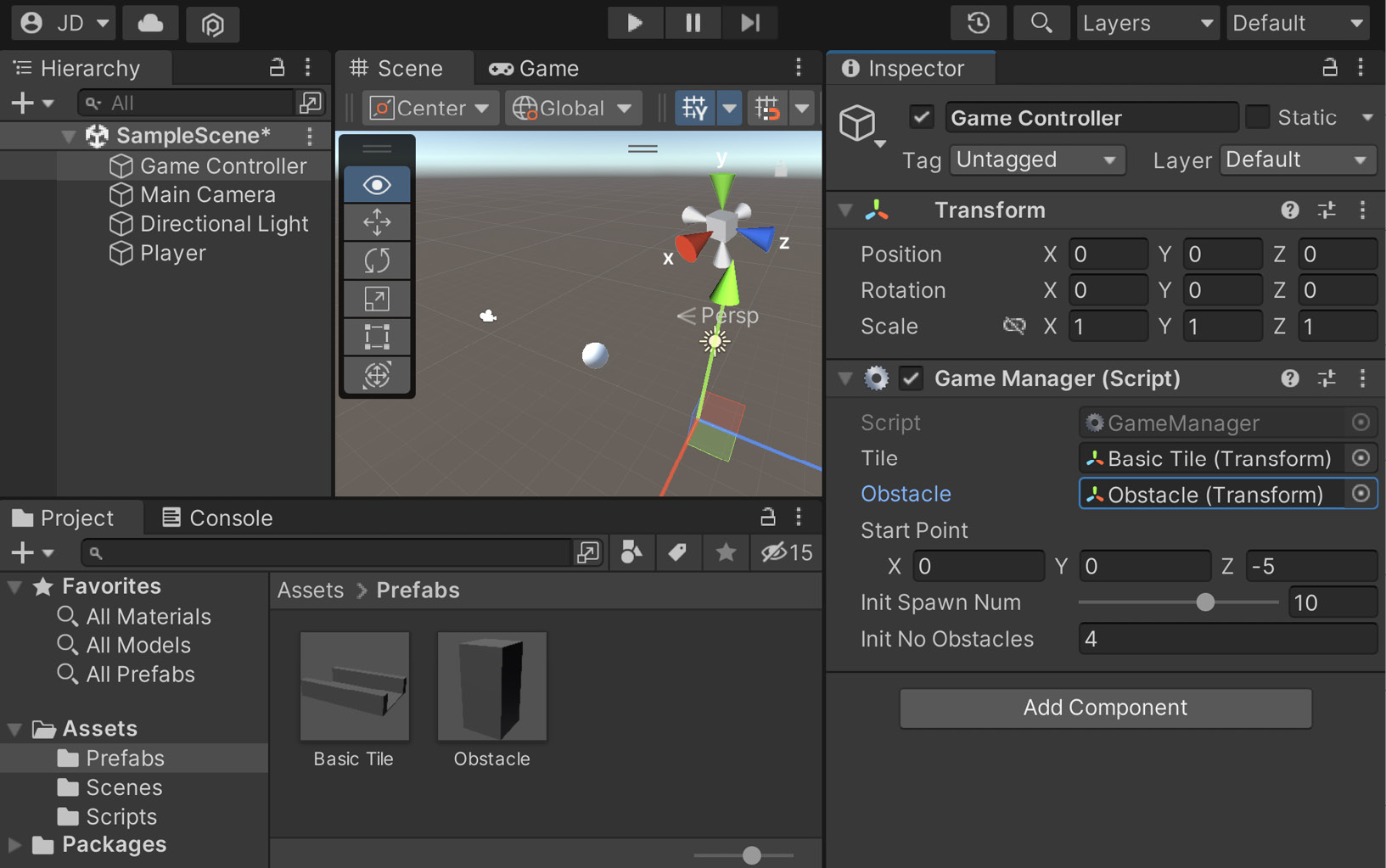
Obstacle variable of the Game Manager (Script) component in the Inspector window with the Obstacle prefab we created previously:
Figure 1.36 – Assigning the Obstacle property
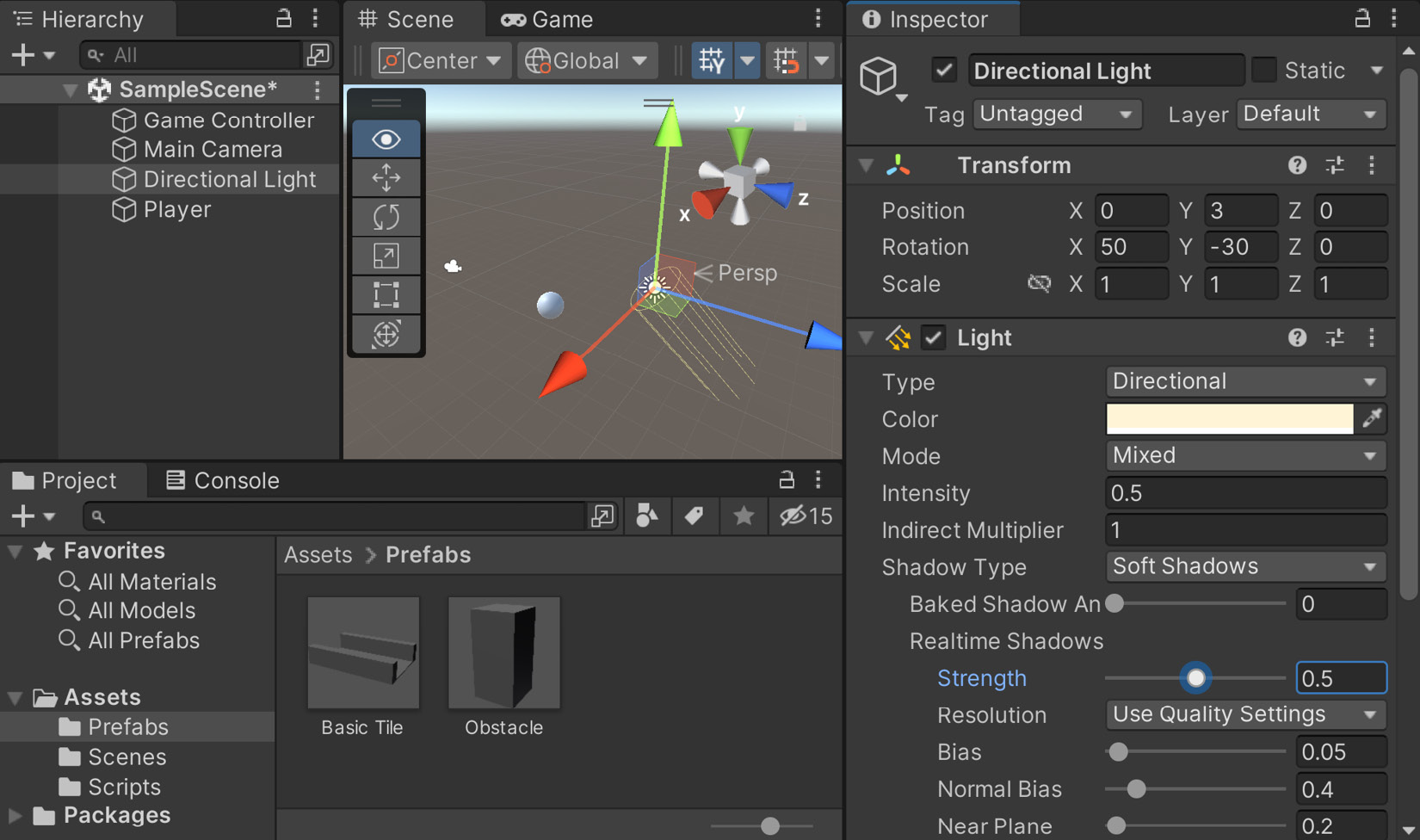
0.5 and then the Realtime Shadows | Strength property to 0.5:
Figure 1.37 – Adjusting the Directional Light
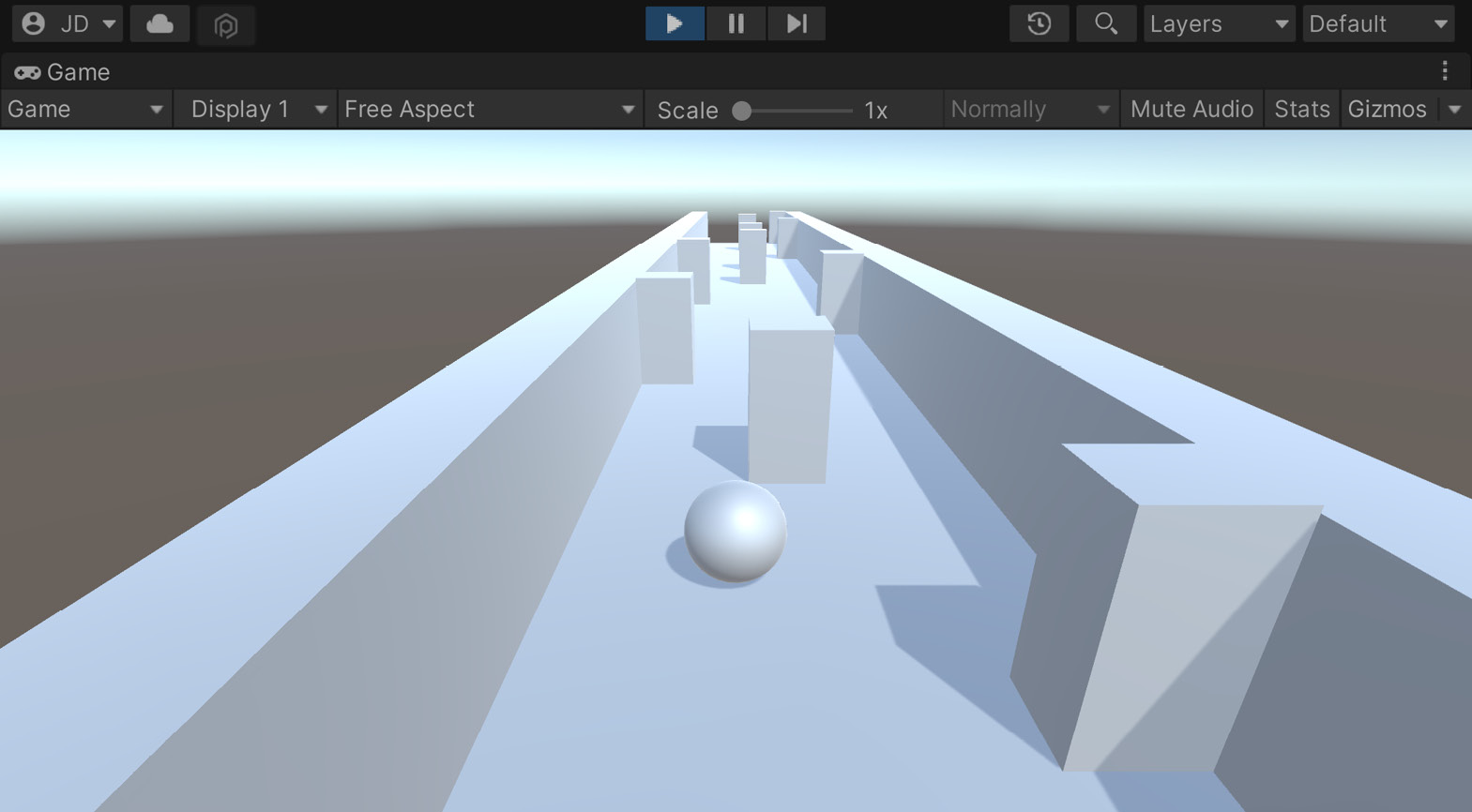
Figure 1.38 – The current state of the game
As you can see in the preceding screenshot, we now have a number of obstacles for our player to avoid!
Note
For more information on directional lights and the other lighting types that Unity has, check out https://unity3d.com/learn/tutorials/topics/graphics/light-types?playlist=17102.
Change the font size
Change margin width
Change background colour