
Sign In Start Free Trial
Account

Add to playlist

Create a Playlist

Modal Close icon
You need to login to use this feature.
  • Book Overview & Buying Unity 2020 Mobile Game Development
  • Table Of Contents Toc
Unity 2020 Mobile Game Development

Unity 2020 Mobile Game Development - Second Edition

By : John P. Doran
5 (1)
close
close
Unity 2020 Mobile Game Development

Unity 2020 Mobile Game Development

5 (1)
By: John P. Doran

Overview of this book

Unity 2020 brings a lot of new features that can be harnessed for building powerful games for popular mobile platforms. This updated second edition delves into Unity development, covering the new features of Unity, modern development practices, and augmented reality (AR) for creating an immersive mobile experience. The book takes a step-by-step approach to building an endless runner game using Unity to help you learn the concepts of mobile game development. This new edition also covers AR features and explains how to implement them using ARCore and ARKit with Unity. The book explores the new mobile notification package and helps you add notifications for your games. You’ll learn how to add touch gestures and design UI elements that can be used in both landscape and portrait modes at different resolutions. The book then covers the best ways to monetize your games using Unity Ads and in-app purchases before you learn how to integrate your game with various social networks. Next, using Unity’s analytics tools, you’ll enhance your game by gaining insights into how players like and use your game. Finally, you’ll take your games into the real world by implementing AR capabilities and publishing them on both Android and iOS app stores. By the end of this book, you will have learned Unity tools and techniques and be able to use them to build robust cross-platform mobile games.
Table of Contents (14 chapters)
close
close

Adding a pause menu

In PC games, pause menus will likely be triggered by the Esc key, whereas in a mobile game, it typically needs its very own button. We will make it so that this project supports both. Let's look at the steps:

  1. Open up the Gameplay Scene by going to the Project window, opening the Assets/Scenes folder, and double-clicking on Gameplay, thus saving the MainMenu level if you didn't do so already:
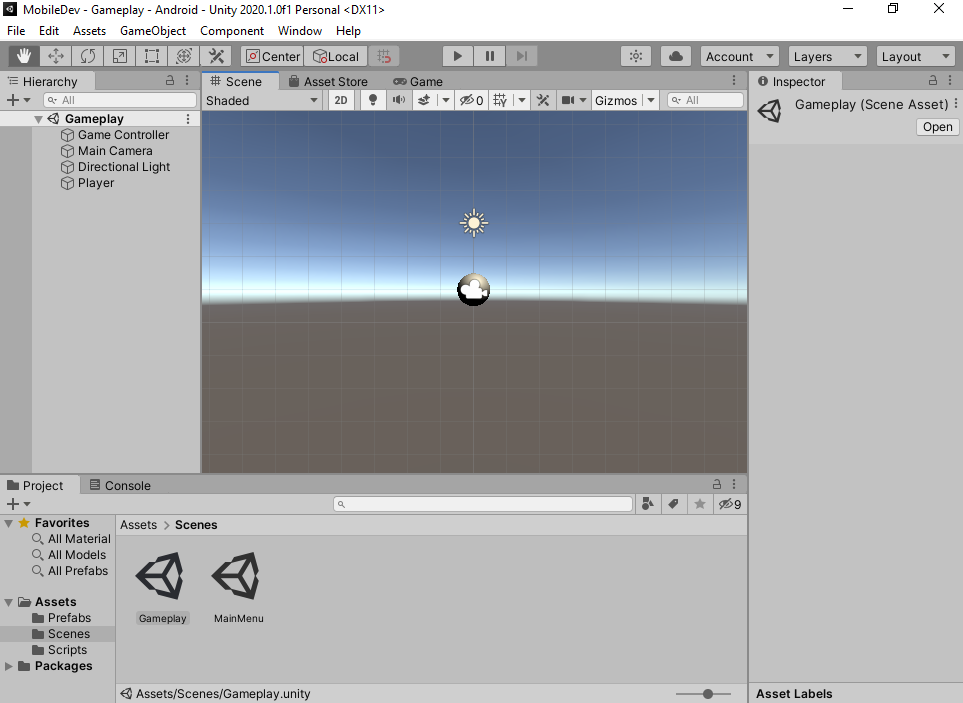
Before we create a button to open our pause menu, let's go ahead and create the pause menu that we'll be opening first.

  1. The first thing we'll do is dim our screen when we enter the pause menu. An easy way to do that is having an image scale to cover our entire screen, which is what the Panel object does by default. We can create it by selecting Game Object | UI | Panel. Note that this creates a Canvas object and an EventSystem object in addition to the Panel object, because one doesn't exist in this Scene already.
  2. Rename the Panel object to Pause...
CONTINUE READING
83
Tech Concepts
36
Programming languages
73
Tech Tools
Icon Unlimited access to the largest independent learning library in tech of over 8,000 expert-authored tech books and videos.
Icon Innovative learning tools, including AI book assistants, code context explainers, and text-to-speech.
Icon 50+ new titles added per month and exclusive early access to books as they are being written.
Unity 2020 Mobile Game Development
notes
bookmark Notes and Bookmarks search Search in title playlist Add to playlist download Download options font-size Font size

Change the font size

margin-width Margin width

Change margin width

day-mode Day/Sepia/Night Modes

Change background colour

Close icon Search
Country selected

Close icon Your notes and bookmarks

Confirmation

Modal Close icon
claim successful

Buy this book with your credits?

Modal Close icon
Are you sure you want to buy this book with one of your credits?
Close
YES, BUY

Submit Your Feedback

Modal Close icon
Modal Close icon
Modal Close icon