
Sign In Start Free Trial
Account

Add to playlist

Create a Playlist

Modal Close icon
You need to login to use this feature.
  • Book Overview & Buying Mastering Adobe Captivate 2019
  • Table Of Contents Toc
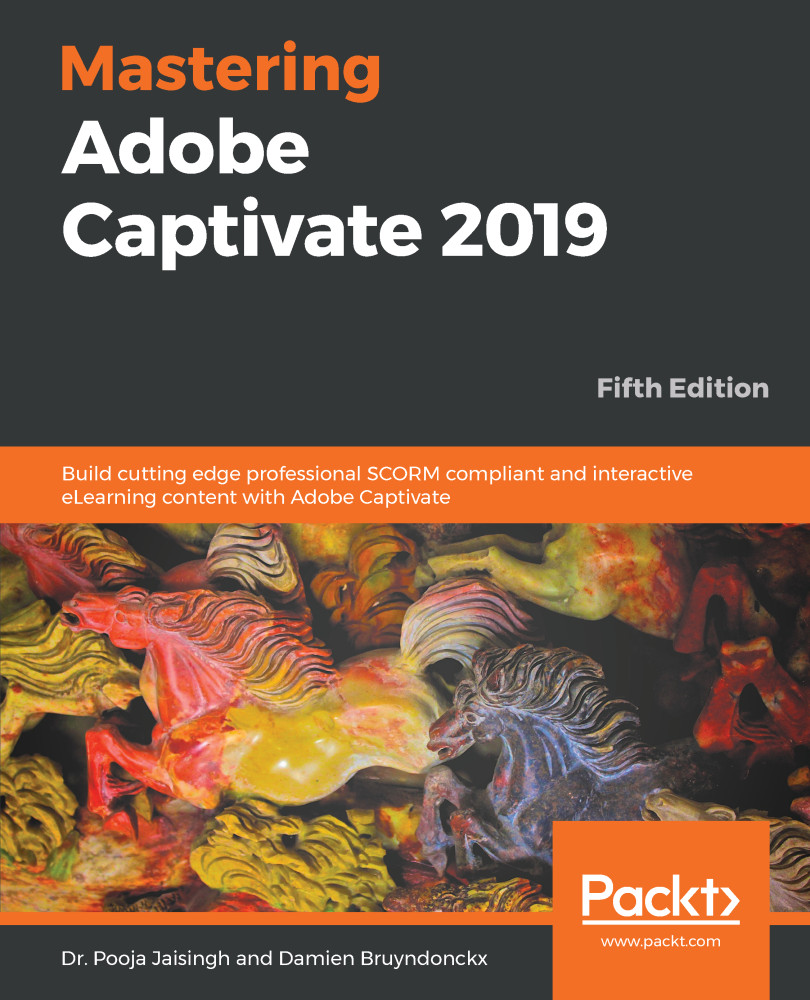
Mastering Adobe Captivate 2019

Mastering Adobe Captivate 2019 - Fifth Edition

By : Dr. Pooja Jaisingh , Damien Bruyndonckx
3.6 (10)
close
close
Mastering Adobe Captivate 2019

Mastering Adobe Captivate 2019

3.6 (10)
By: Dr. Pooja Jaisingh , Damien Bruyndonckx

Overview of this book

Adobe Captivate is used to create highly engaging, interactive, and responsive eLearning content. This book takes you through the production of a few pieces of eLearning content, covering all the project types and workflows of Adobe Captivate. First, you will learn how to create a typical interactive Captivate project. This will give you the opportunity to review all Captivate objects and uncover the application's main tools. Then, you will use the built-in capture engine of Captivate to create an interactive software simulation and a Video Demo that can be published as an MP4 video. Then, you will approach the advanced responsive features of Captivate to create a project that can be viewed on any device. And finally, you will immerse your learners in a 360o environment by creating Virtual Reality projects of Adobe Captivate. At the end of the book, you will empower your workflow and projects with the newer and most advanced features of the application, including variables, advanced actions, JavaScript, and using Captivate 2019 with other applications. If you want to produce high quality eLearning content using a wide variety of techniques, implement eLearning in your company, enable eLearning on any device, assess the effectiveness of the learning by using extensive Quizzing features, or are simply interested in eLearning, this book has you covered!
Table of Contents (17 chapters)
close
close
7
Working with Quizzes
14
Variables and Advanced Actions

Adding Text Labels

After adding 360o images or videos as slide backgrounds for 360 slides, you can add several objects on top of those special slides. In this section, let's add Text Labels to the 360 slides:

  1. Go back to Slide 1. You have already added a 360o image to this slide. 
  2. Click and drag the mouse on the image to rotate the view and stop when you have the main view visible (refer to the next screenshot).
  3. Use the Text | Label icon on the Toolbar. This adds a text label at the center of the slide. Use the Properties inspector to modify the content and the formatting of the Text Label.
  4. With the new Text Label selected, turn your attention to the Properties inspector.
  5. In the Label field, delete the placeholder text and enter Wei’s Apartment.
  6. Change the font style to Verdana and increase the font size to 72 points.
  7. Change the Highlight color to white. The Highlight Color is the background of the Text Label.
  8. Change the...
CONTINUE READING
83
Tech Concepts
36
Programming languages
73
Tech Tools
Icon Unlimited access to the largest independent learning library in tech of over 8,000 expert-authored tech books and videos.
Icon Innovative learning tools, including AI book assistants, code context explainers, and text-to-speech.
Icon 50+ new titles added per month and exclusive early access to books as they are being written.
Mastering Adobe Captivate 2019
notes
bookmark Notes and Bookmarks search Search in title playlist Add to playlist download Download options font-size Font size

Change the font size

margin-width Margin width

Change margin width

day-mode Day/Sepia/Night Modes

Change background colour

Close icon Search
Country selected

Close icon Your notes and bookmarks

Confirmation

Modal Close icon
claim successful

Buy this book with your credits?

Modal Close icon
Are you sure you want to buy this book with one of your credits?
Close
YES, BUY

Submit Your Feedback

Modal Close icon
Modal Close icon
Modal Close icon