Sign In Start Free Trial
Account

Add to playlist

Create a Playlist

Modal Close icon
You need to login to use this feature.
  • Book Overview & Buying ZBrush 4 Sculpting for Games: Beginner's Guide
  • Table Of Contents Toc
ZBrush 4 Sculpting for Games: Beginner's Guide

ZBrush 4 Sculpting for Games: Beginner's Guide

By : Manuel Scherer
4 (12)
close
close
ZBrush 4 Sculpting for Games: Beginner's Guide

ZBrush 4 Sculpting for Games: Beginner's Guide

4 (12)
By: Manuel Scherer

Overview of this book

ZBrush is a fantastic tool for creating models for use in computer games. Using a wide range of powerful tools you can create models for vehicles, props, environments, and characters. This book makes creating game art in ZBrush fast and easy. It covers everything you need to create models of all kinds for your game projects, even if you've never used ZBrush before. Built around four complete ZBrush projects, the book gives you everything you need to sculpt props, vehicles, and creatures in ZBrush. You'll start by creating a "spooky tree" model, mastering the sculpting, texturing, and decoration skills that are essential for all ZBrush topics. Next you'll move to man-made objects with a sci-fi drone. Next you'll see how to sculpt monsters and other creatures, deal with cloth and other soft materials, and prepare the model to become an animated, controllable character in a game. The final project returns to machines, building a complete, detailed spaceship for use in your sci-fi games.
Table of Contents (24 chapters)
close
close
ZBrush 4 Sculpting for Games
Credits
About the Author
About the Reviewers
www.PacktPub.com
Preface

Time for action - adding polygroups manually


Let's quickly create some new polygroups for our model to ease the sculpting process:

  1. 1.Load the creature and enable symmetry.

  2. 2.Go to Tool | Polygroups and press the Group Visible button to create one polygroup for the entire mesh to get rid of the border polygroups we got by the local subdivision.

  3. 3. Pick the Pen A brush

  4. 4. Enable polypainting, set the RBG Slider to 100, and turn off Zadd. Fill the object with an intense color by going to Color | FillObject.

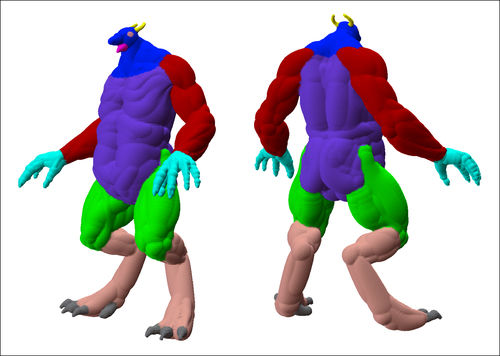
  5. 5. Now we can paint the mesh in different colors, where we would like the polygroups to appear. Choose strong, contrasting colors so that ZBrush can easily distinguish them. Paint in a region for the head, especially the jaw, the arms, and the legs, as shown in the next image:

  6. 6. If we would like to continue polypainting a region with a certain color, we can pick its color by pressing C.

  7. 7. Make sure there are no holes or unpainted areas in your polypaint.

  8. 8. Apart from painting in the legs, arms...

CONTINUE READING
83
Tech Concepts
36
Programming languages
73
Tech Tools
Icon Unlimited access to the largest independent learning library in tech of over 8,000 expert-authored tech books and videos.
Icon Innovative learning tools, including AI book assistants, code context explainers, and text-to-speech.
Icon 50+ new titles added per month and exclusive early access to books as they are being written.
ZBrush 4 Sculpting for Games: Beginner's Guide
notes
bookmark Notes and Bookmarks search Search in title playlist Add to playlist font-size Font size

Change the font size

margin-width Margin width

Change margin width

day-mode Day/Sepia/Night Modes

Change background colour

Close icon Search
Country selected

Close icon Your notes and bookmarks

Confirmation

Modal Close icon
claim successful

Buy this book with your credits?

Modal Close icon
Are you sure you want to buy this book with one of your credits?
Close
YES, BUY

Submit Your Feedback

Modal Close icon
Modal Close icon
Modal Close icon