Sign In Start Free Trial
Account

Add to playlist

Create a Playlist

Modal Close icon
You need to login to use this feature.
  • Book Overview & Buying Learning C# by Developing Games with Unity 2020
  • Table Of Contents Toc
Learning C# by Developing Games with Unity 2020

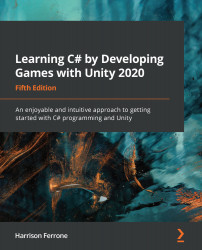
Learning C# by Developing Games with Unity 2020 - Fifth Edition

By : Harrison Ferrone
4.5 (39)
close
close
Learning C# by Developing Games with Unity 2020

Learning C# by Developing Games with Unity 2020

4.5 (39)
By: Harrison Ferrone

Overview of this book

Over the years, the Learning C# by Developing Games with Unity series has established itself as a popular choice for getting up to speed with C#, a powerful and versatile programming language that can be applied in a wide array of application areas. This book presents a clear path for learning C# programming from the ground up without complex jargon or unclear programming logic, all while building a simple game with Unity. This fifth edition has been updated to introduce modern C# features with the latest version of the Unity game engine, and a new chapter has been added on intermediate collection types. Starting with the basics of software programming and the C# language, you’ll learn the core concepts of programming in C#, including variables, classes, and object-oriented programming. Once you’ve got to grips with C# programming, you’ll enter the world of Unity game development and discover how you can create C# scripts for simple game mechanics. Throughout the book, you’ll gain hands-on experience with programming best practices to help you take your Unity and C# skills to the next level. By the end of this book, you’ll be able to leverage the C# language to build your own real-world Unity game development projects.
Table of Contents (16 chapters)
close
close

Time for action  creating a game manager

Game manager classes will be a constant facet of any project you develop in the future, so let's learn how to properly create one, as follows:

  1. Create a new C# script in the Scripts folder and name it GameBehavior.
Usually, this script would be named GameManager, but Unity reserves that name for its uses. If you ever create a script and a cogwheel icon shows up next to its name instead of the C# file icon, that tells you it's restricted.
  1. Create a new empty game object in the Hierarchy by using Create | Create Emptyand name it GameManager.
  2. Attach GameBehavior.cs to the GameManager object, as illustrated in the following screenshot:

Manager scripts, and other non-game files, are set up on empty objects to put them in the scene, even though they don't interact with the actual 3D space. 
  1. Add the following code to GameBehavior:
public class...
CONTINUE READING
83
Tech Concepts
36
Programming languages
73
Tech Tools
Icon Unlimited access to the largest independent learning library in tech of over 8,000 expert-authored tech books and videos.
Icon Innovative learning tools, including AI book assistants, code context explainers, and text-to-speech.
Icon 50+ new titles added per month and exclusive early access to books as they are being written.
Learning C# by Developing Games with Unity 2020
notes
bookmark Notes and Bookmarks search Search in title playlist Add to playlist download Download options font-size Font size

Change the font size

margin-width Margin width

Change margin width

day-mode Day/Sepia/Night Modes

Change background colour

Close icon Search
Country selected

Close icon Your notes and bookmarks

Confirmation

Modal Close icon
claim successful

Buy this book with your credits?

Modal Close icon
Are you sure you want to buy this book with one of your credits?
Close
YES, BUY

Submit Your Feedback

Modal Close icon
Modal Close icon
Modal Close icon